 GB
GBIT Infrastructure & Data Protection Expert
 SB
SBTechnical Marketing Writer
Most people manage their Ootbi(s) through its web interface, and for good reason: it's simple and quick. But every Ootbi also has a complete REST API, and it gets far less attention than the UI.
According to Geoff Burke, Senior Technology Advisor, that's a missed opportunity. The API unlocks automation, integrations with the tools you already use, and is a way to manage Ootbi at scale that clicking through screens can't match. There are many other functionalities that can be performed in the UI, such as creating users, checking cluster health, reviewing events, or listing buckets; you can also do these programmatically.
In this guide, Geoff Burke will explain what the Ootbi REST API is and why it matters. Then he’ll demonstrate how you can connect to a free, open-source API client to Ootbi and make your first API calls.
The role of REST APIs in today's IT operations
Beyond the web interface
The web interface is built for one person managing one system. That works until the work grows. Suppose you need to create 15 user accounts, check update status on every appliance each morning, or run the same report every week for an auditor. Now the UI has become a series of repetitive clicks.
A REST API lets another program do that work for you. Your script or application sends a request to Ootbi, which returns structured data, and then you decide what happens next. This eliminates the need to click and copy values from screens, cutting down manual entry errors.
The calls don't have to come from the appliance, either. They can come from a laptop, a central management server, or any system on your network that can reach the Ootbi cluster.
Common reasons customers use APIs
-
Operational efficiency: Automate the repetitive tasks that eat up administrators' time.
-
Testing functionality: Check changes and new workflows in a lab cluster before rolling them out to production.
-
Integration with existing tools: Feed Ootbi data into the monitoring, ticketing, and security platforms you already use.
-
Reporting and compliance: Pull user lists, access keys, and event data on demand, in a consistent format.
-
Multi-system orchestration: Large organizations and service providers often build one internal application that pulls together the APIs of every product they run, hardware and software.
Real-world Ootbi API use cases
Automating administrative tasks at scale
-
User management: The API has the same user-creation options as the UI, including the same roles. The difference is that you can create users programmatically, for example from your identity management process, rather than one at a time.
-
Health checks: Requests for cluster and node information return detailed data, including the Ootbi services running on the cluster and their versions.
-
Configuration validation: A bucket listing shows settings such as whether versioning is enabled. Versioning is on by default, but a scheduled check can confirm nobody has turned it off.
-
Cluster administration: Retrieve cluster settings, license information, and the cluster certificate without manually exporting anything from the UI.
One example stands out: the API can return currently available updates for a cluster or for individual nodes. If your organization runs a central update-tracking system, you can connect Ootbi to it. It will report its current version and any available updates alongside everything else in your environment. That matters more than ever: attackers now turn newly disclosed vulnerabilities into working exploits faster than ever, so any unpatched system is a target.
Monitoring and alerting integrations
Ootbi's events endpoint returns each event with its ID, source, severity, and details, all as structured JSON. That makes the data easy to send to platforms such as:
-
Splunk or another SIEM, for security visibility
-
PagerDuty, for alerting on high-severity events
-
ServiceNow, for creating tickets automatically
-
Grafana, for dashboards
Together, these make Ootbi part of a single-pane-of-glass view of your infrastructure rather than a separate console to check.
Compliance and audit reporting
-
Collecting audit data: Pull lists of management users and their roles, active sessions, and access keys, including when each key was last issued.
-
Generating compliance reports: Run the same calls on a schedule and produce consistent reports without screenshots or manual exports.
-
Supporting regulated environments: When an auditor asks who has access to your backup storage and at what level, you can answer with data pulled directly from the system.
Access key visibility matters even in small environments. In a busy lab where many people create keys, a single API call shows every key and when it was created, so cleanup is based on facts instead of guesswork.
MSP and multi-tenant management
Service providers manage many products across many customers. A common approach is to build one internal application on top of every vendor's API. From that application, the team can create accounts, provision storage buckets, and gather information without logging into each system separately.
-
Managing multiple customer deployments: Query each customer's Ootbi from one central tool.
-
Building custom management portals: Build tailored views, for example a portal for junior administrators that exposes only certain functions.
-
Reducing operational overhead: Standardize provisioning and reporting across every deployment.
Exploring the Ootbi API with Swagger
Accessing Swagger
Every Ootbi includes built-in API documentation powered by Swagger, a tool that presents an API as an interactive web page. There's nothing hidden about it. Anyone with an Ootbi can open it by adding /swagger/index.html to the cluster address:
https://<your-Ootbi-cluster-address>:8443/swagger/index.htmlSwagger landing page
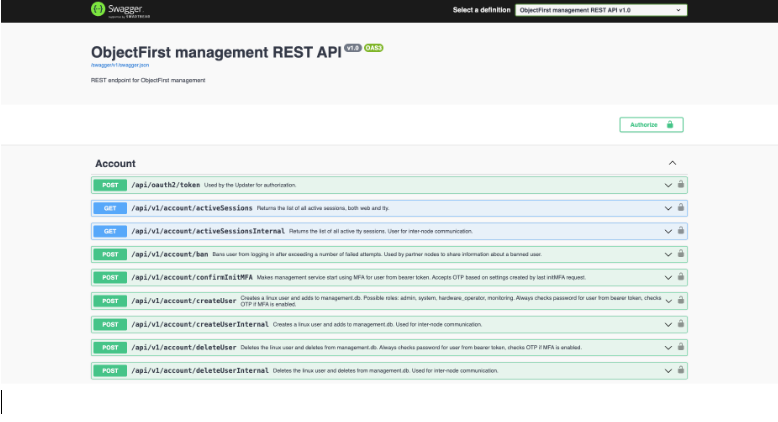
Swagger lists every available endpoint, grouped by area, including users, clusters, nodes, buckets, access keys, events, and updates. Each one is marked with its HTTP method:
-
GET retrieves information, such as a list of users.
-
POST sends information, such as the details of a new user.
For each endpoint, Swagger shows the request it expects and the response it returns. You can also click Try it out to run a request right from the browser.
Swagger also provides the full API definition as a single downloadable JSON file. Developers can search it, import it into other tools, or give it to an AI assistant to explore what they could build.
Example Swagger Json Link: https://192.168.0.172:8443/swagger/v1/swagger.json
Replace the example cluster ID with your own cluster’s IP address.

Challenges of browser-based API testing
Swagger is great for browsing, but less convenient for real work:
-
Authentication friction: Before running a request, you call the login endpoint with a username and password, copy the bearer token it returns, and paste it into Swagger's Authorize dialog.
-
Session management limitations: For security reasons, Ootbi tokens are short-lived. They expire quickly, and you must repeat the process, often in the middle of what you're doing.
-
Lack of reusable workflows: Swagger doesn't save your values or requests. Each session starts from scratch.
That's why we use a dedicated API client.
Working with the Ootbi API in an API client
You can use any API client to work with the Ootbi API. The steps below are general instructions for connecting an API client to Ootbi. Please note that menu names and options may vary by client, so check your client's documentation for details.
What an API client gives you when testing Ootbi
-
Saved authentication settings: Set up login once and reuse it for every request.
-
Automatic token refresh: A short script can grab a new token and renew it automatically, so short token lifetimes don't interrupt your work.
-
Collections and environments: Import the whole Ootbi API as a searchable collection and use environments to switch between lab and production clusters.
-
Faster testing: Change a value, click send, and see the result. No more copying tokens between tabs.
Common API clients
Here are three widely used API clients, listed in alphabetical order. They're examples, not recommendations. Choose the one that best fits your team's needs and security policies.
Bruno
Bruno is a lightweight, local-first API client for building and testing API requests. It's free and open source. Collections are saved as plain-text files on your own machine, so you can keep requests under version control in Git and share them through your existing repositories. Bruno imports OpenAPI (Swagger) files and supports environments, secret variables, and scripting.
Insomnia
Developed by Kong, Insomnia is a cross-platform API client known for its clean, intuitive interface. Like Bruno, it's free and open source. It handles many protocols, including REST, GraphQL, gRPC, and WebSockets, and you can store projects locally, sync them with Git, or store them in the cloud. Insomnia also imports OpenAPI (Swagger) files and adds plugins for custom workflows.
Postman
As one of the most widely adopted API platforms, Postman gives teams a single place to design, test, document, and monitor APIs. It's free to download for macOS, Windows, and Linux, and it also runs in a web browser. Postman supports OpenAPI (Swagger) imports, environments, pre-request and test scripts, and automated collection runs. Its shared workspaces make team collaboration easy.
Connecting your API client to Ootbi
Step 1: Install an API client
Each client will have its own authentication process, which should be able to import the Swagger JSON file.
Step 2: Test connectivity
Run a simple request, such as the one that returns active sessions. A 200-status code means Ootbi accepts your token and the connection works. The response lists the current sessions on the cluster, including your own.
Running your first Ootbi API calls
Example 1: Retrieve cluster information
Send the Get general information about clusters request. The response is detailed: along with the cluster and node details, it lists the Ootbi services running on the cluster and their versions, information you won't find in one place in the UI.
Example 2: Check for available updates
Send the currently available updates request using your cluster Id. The response shows your current version and any available version.
In practice, a central update-monitoring tool would run this call on a schedule, save the current version, and flag when an update becomes available. There's also a per-node version of this request, which helps spot a node that has fallen behind in a multi-node cluster.
Example 3: Pull users and event data
For a compliance-focused example, try two requests:
-
Returns list of management users: Returns every management user with their role and access level. Create a new read-only (Monitoring role) user in the UI, run the request again, and the new user appears immediately, a quick way to see that the API and UI show the same data.
-
Events: Returns events with their ID, source, severity, and details. This is the same information you'd get from syslog, but as structured JSON that needs no parsing. It's ready to go into a SIEM or reporting tool.
Taking it further: building integrations
Exporting Ootbi data to a SIEM
Your security team wants backup infrastructure events alongside everything else. A simple workflow:
- A script on your collector server authenticates Ootbi and requests events on a schedule.
- It keeps only new events since the last run.
- It forwards them to your SIEM, where they can be correlated, searched, and alerted on.
Creating automated reports
The same approach powers scheduled reporting. Pull users, access keys, buckets (including versioning status), and license information weekly, and turn the results into a consistent report or a dashboard your team checks every day.
Integrating with existing IT workflows
-
Ticketing systems: Open a ticket automatically when a high-severity event appears, or an update becomes available.
-
Monitoring platforms: Add Ootbi health and capacity data to the dashboards your operations team already uses.
-
Internal tools: Build Ootbi into your provisioning portal, for example to create users or buckets as part of onboarding a new team or customer.
With AI coding assistants, building these small integrations is easier than ever, even if you don't consider yourself a developer.
Conclusion
The Ootbi REST API extends Ootbi well beyond the web interface. It's built into every appliance, documented through Swagger, and available to anyone who owns an Ootbi. Ensure that you choose an API client that is easy to explore, test, and eventually automate API-driven workflows.
Whether you're an IT administrator, a developer, an MSP, or a security team, the Ootbi API can help you streamline operations, improve visibility, and build your backup infrastructure into your existing enterprise processes. Open Swagger on your cluster and see what you can build.