- /
- Object First User Guide
- /
- Configuring Veeam Backup and Replication v13 with Object First
- /
- Object First Appliance as a Primary Backup Repository for Veeam Backup & Replication v13
- /
- Configure the S3 Storage-based repository for Veeam Backup & Replication v13
Configure the S3 Storage-based repository for Veeam Backup & Replication v13
After the S3 bucket is created, it must be configured as a backup repository in Veeam Backup & Replication for VM backups and restores.
-
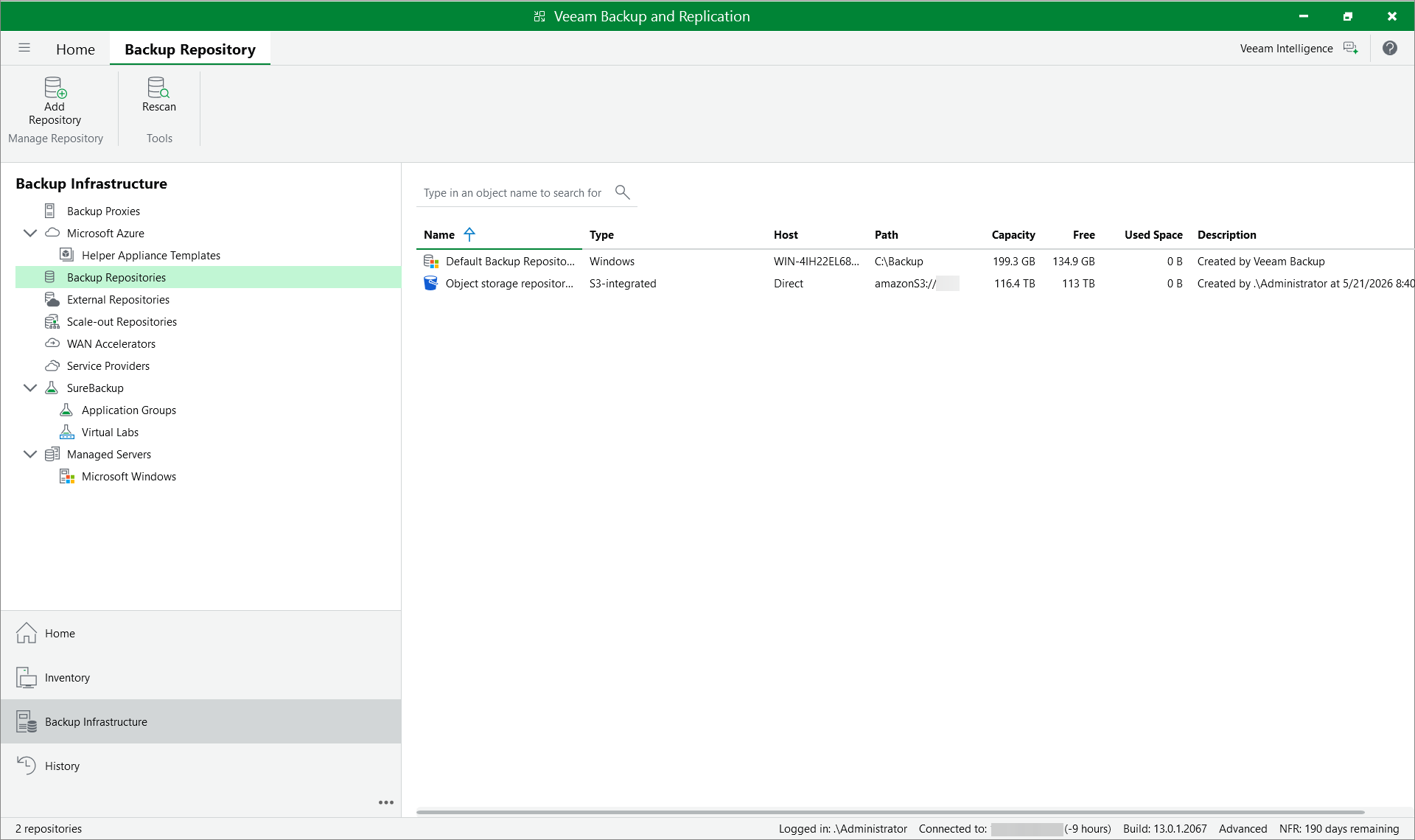
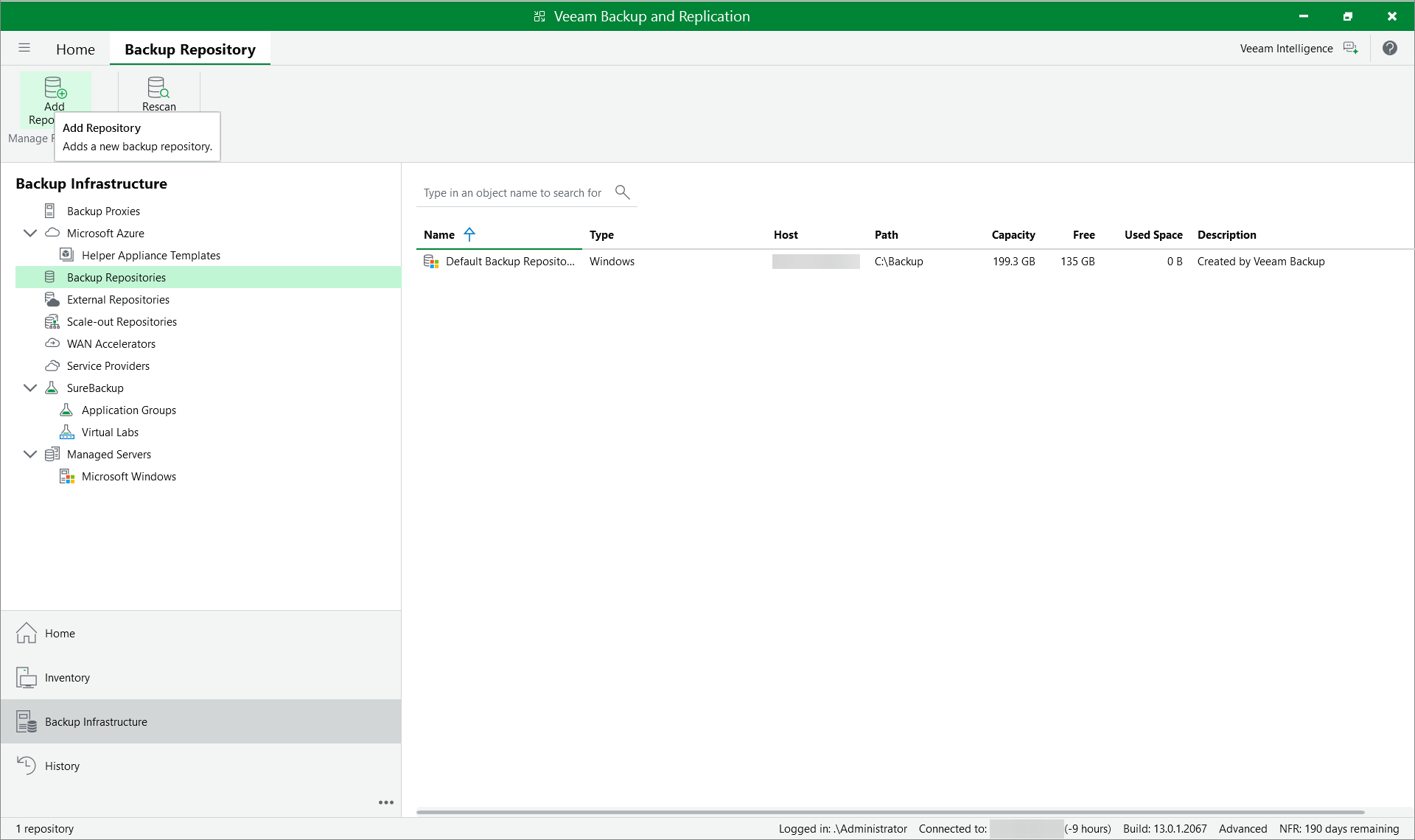
Open Veeam Backup & Replication and navigate to Backup Infrastructure view. Press Add Repository.
-
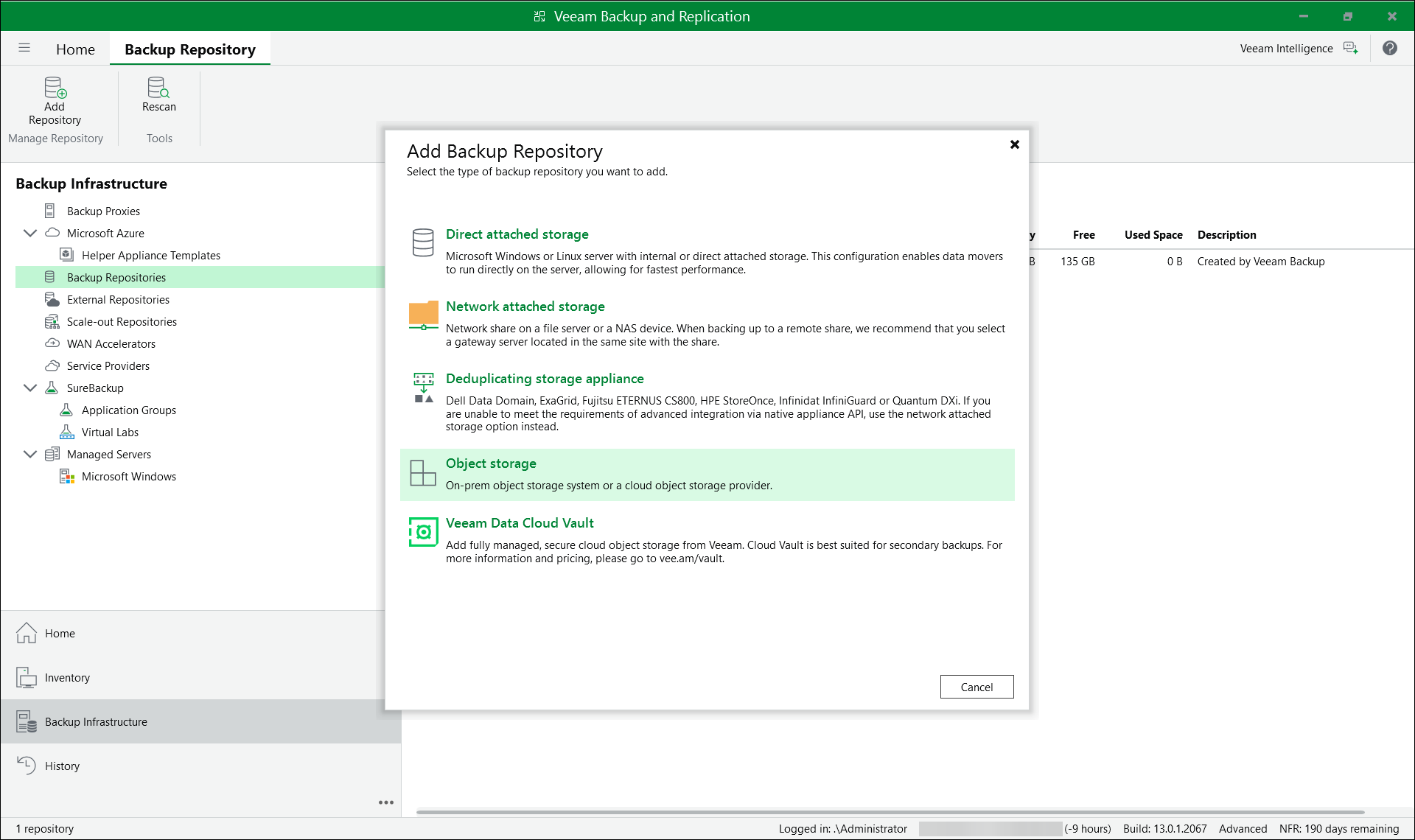
Press Add Backup Repository and select Object Storage.
-
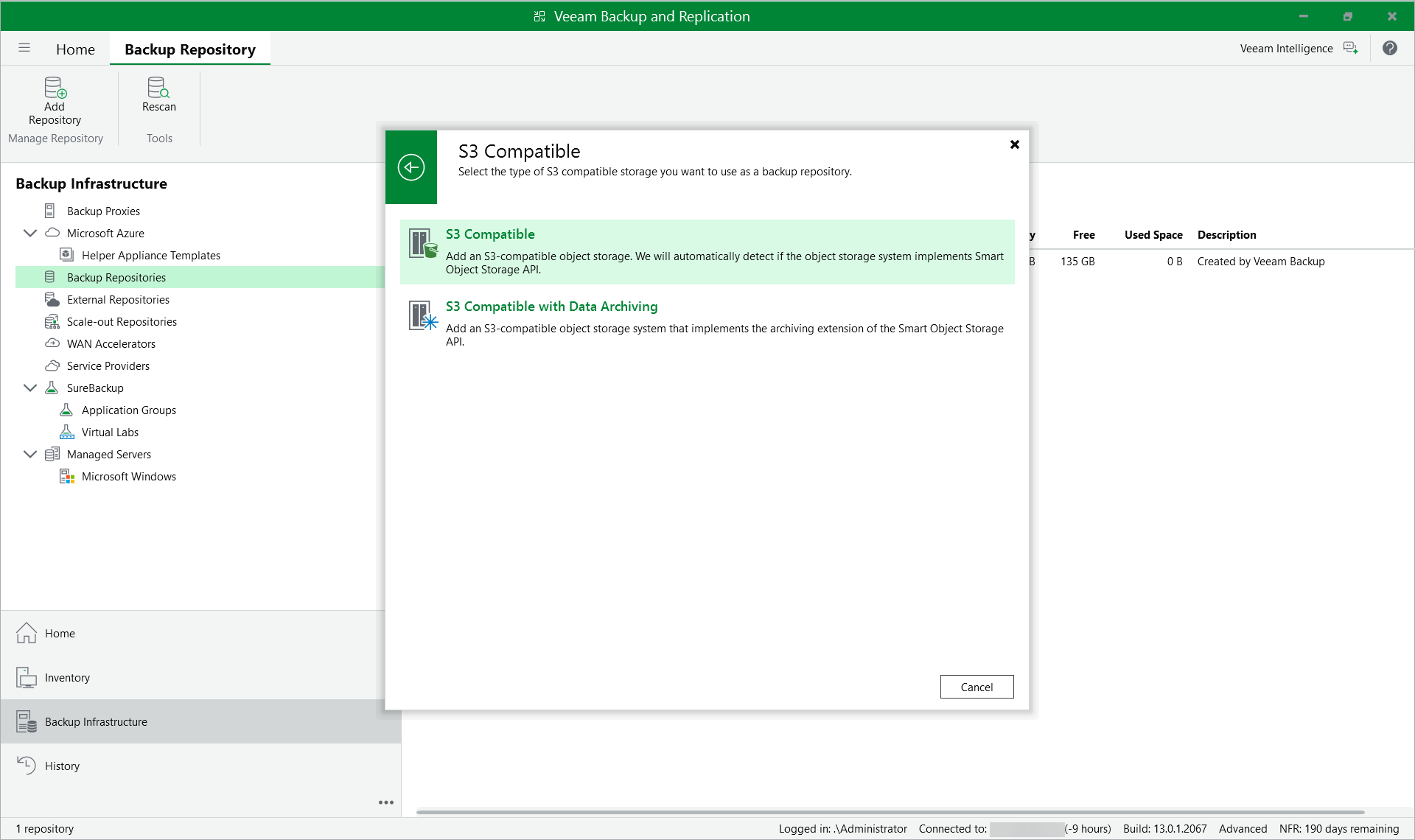
Select S3 Compatible as the object storage type.
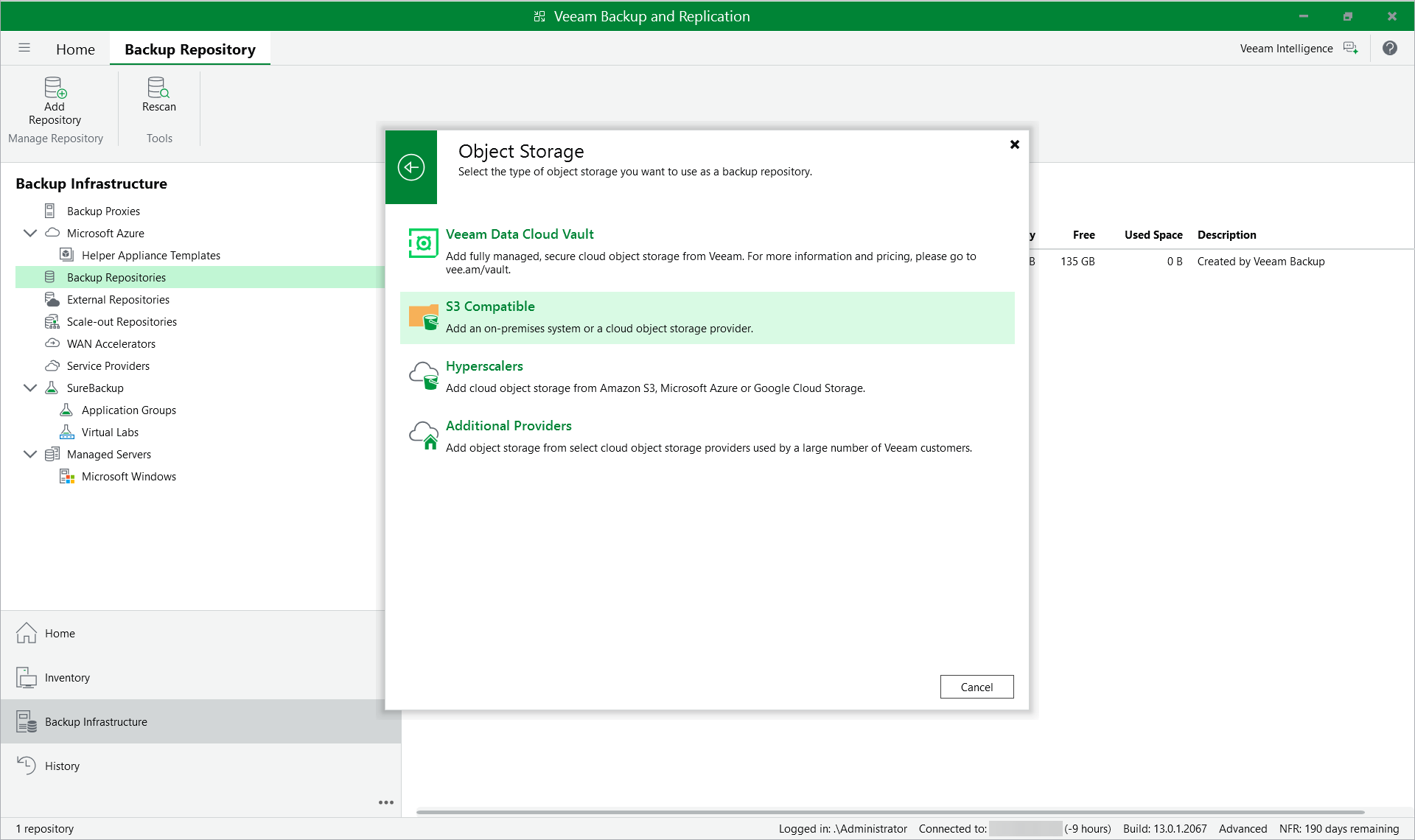
- Select S3 Compatible as the S3-compatible storage type.
-
Type the name and description for the new object storage repository.
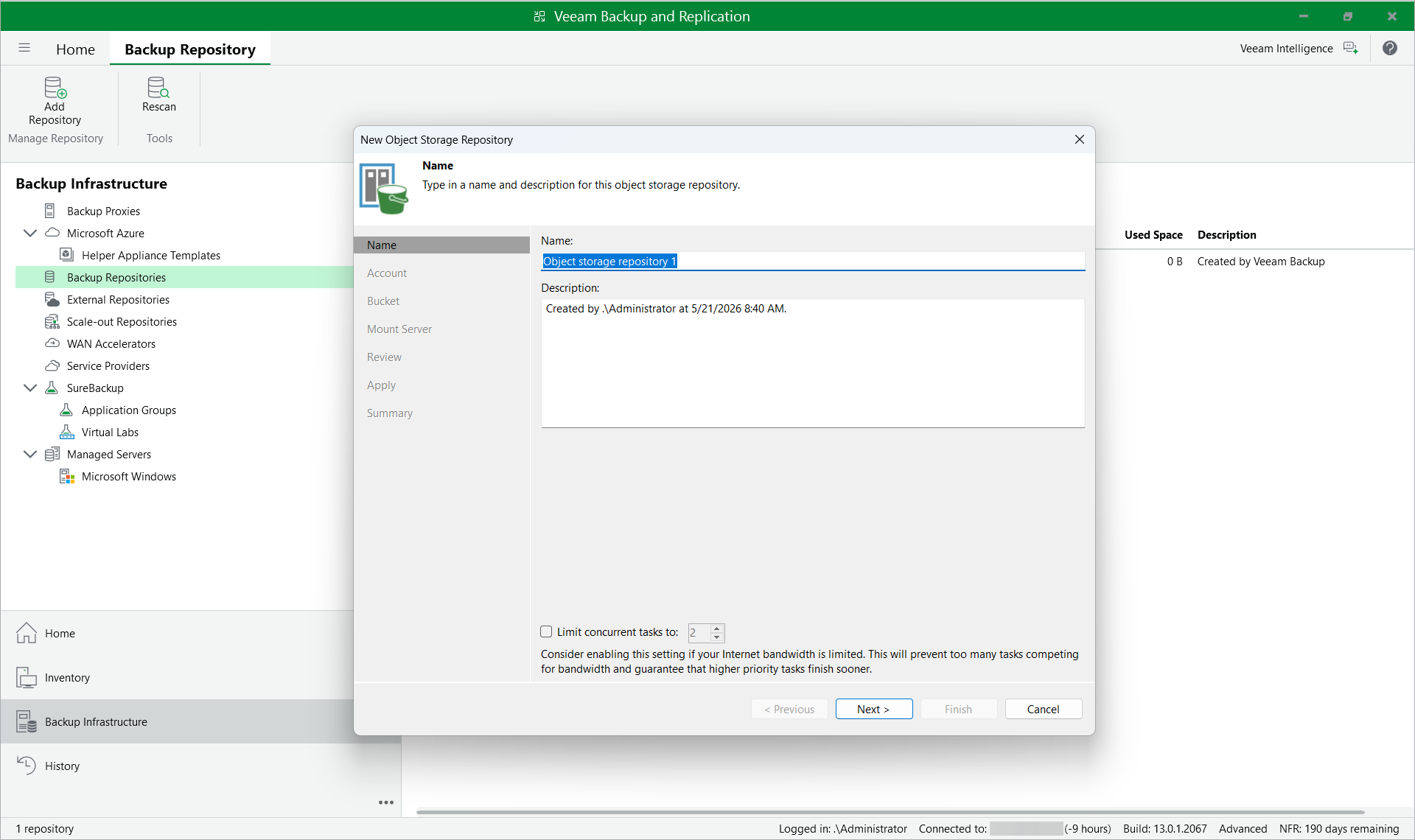 NOTE: Limit concurrent tasks value to 4. For on-premises storage, increasing the number of concurrent tasks does not improve performance. It might though cause resource overhead as more connections result in more resources involved in the data processing. Four connections do not cause overhead yet and grant optimal performance.
 -
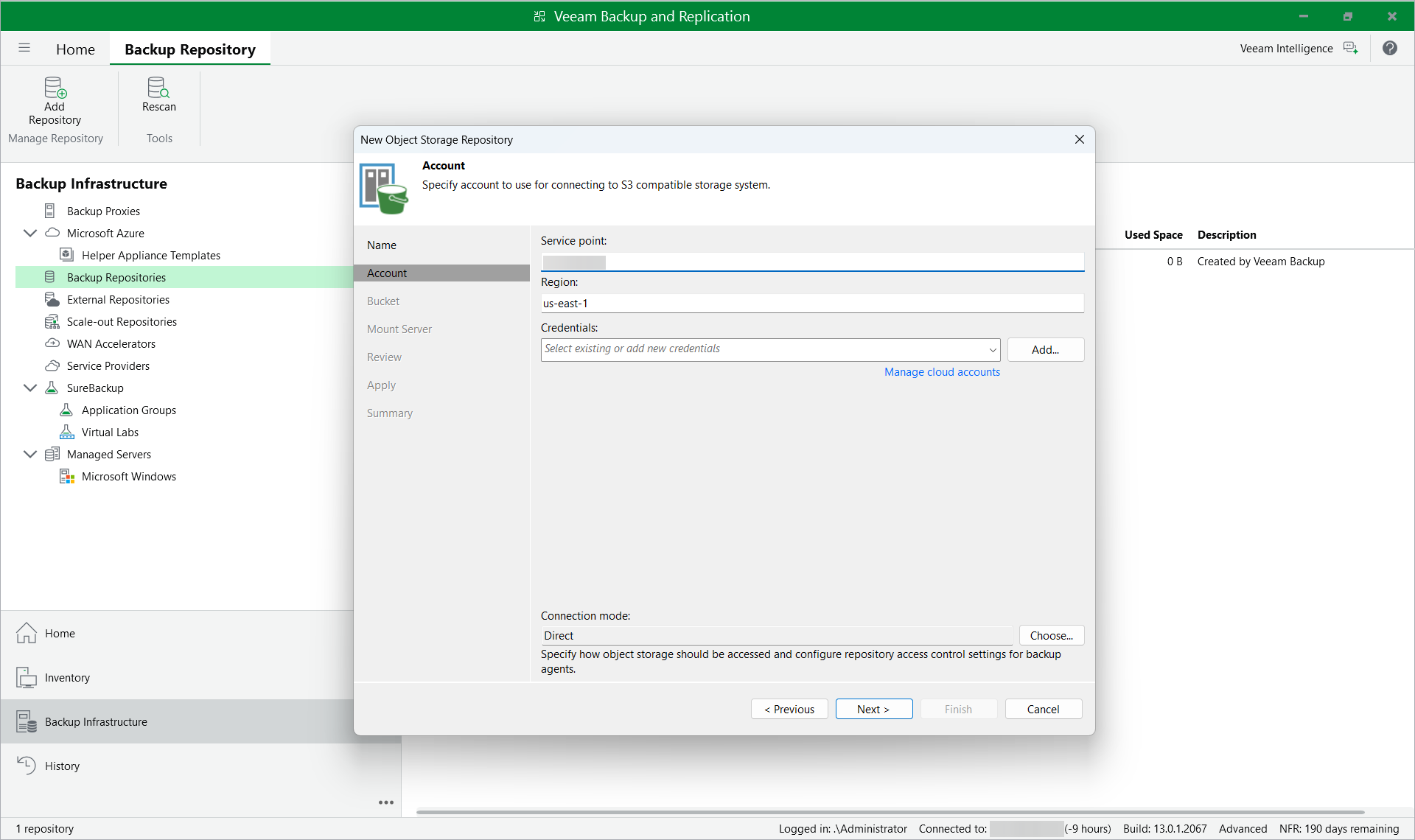
Type the management IP address of the Object First Ootbi appliance or the cluster in the Service point field. The Region is filled in automatically once the service point is specified.
-
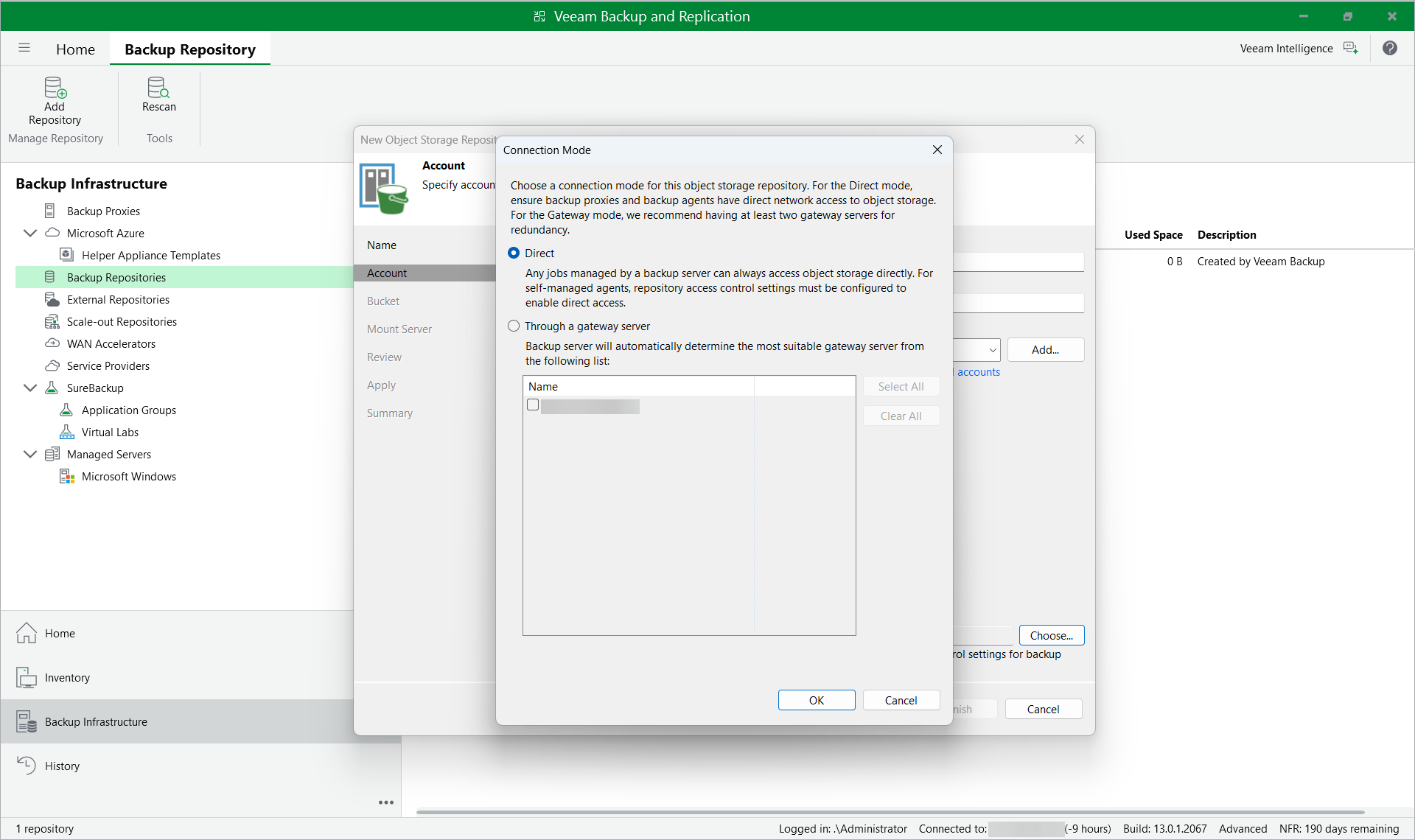
Set up connection mode if the networking implies the gateway.
-
Click Add… to add new credentials.
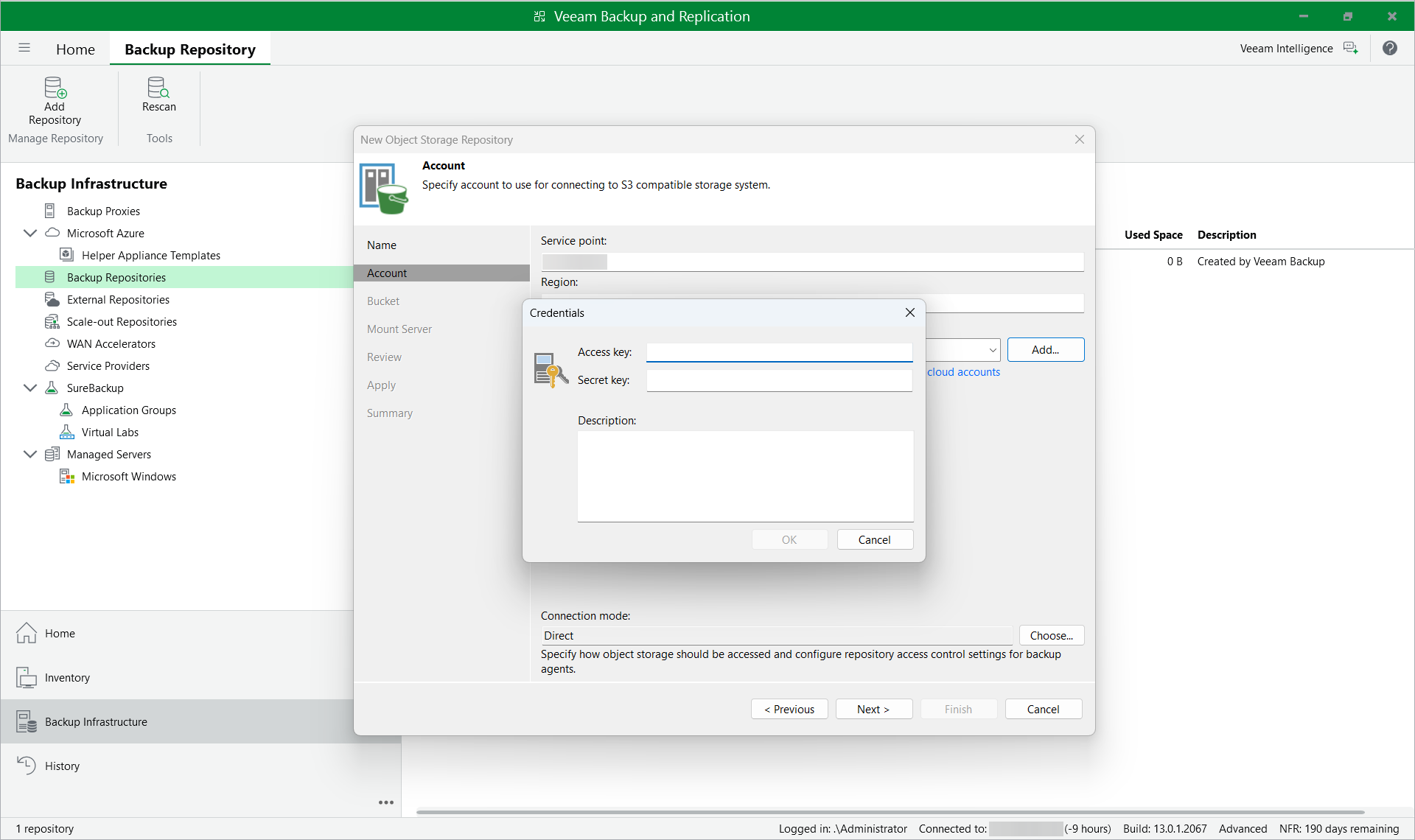 NOTE: Provide an access key ID and secret access key.See more at Generating an S3 Access Key.
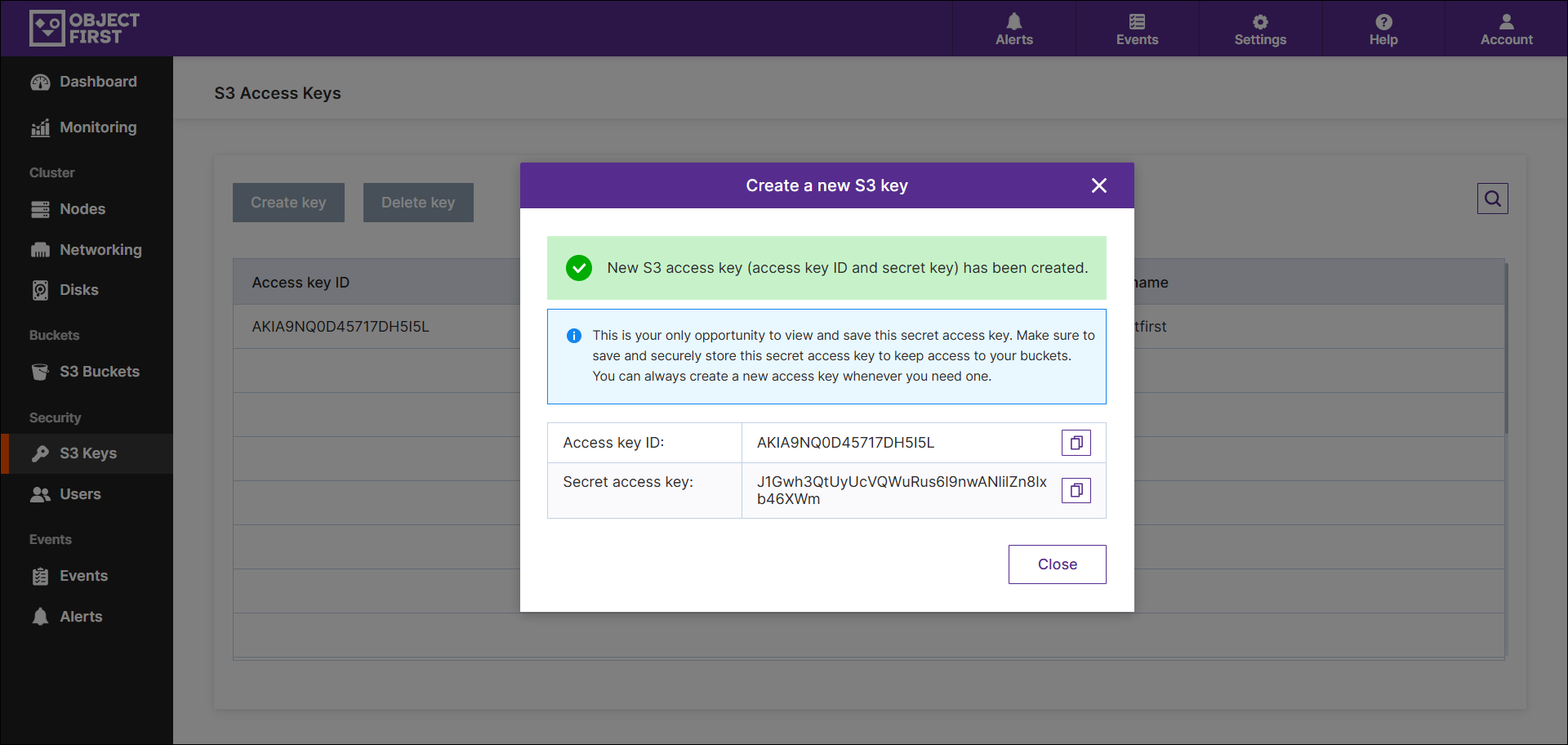 NOTE: If you don't have the access key details, you will need to create a new one and save it in a secure place. Key details are only visible during the key creation process.
 -
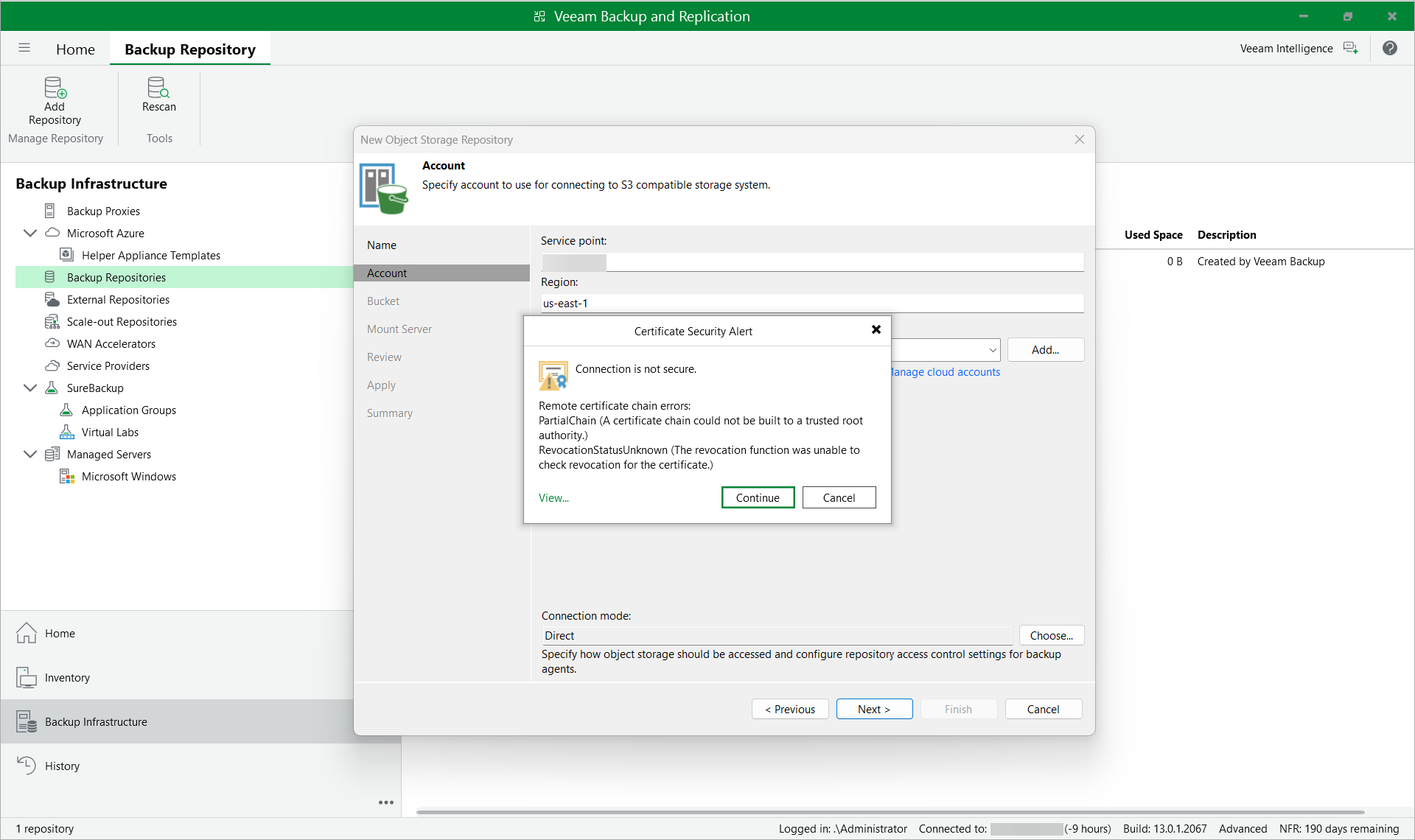
In the Certificate Security Alert window, press Continue and then press Next.
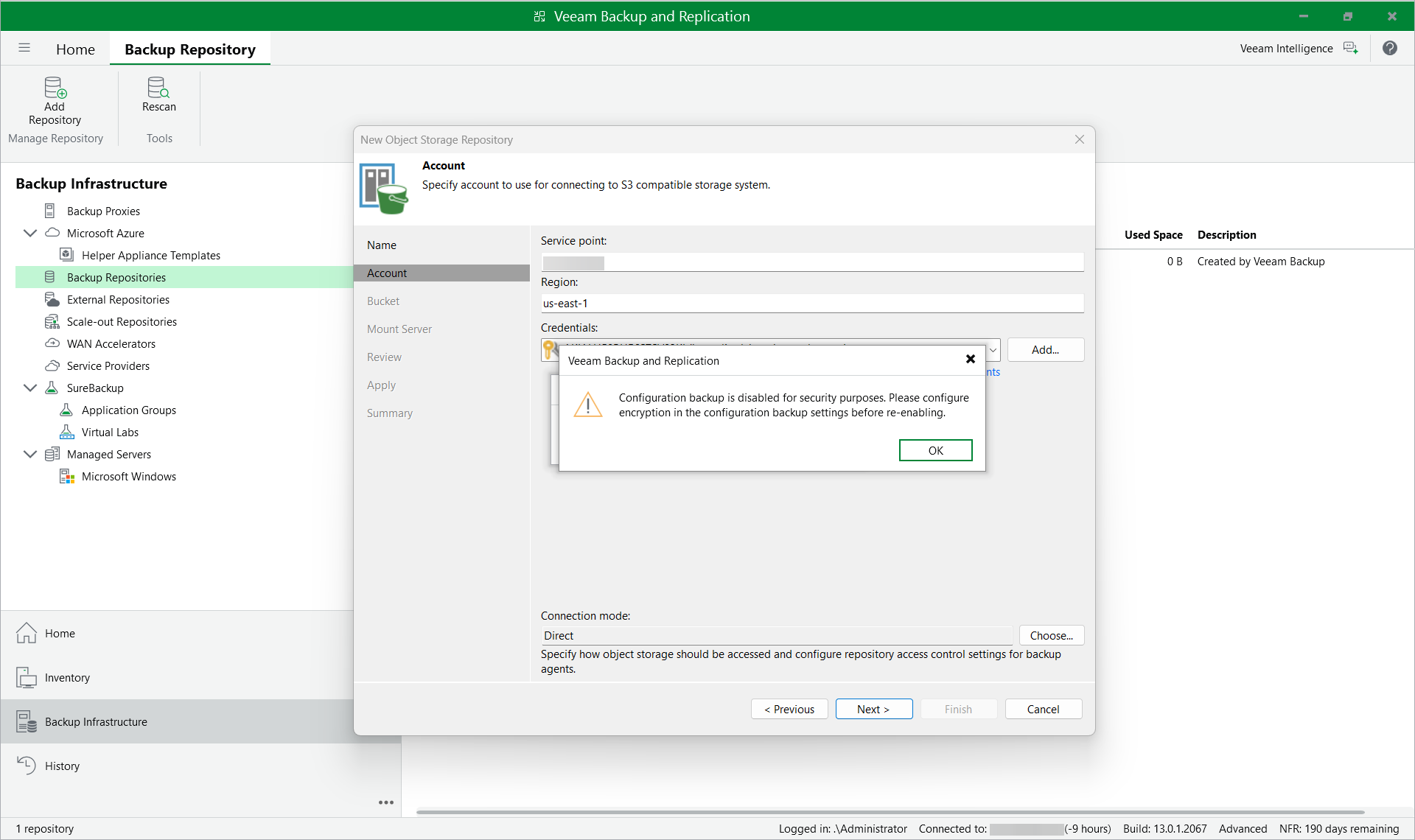
- If the configuration backup wasn't configured, you may receive the following warning. Press OK.
- Press Browse for the Bucket section.
NOTE: The bucket is to be created first. For more information, see Creating S3 bucket.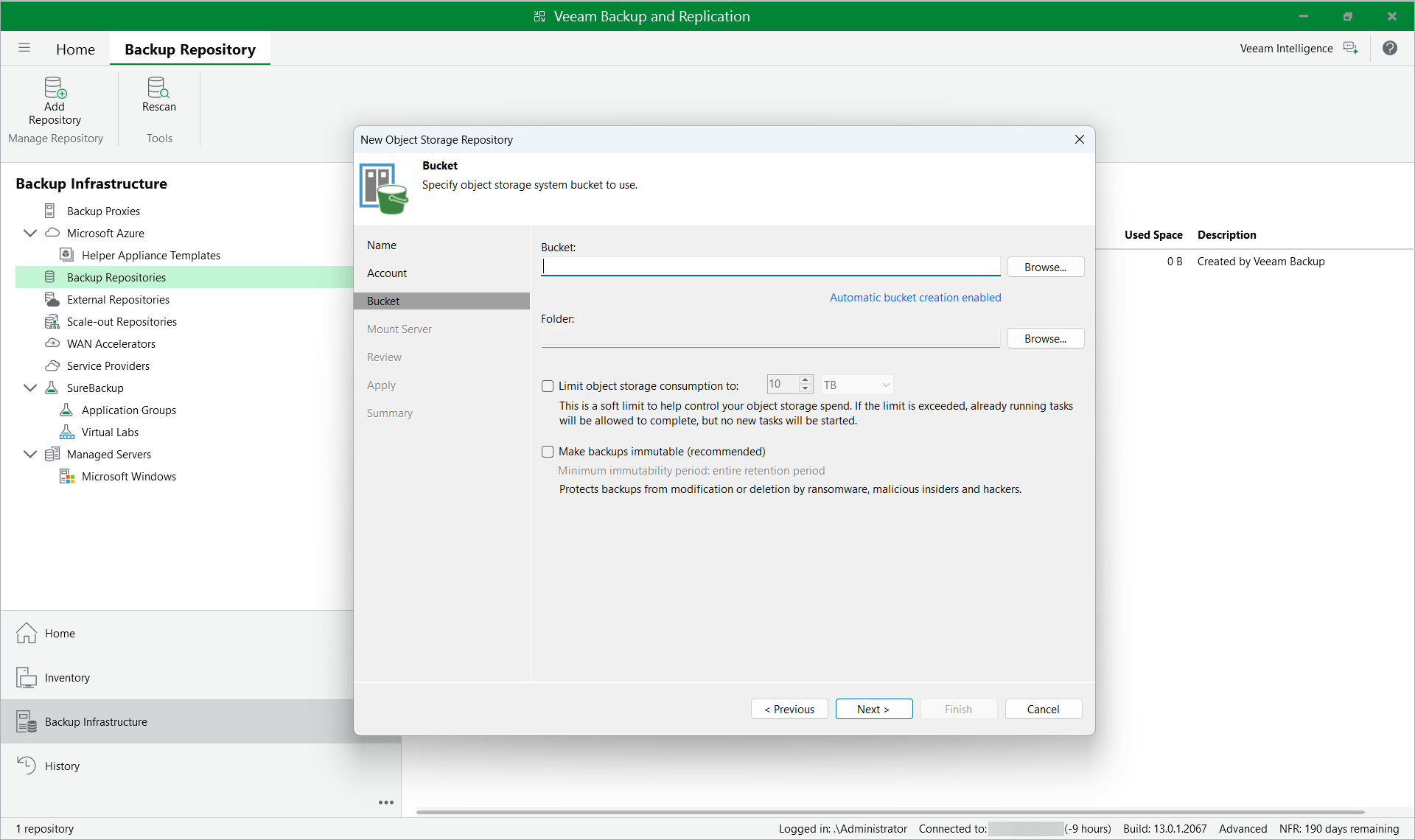
-
Select Ootbi bucket and click OK.
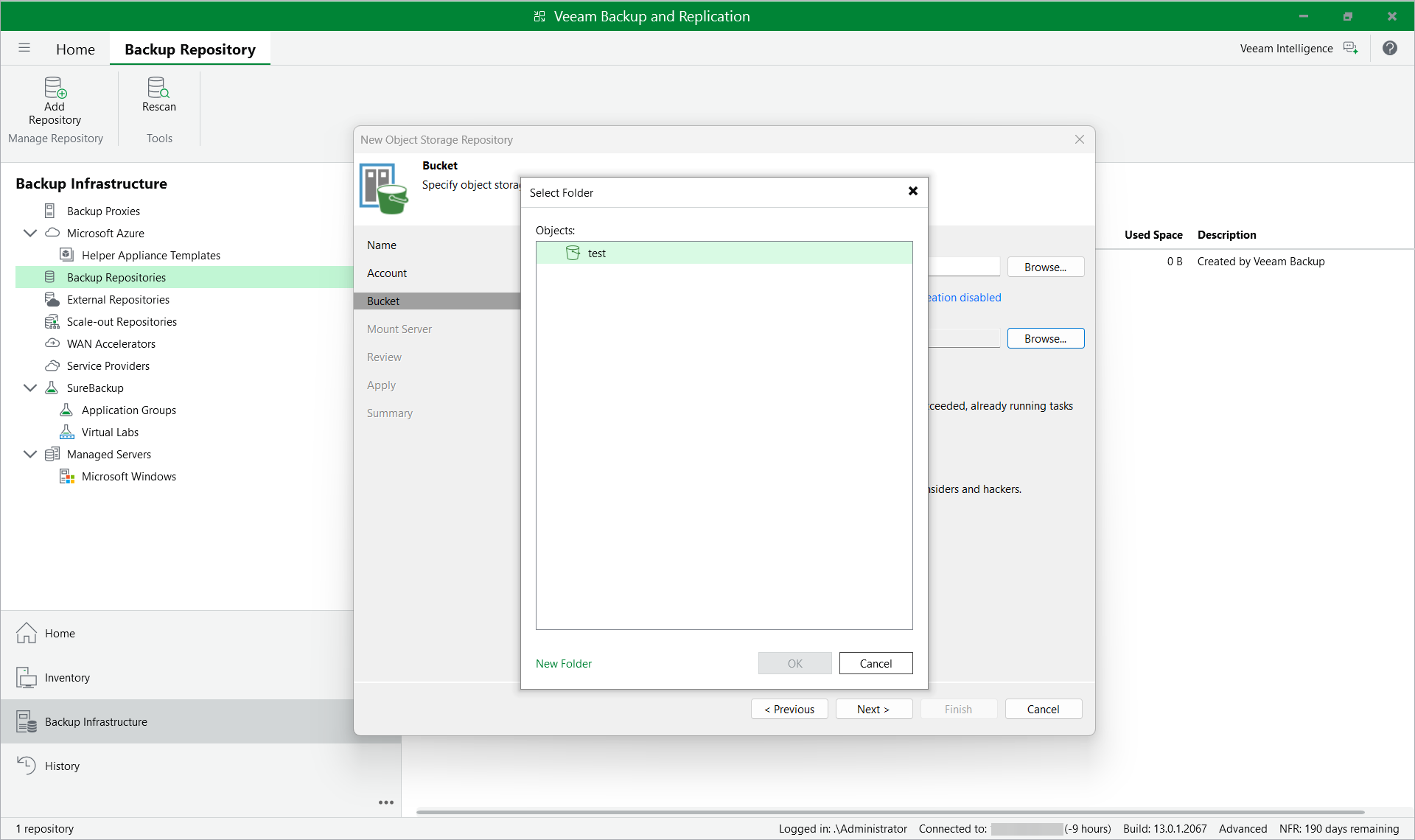
- Disable Automatic bucket creation.
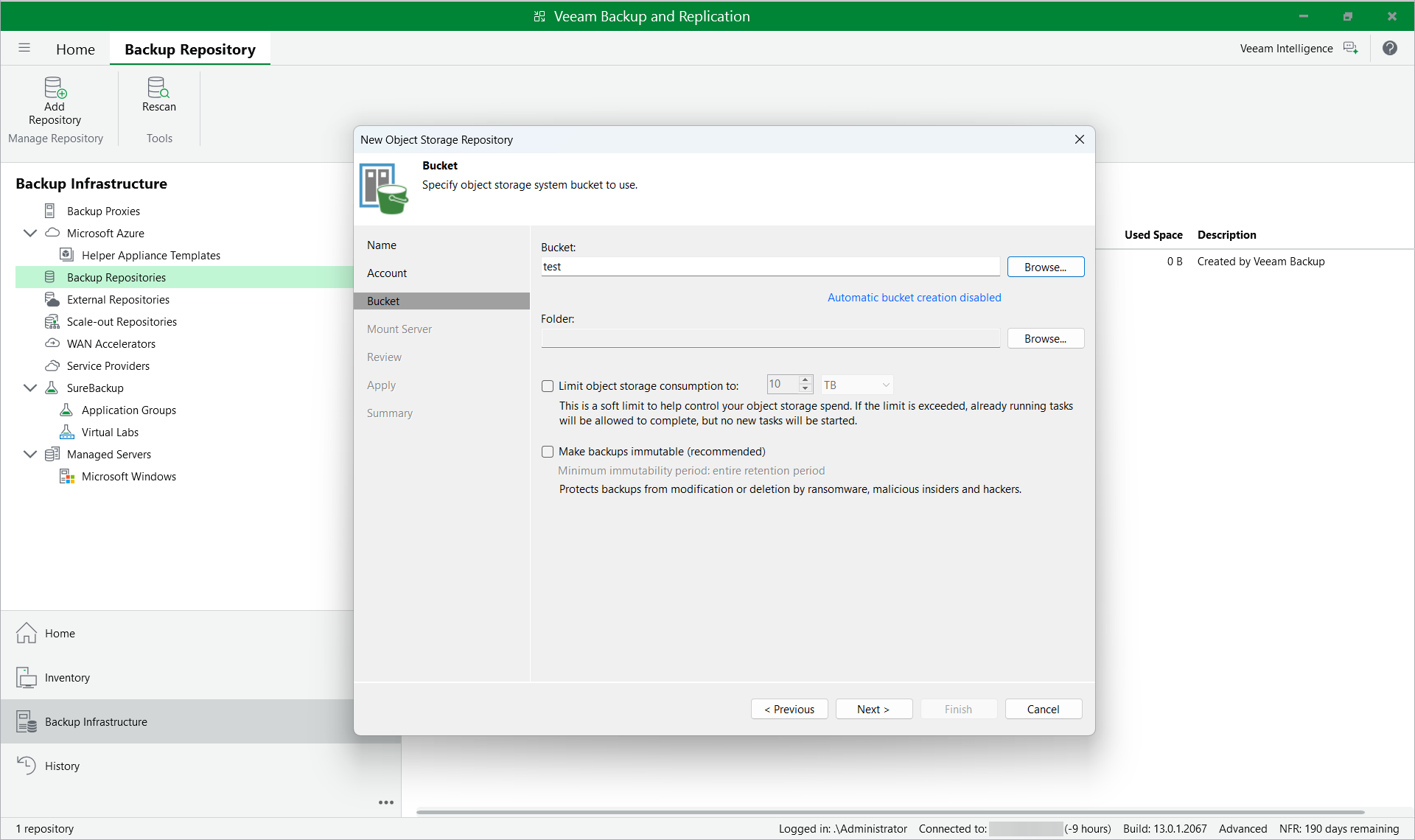
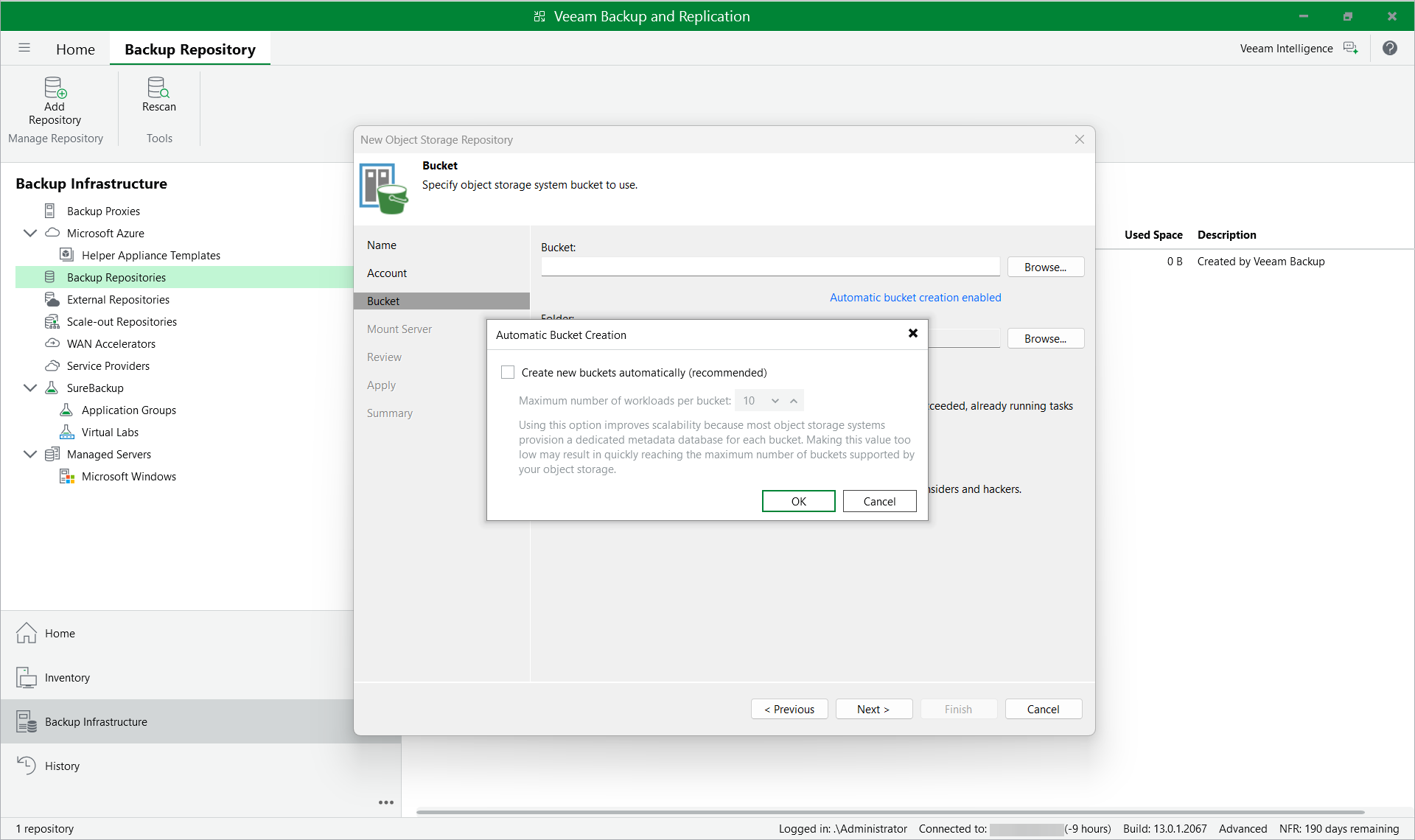
-
Press Browse for the Folder section.
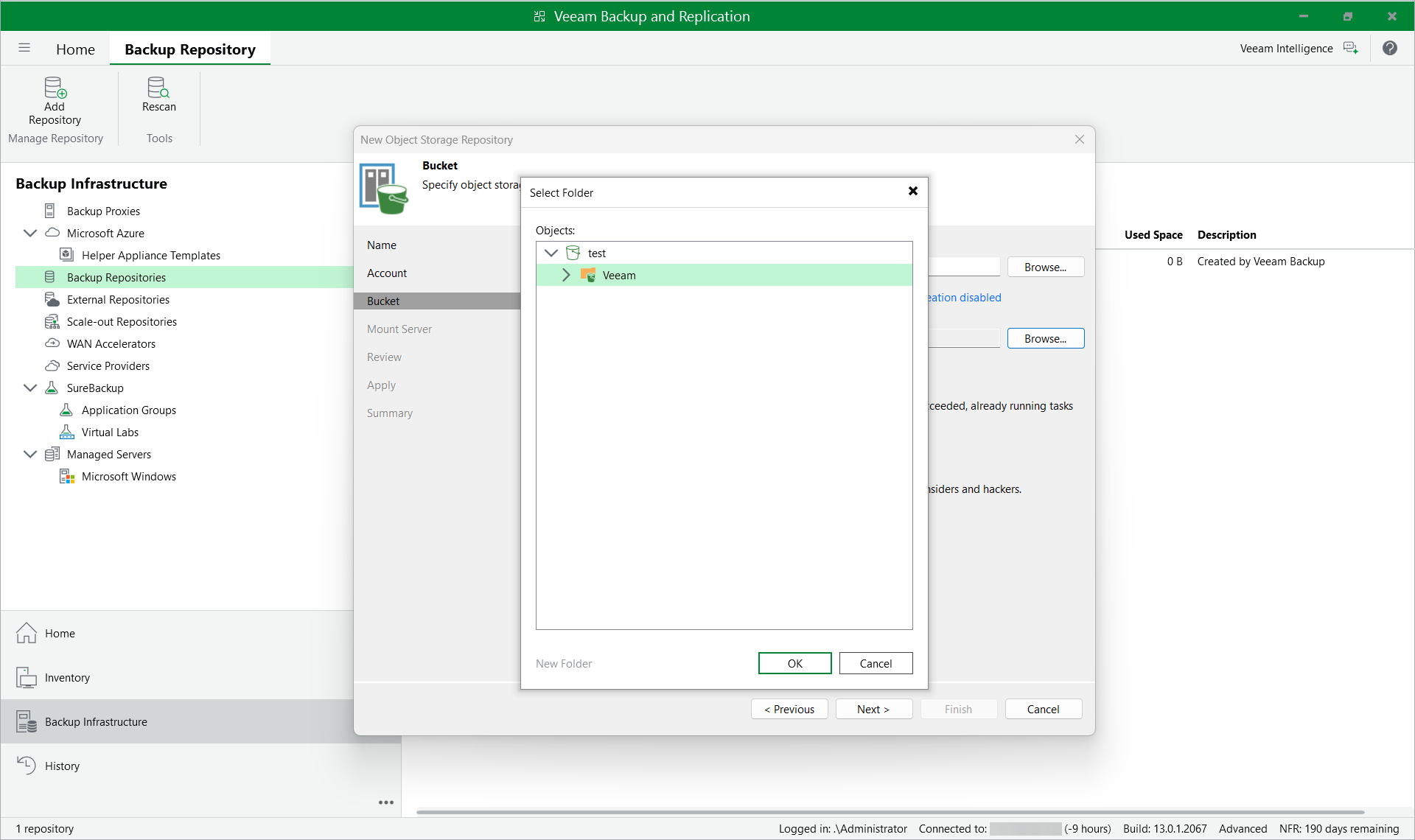 NOTE: If the bucket already contains folders, the folder selection will be available in the "Select Folder" view. If no folders are available in the bucket, you will need to select the "New Folder" option and create a new folder.
 -
Verify the settings and press Next.
NOTE: Enable the checkbox Make recent backups immutable if the bucket is immutable.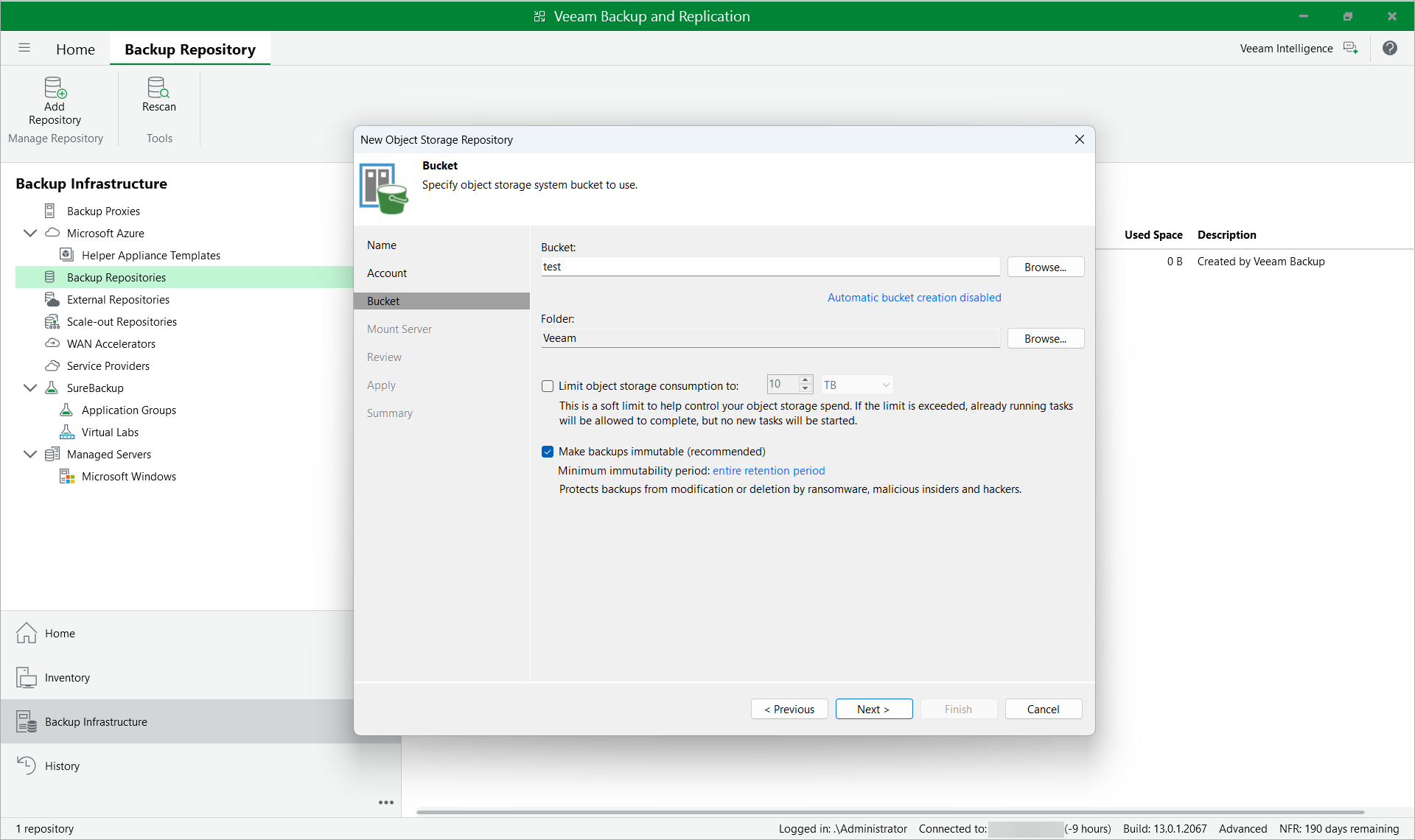
- Specify required immutability settings. For more information, see https://helpcenter.veeam.com/docs/vbr/userguide/hiw_immutability_os.html?ver=13
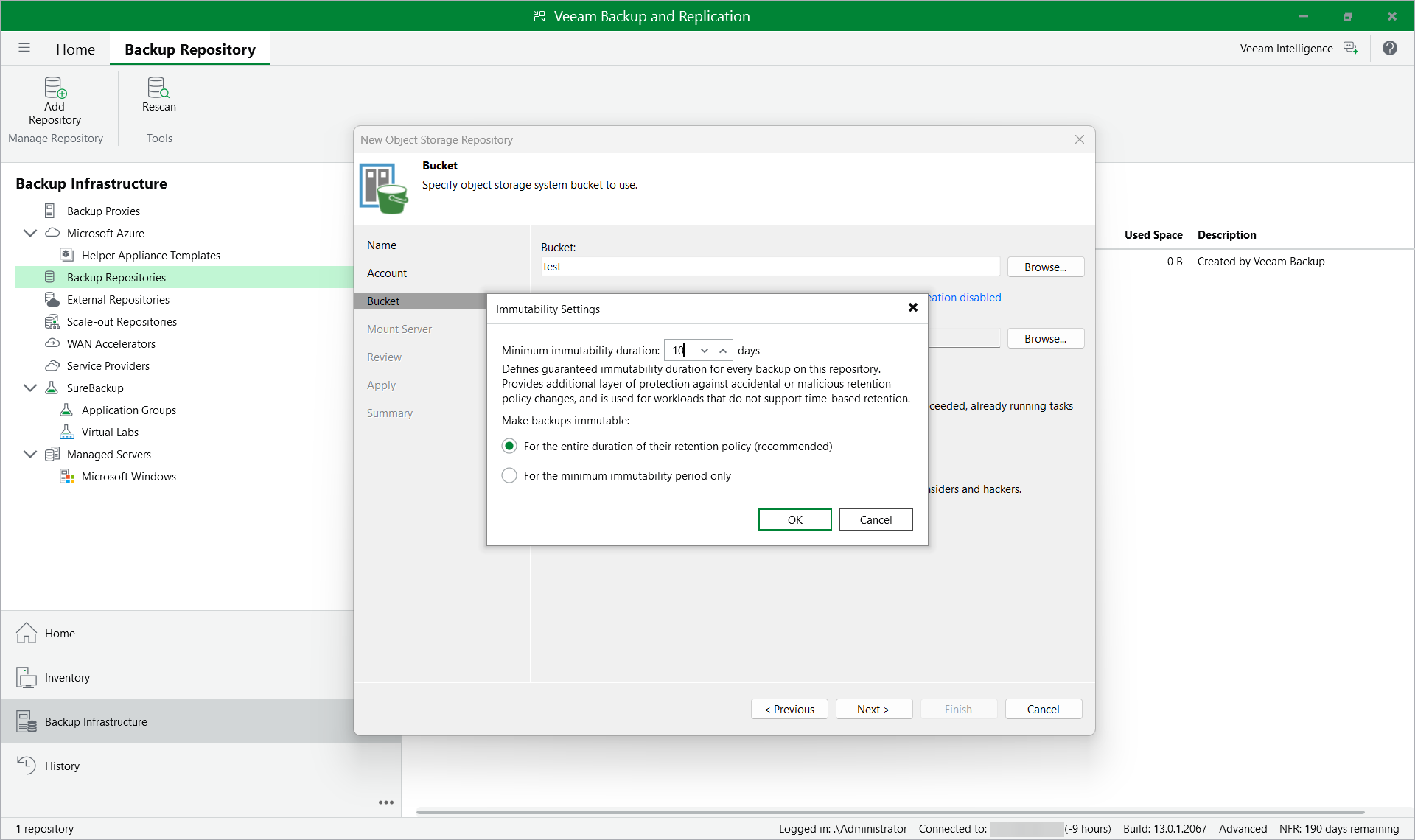
-
Select the mount server from the drop-down list and configure its settings if required.
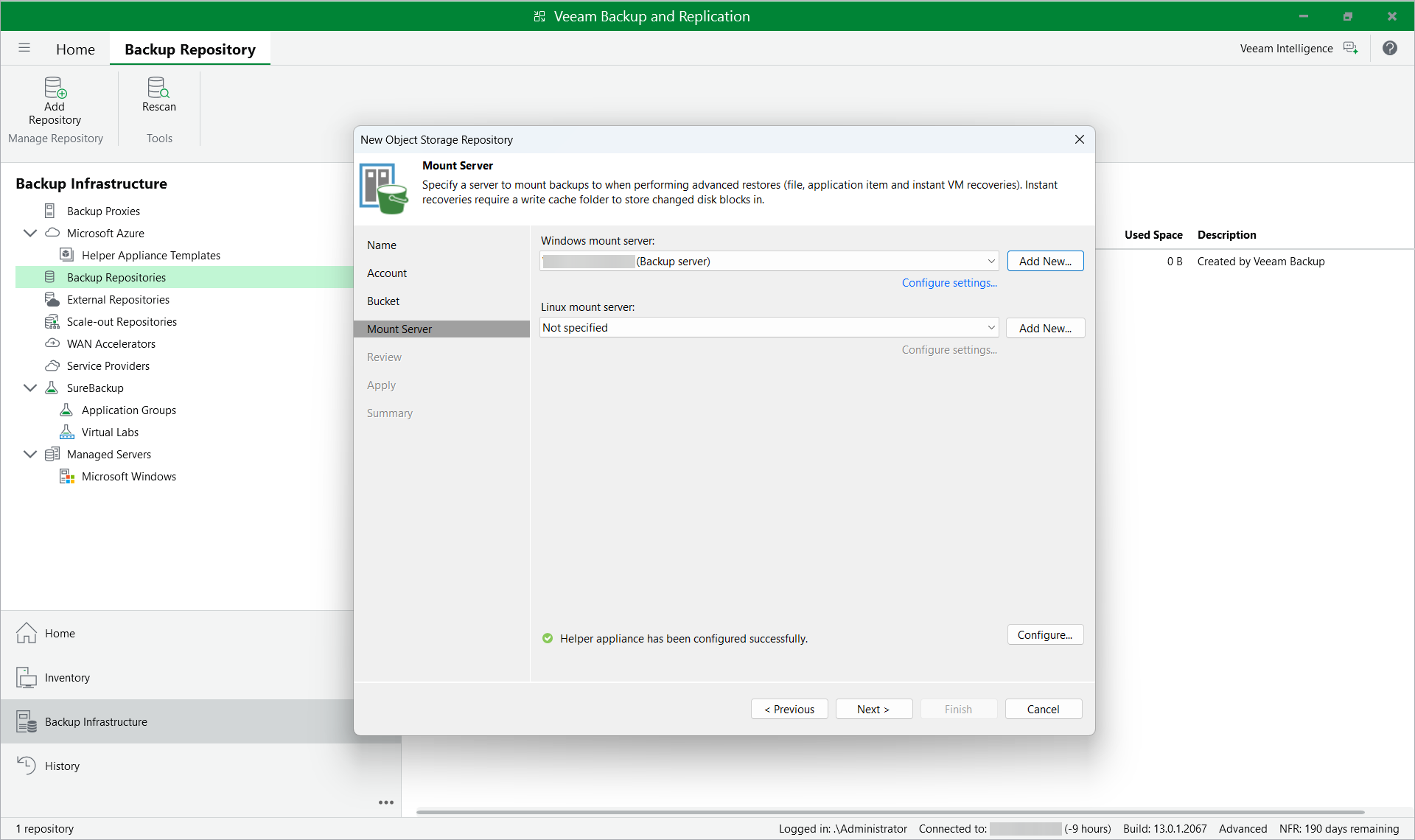
-
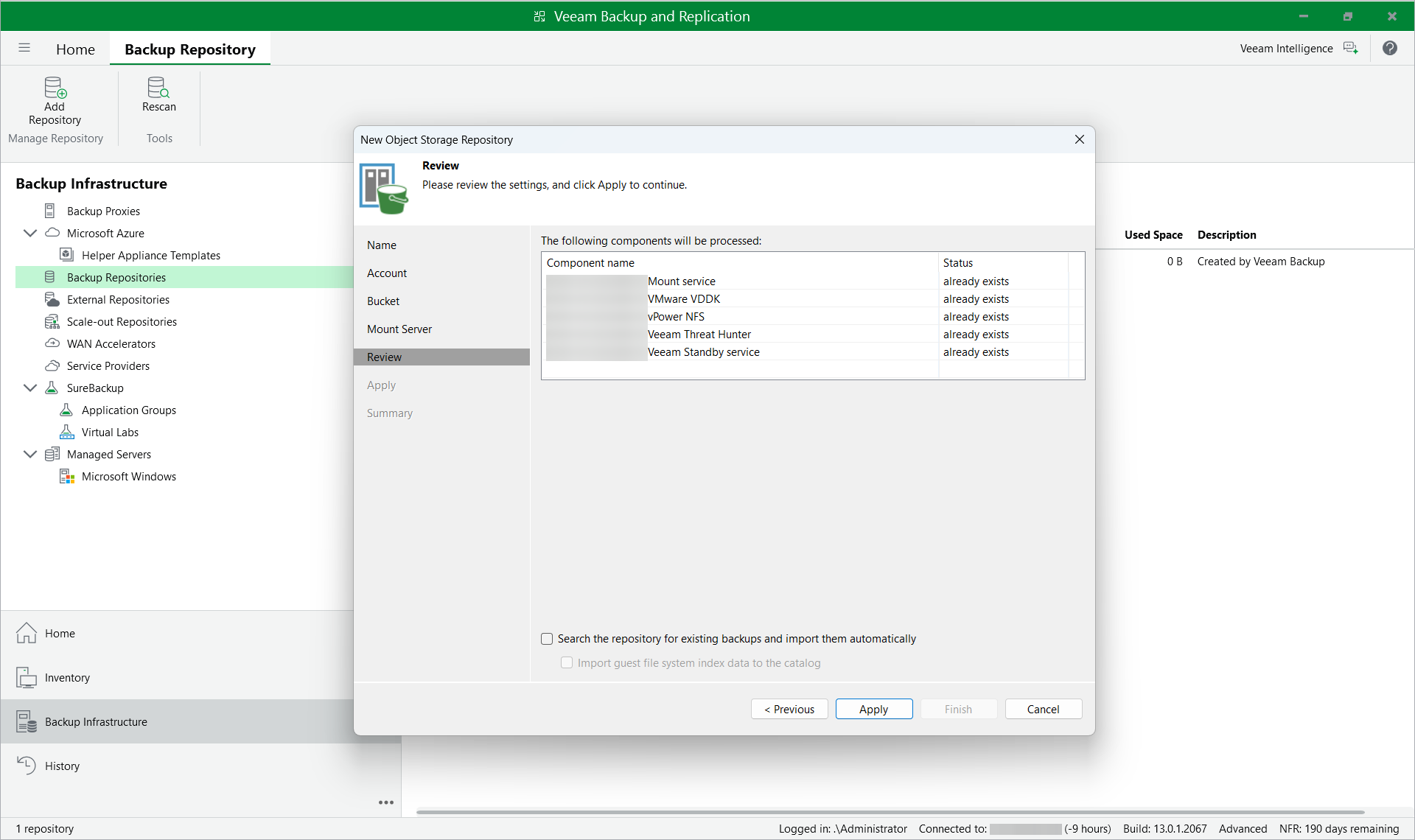
Confirm the settings and press Apply to finalize the creation of a new object storage repository.
-
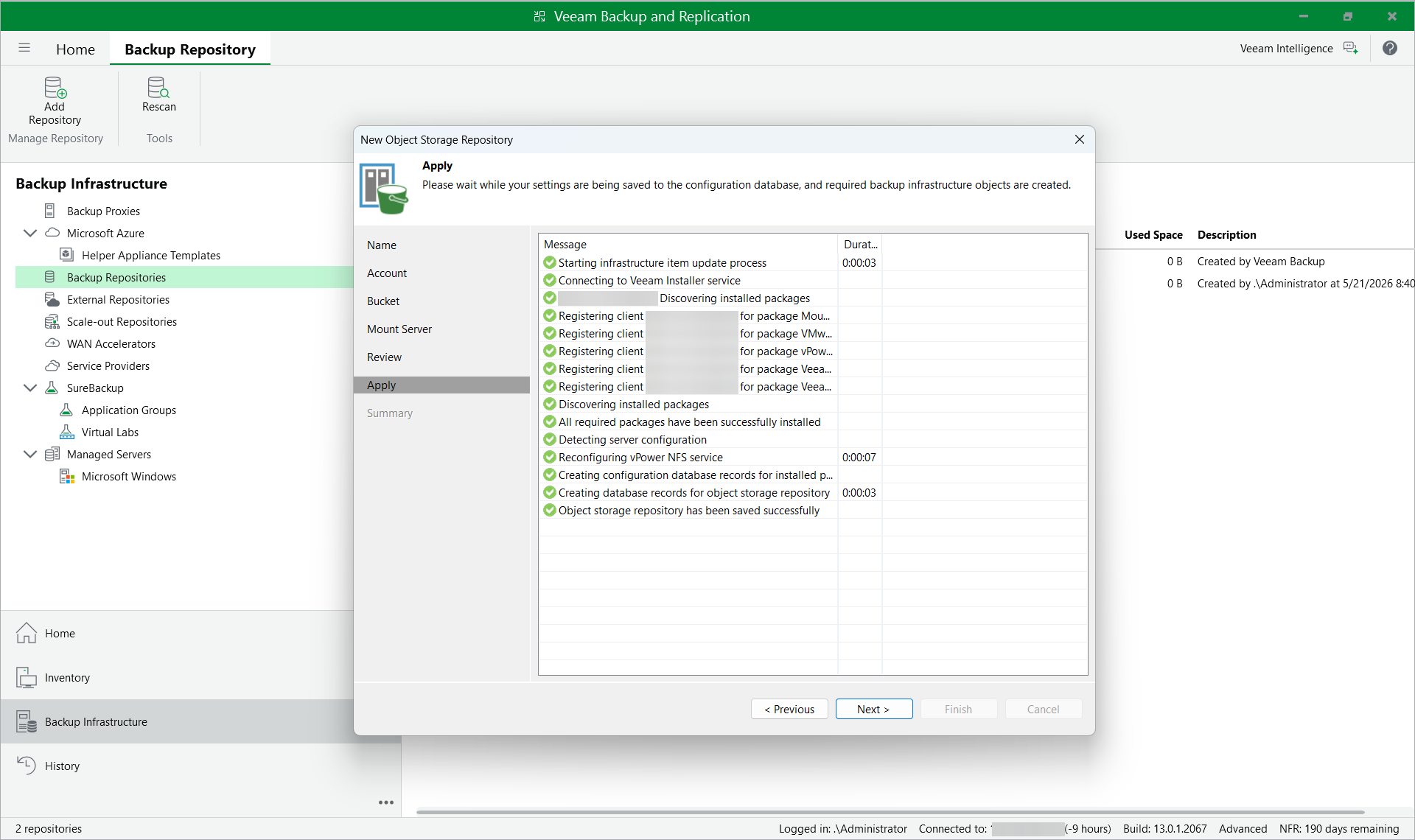
Wait until the settings apply. Press Next.
-
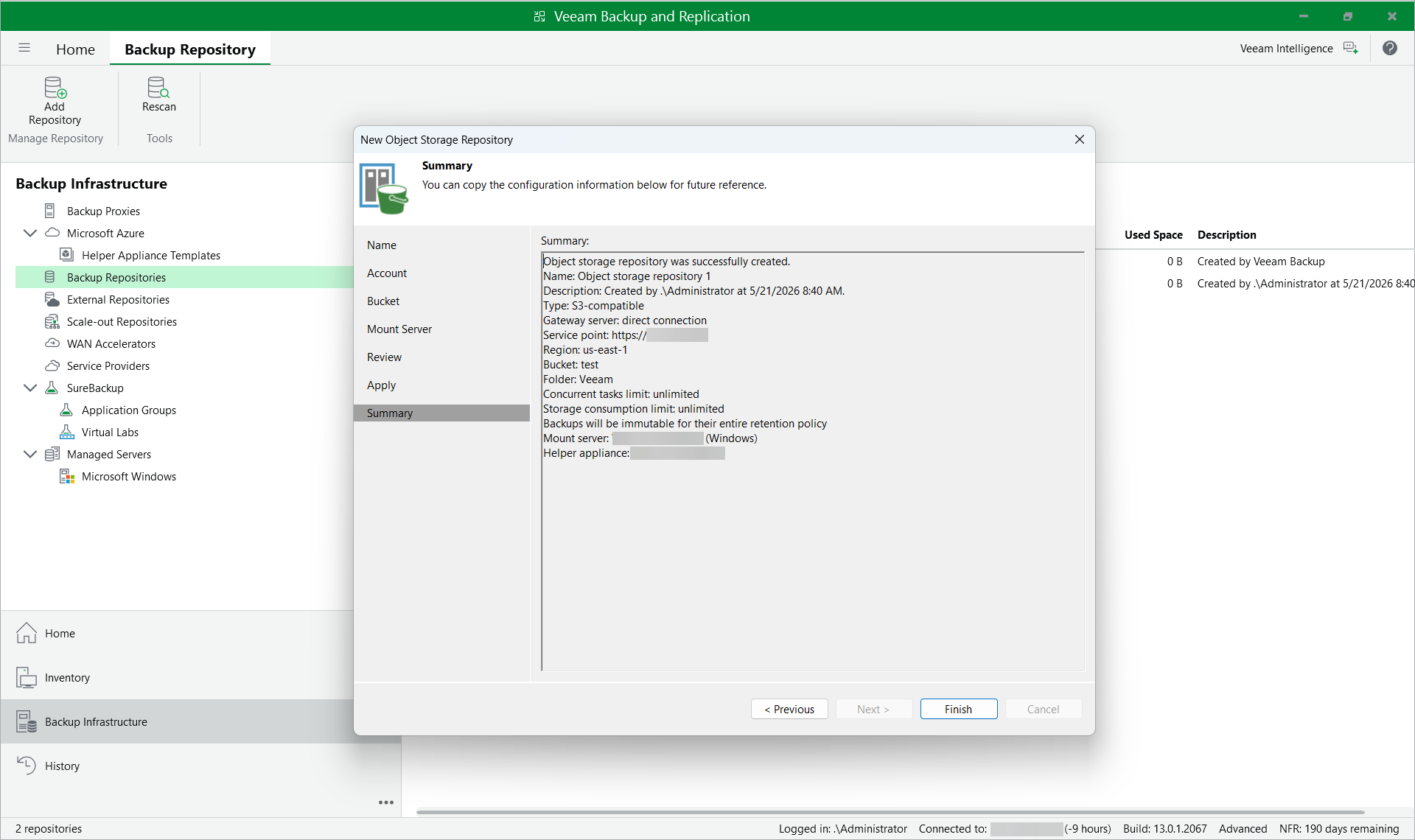
Check the summary.
-
Confirm the Object First repository to be successfully created.