- /
- Object First User Guide
- /
- Configuring Veeam for Microsoft 365 with Object First
- /
- Configure the S3 Storage-based repository for Veeam Backup for Microsoft 365
Configure the S3 Storage-based repository for Veeam Backup for Microsoft 365
After the S3 bucket is created, it must be configured as a backup repository in Veeam Backup for Microsoft 365. To configure the backup repository, follow the steps below:
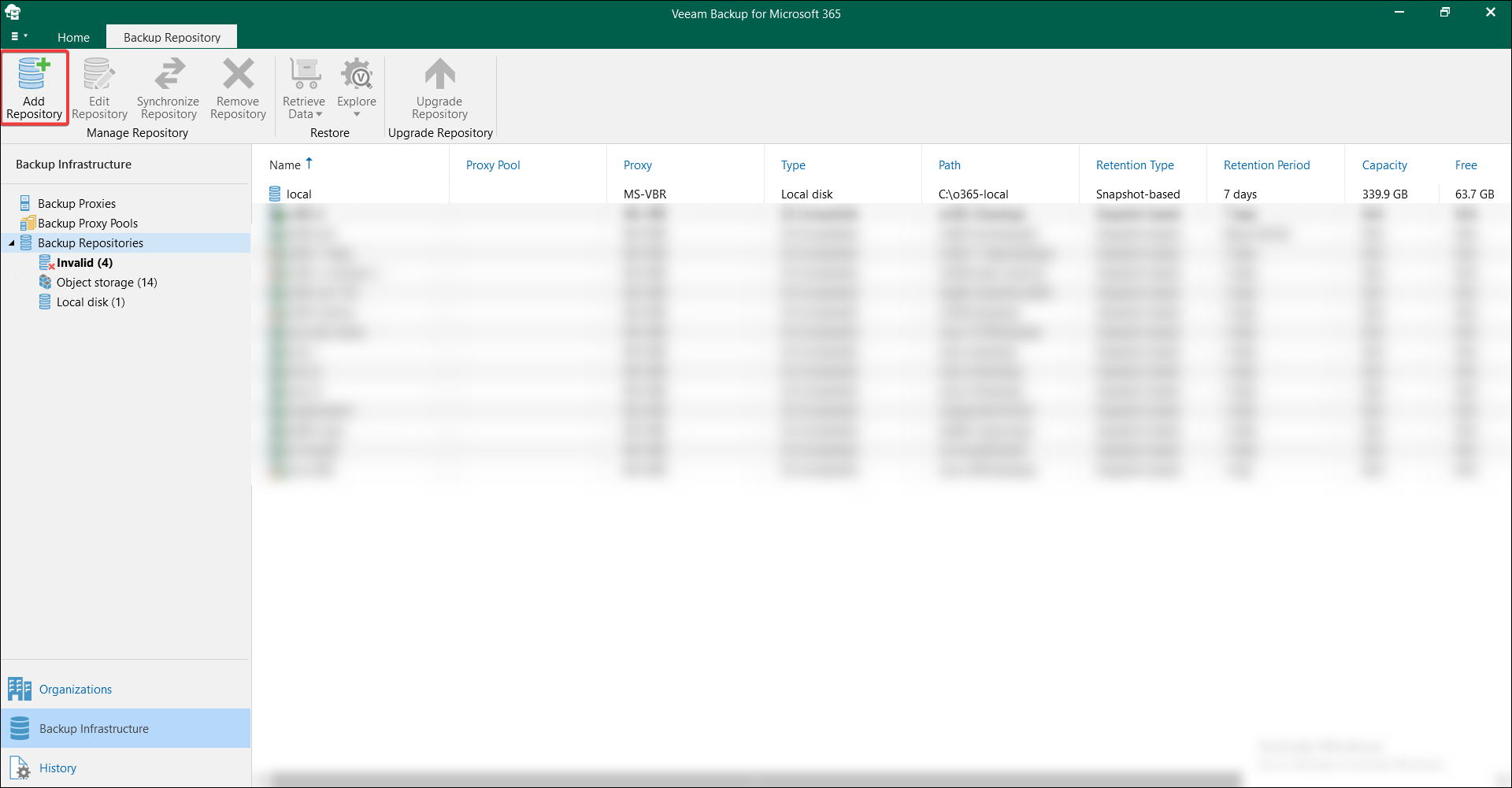
- Open Veeam Backup for Microsoft 365 and navigate to Backup Infrastructure view. Press Add Repository.
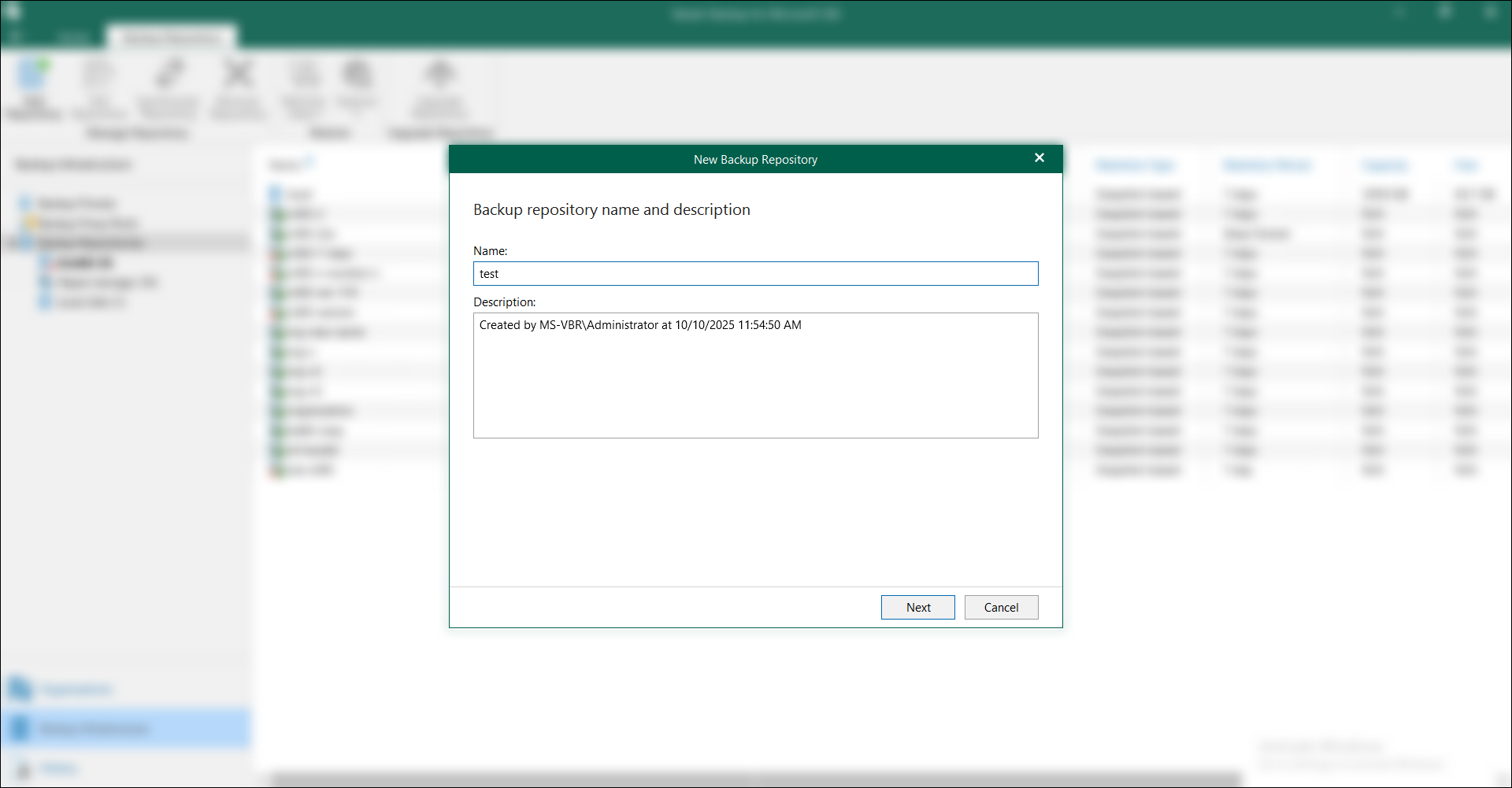
- Type the name and description for the new object storage repository.
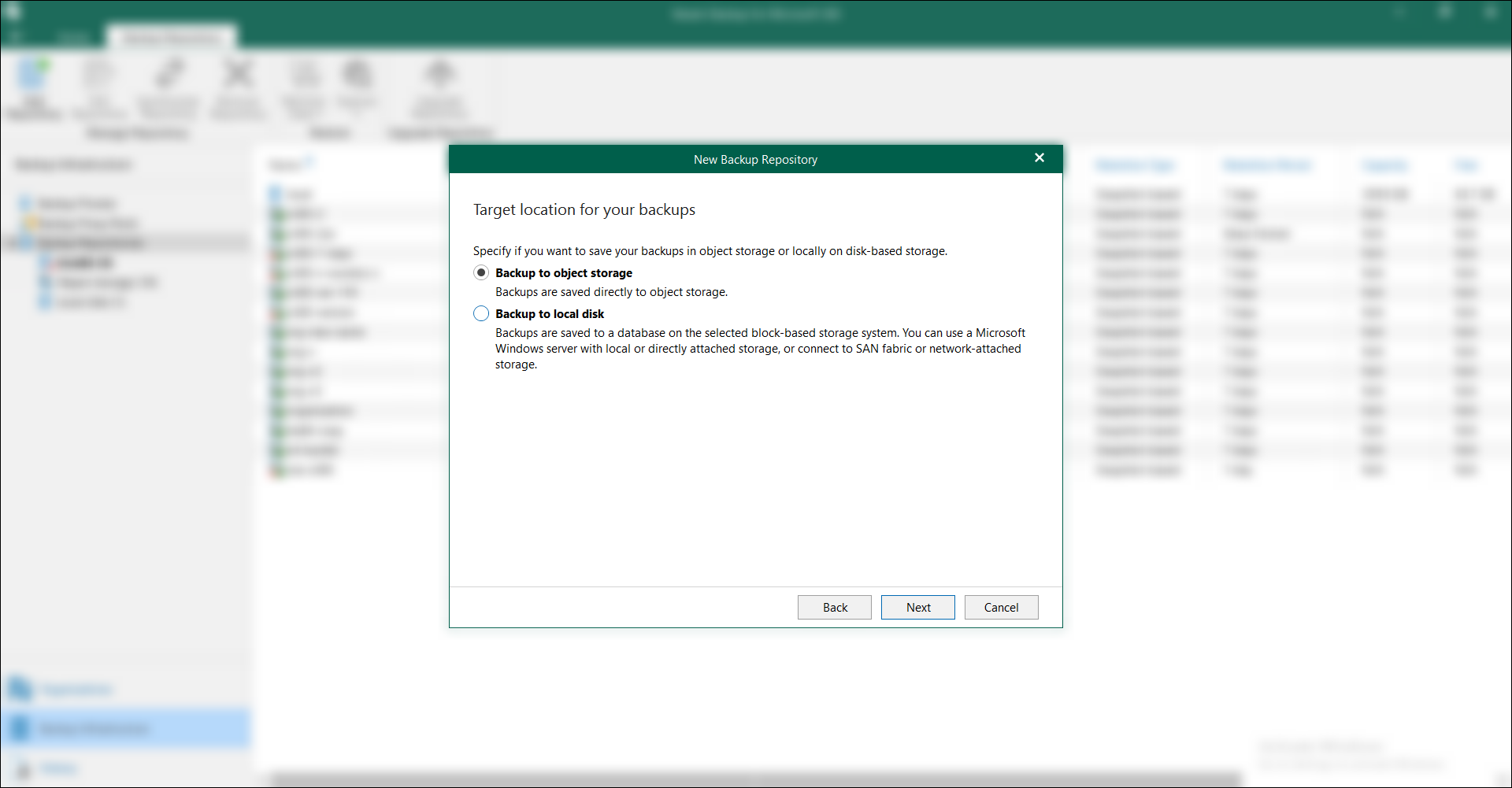
- Select Backup to object storage as a target location for your backups.
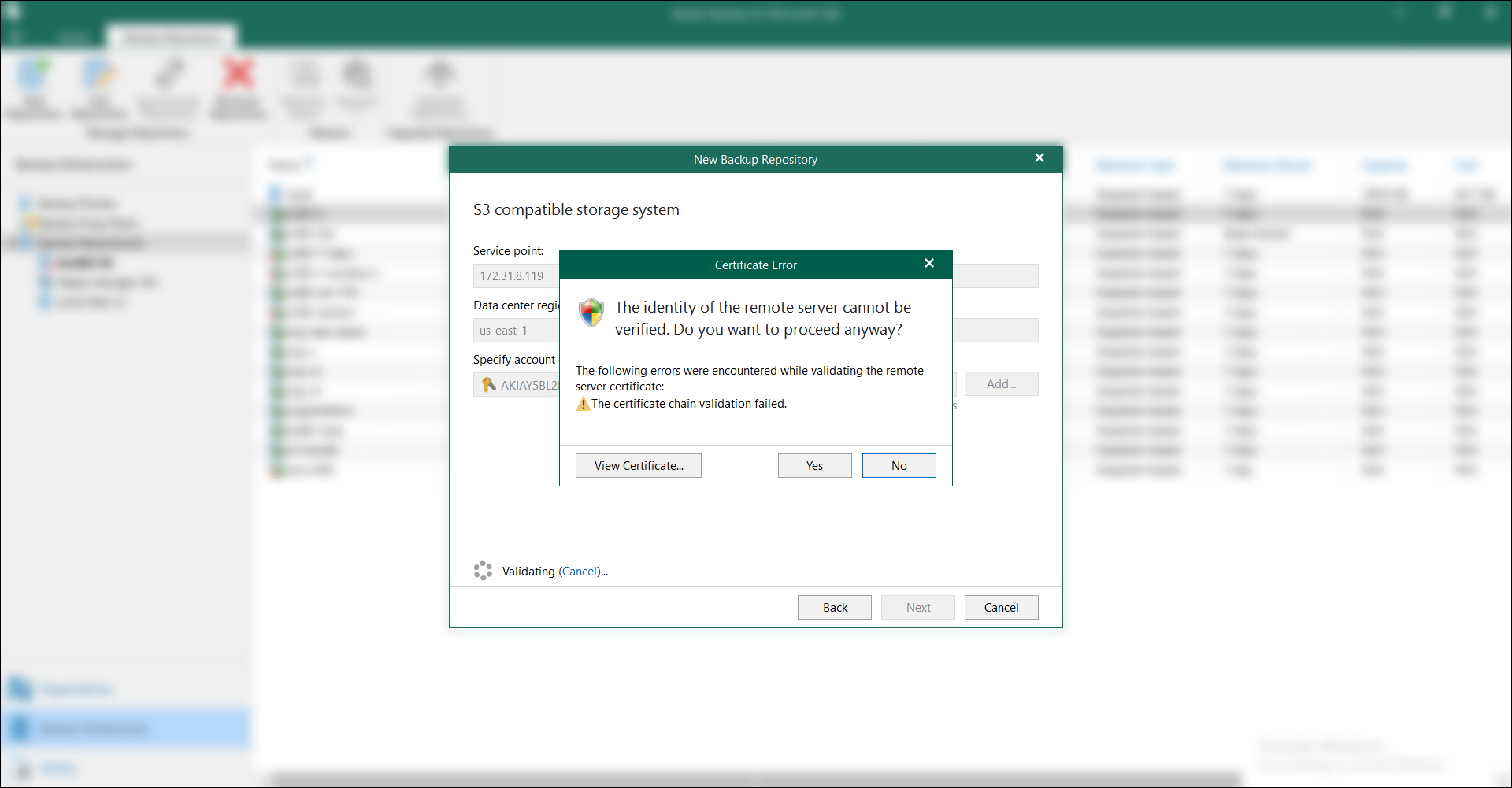
- Type the management IP address of the Object First Ootbi appliance or the cluster in the Service point field. The Region is filled in automatically once the service point is specified. Specify account credentials to connect to S3 compatible storage bucket or click Add... to add new credentials.
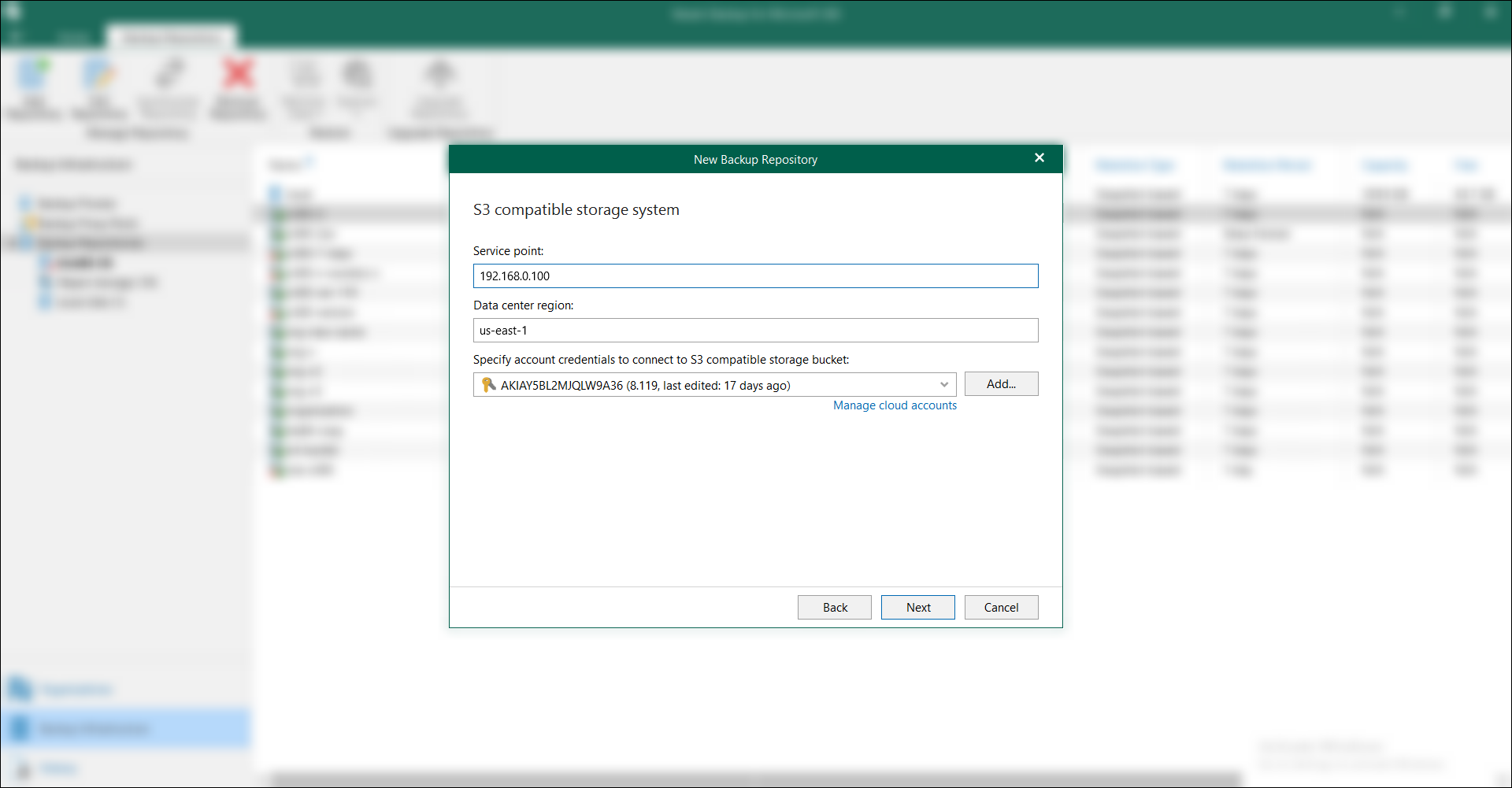
NOTE: Provide an access key ID and secret access key. See more at Generating an S3 Access Key.
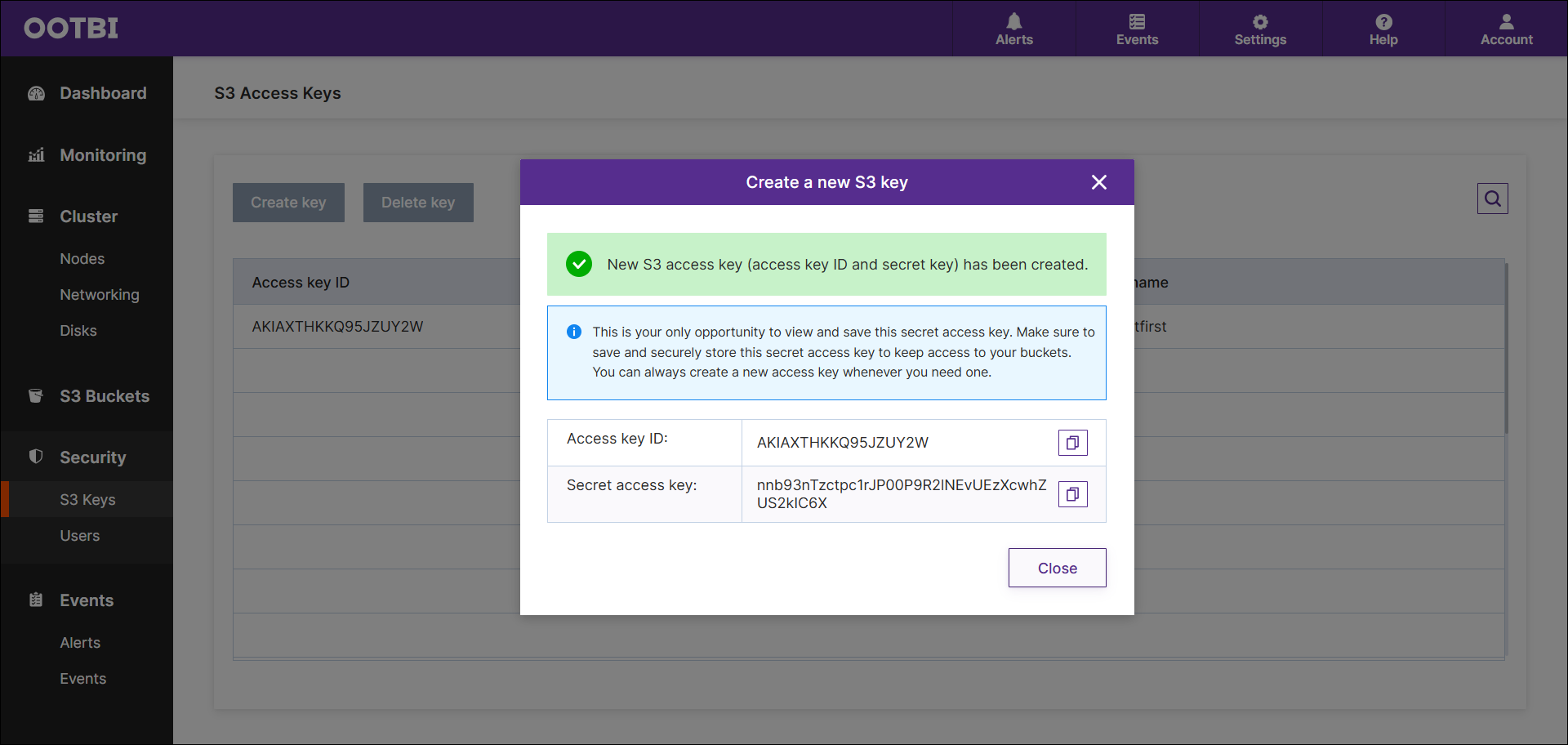
NOTE: If you don't have the access key details, you will need to create a new one and save it in a secure place. Key details are only visible during the key creation process. - In the Certificate Error window, press Yes and then press Next.
- Select bucket from drop-down menu.
NOTE: The bucket has to be created first. See more at Creating S3 bucket.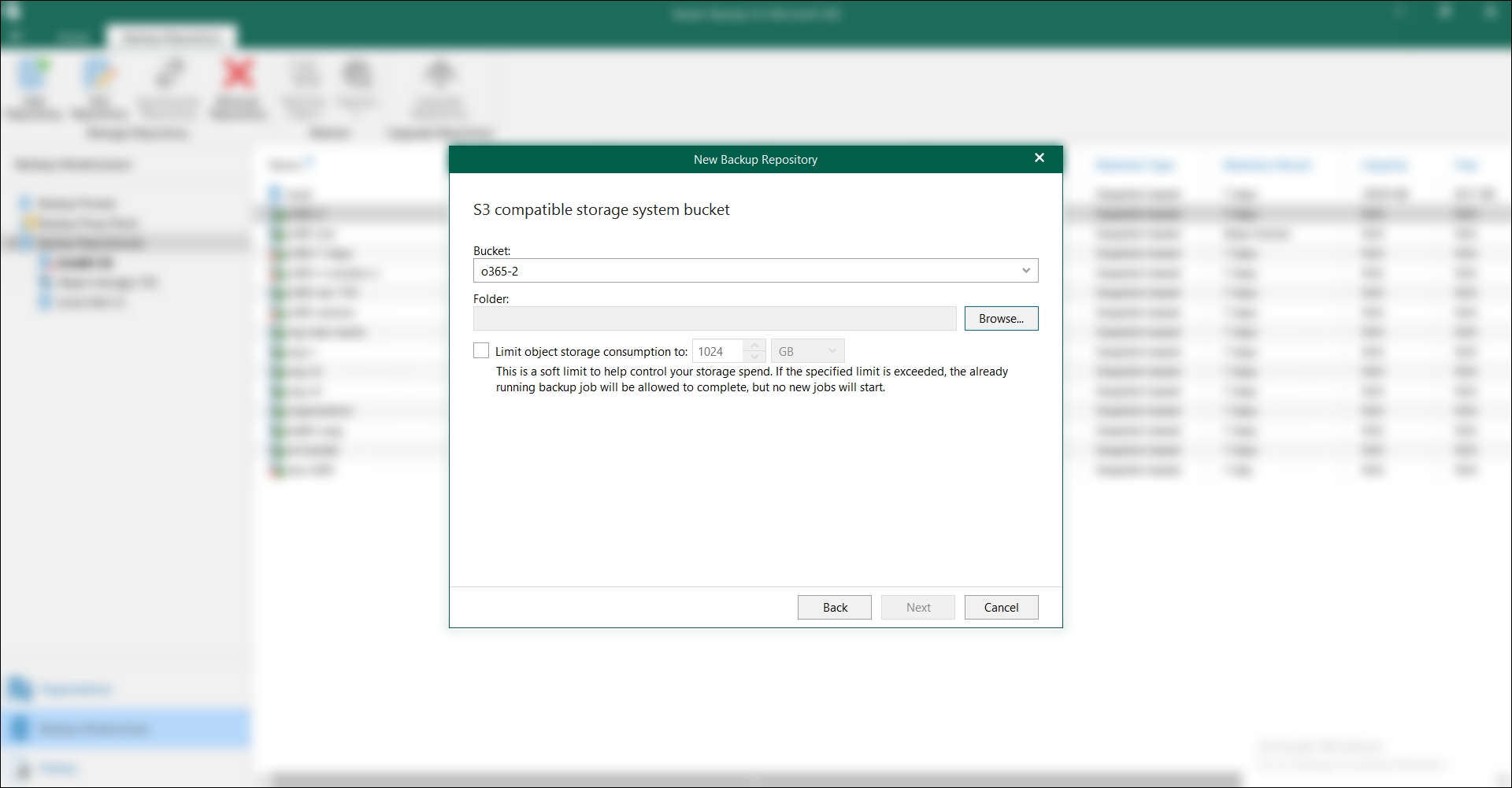
- Press Browse for the Folder section.
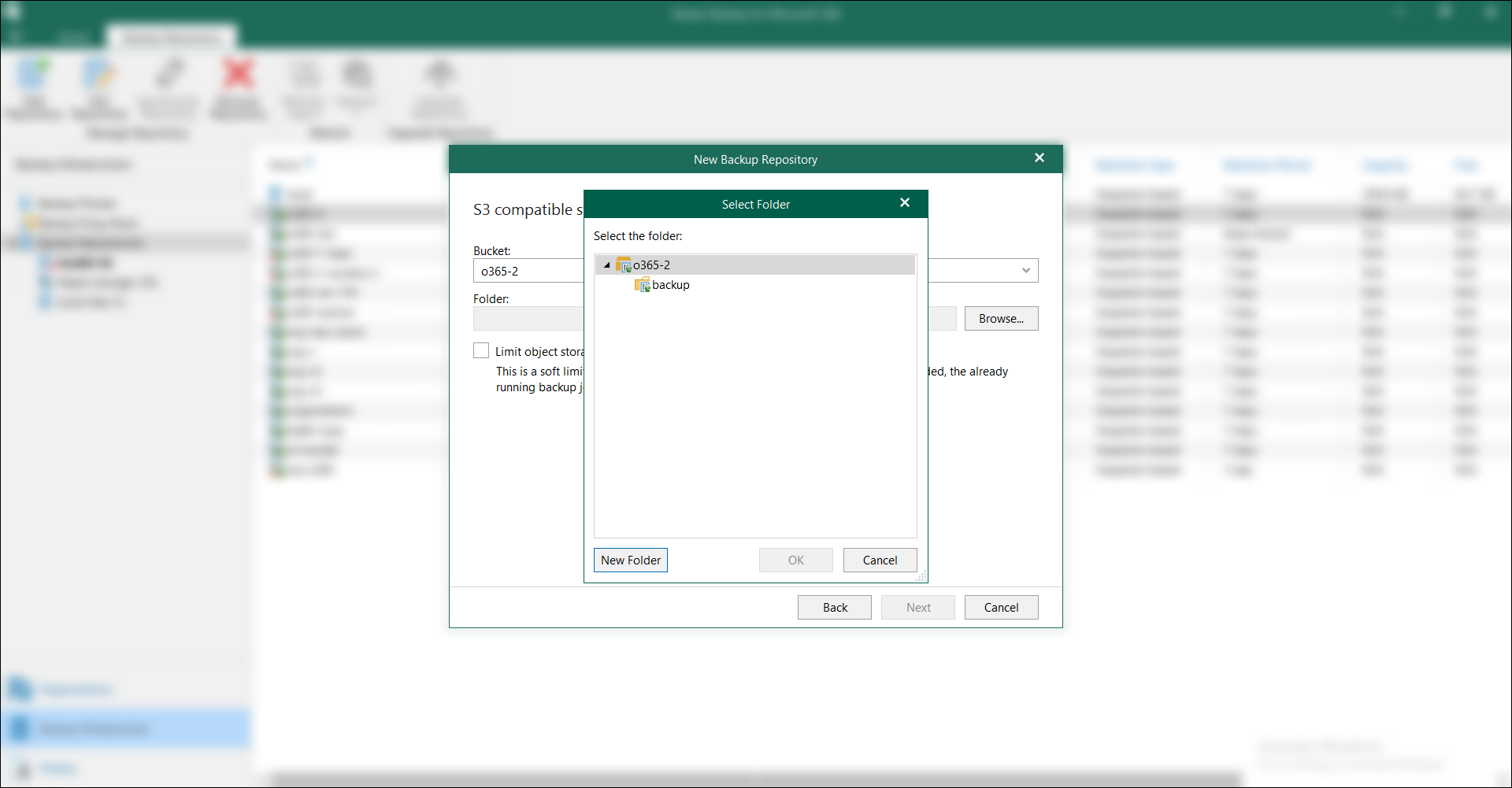
If the bucket already contains folders, the folder selection will be available in the Select Folder view.
If no folders are available in the bucket, you need to select the New Folder option and create a new folder.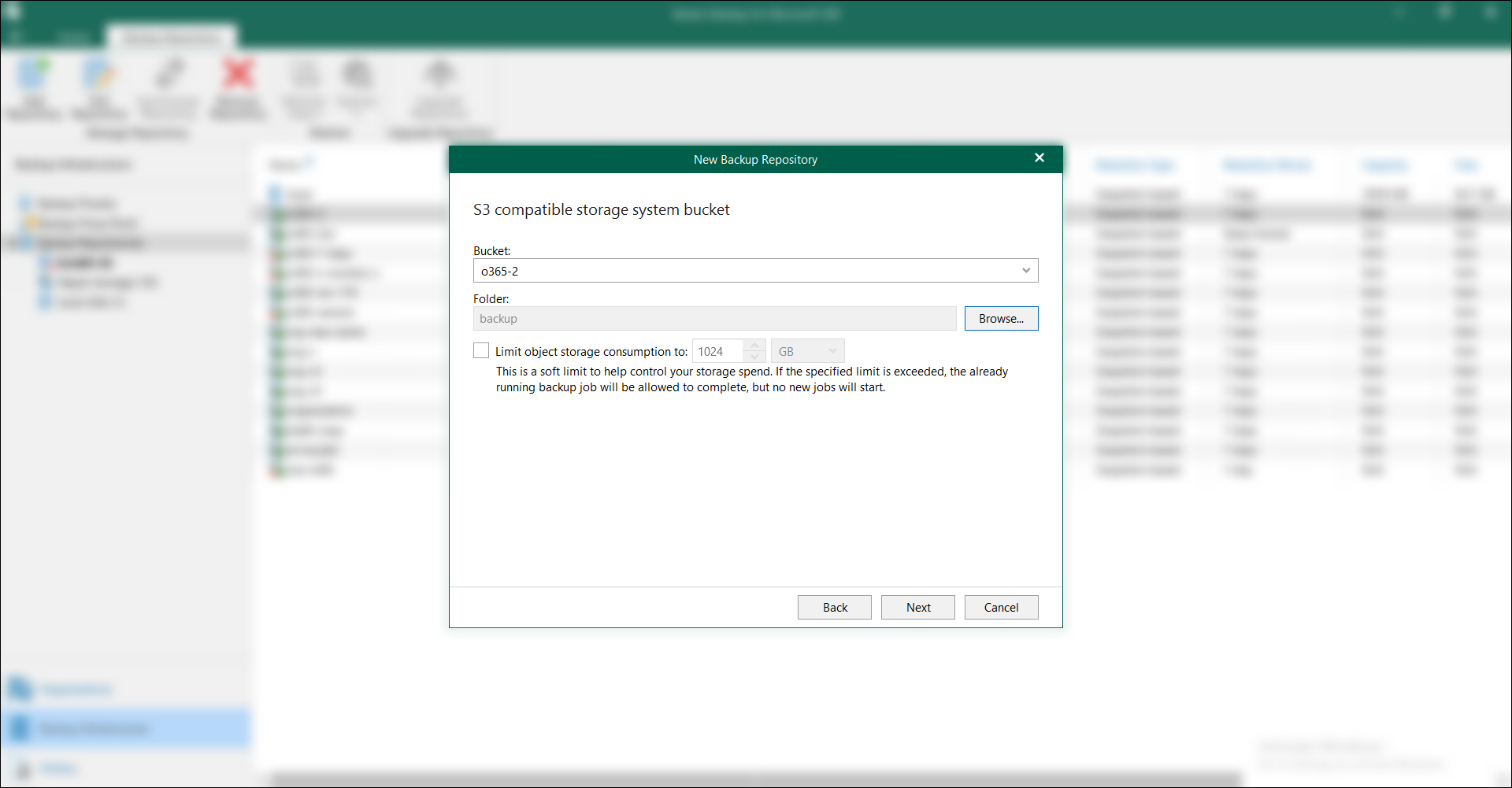
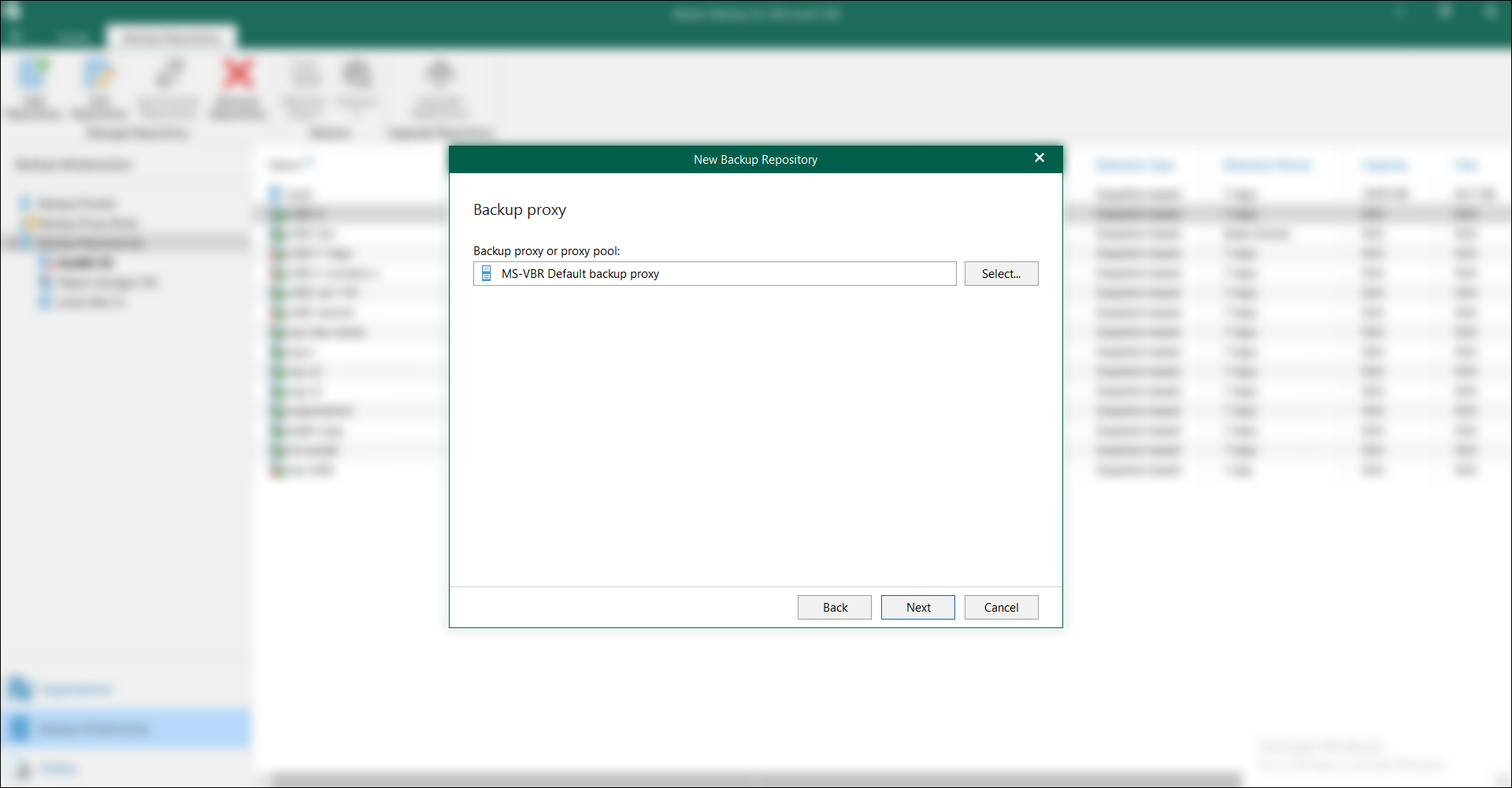
- Specify a backup proxy or backup proxy pool, and then press Next.
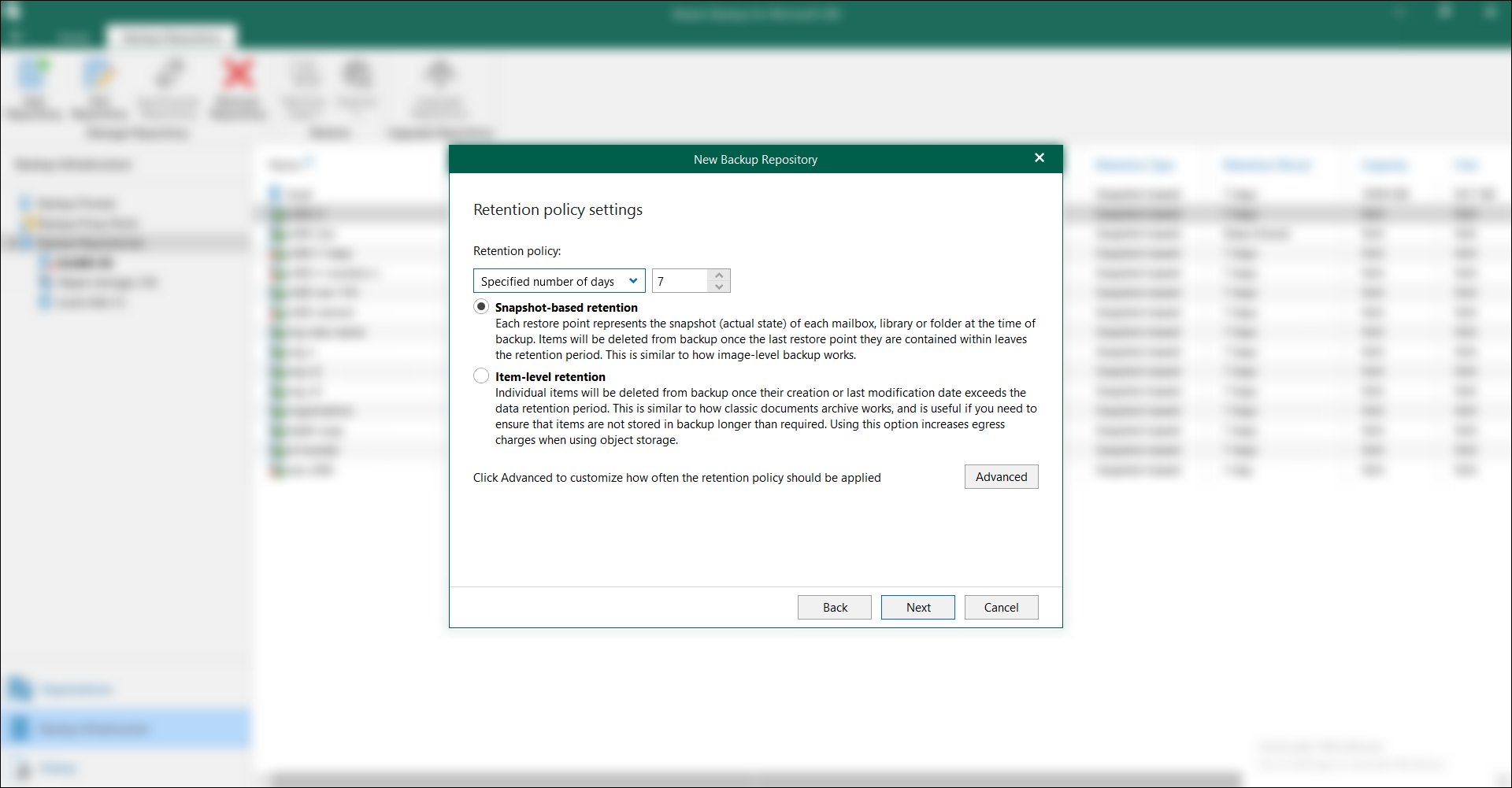
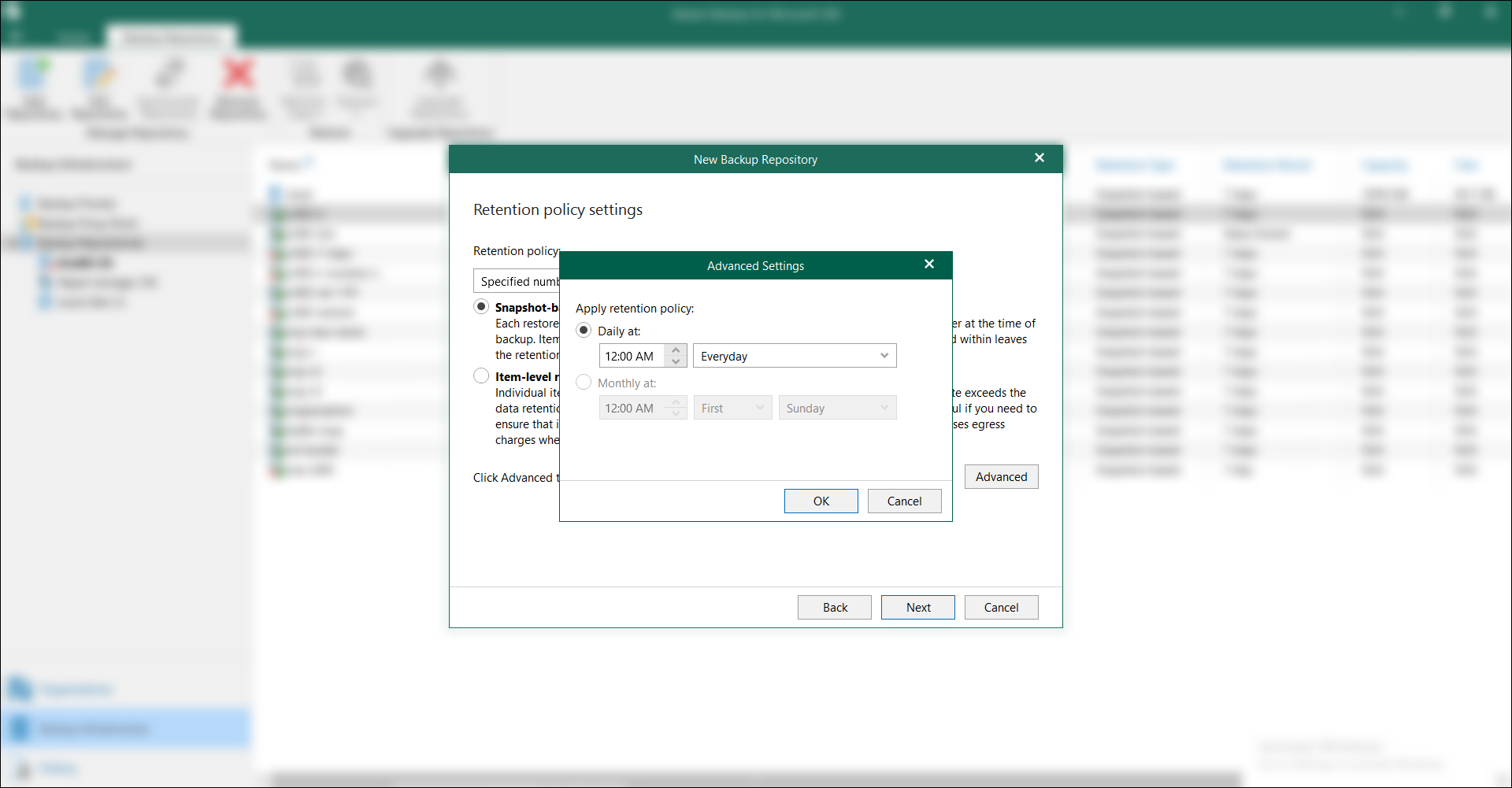
- Specify retention policy settings and press Next.
- Specify immutability and encryption settings.
NOTE: If the bucket is immutable, enable the checkbox Make recent backups immutable.
NOTE: Currently, Ootbi operates only in compliance mode, so the governance option is not available. However, it will be introduced in future releases.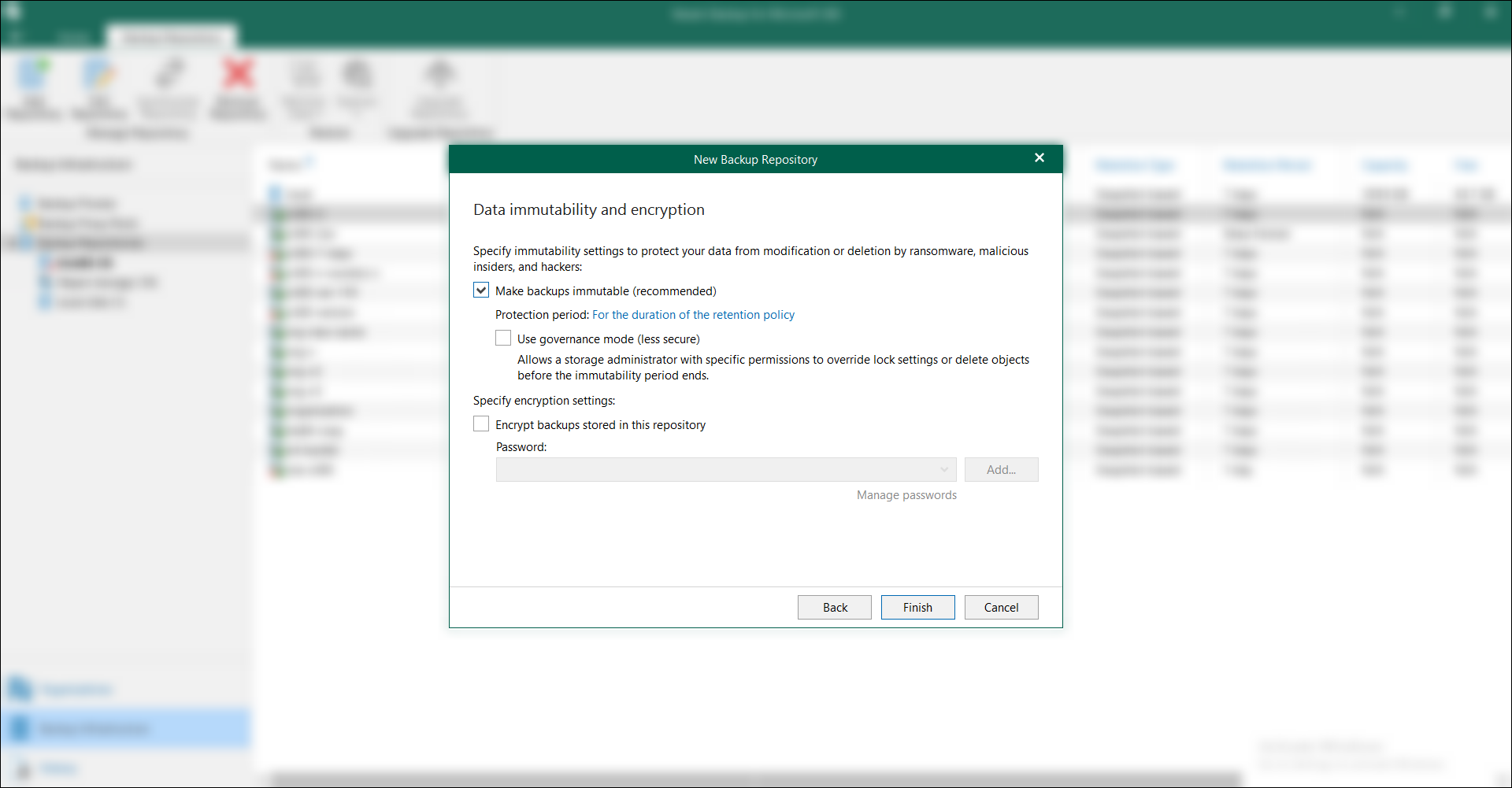
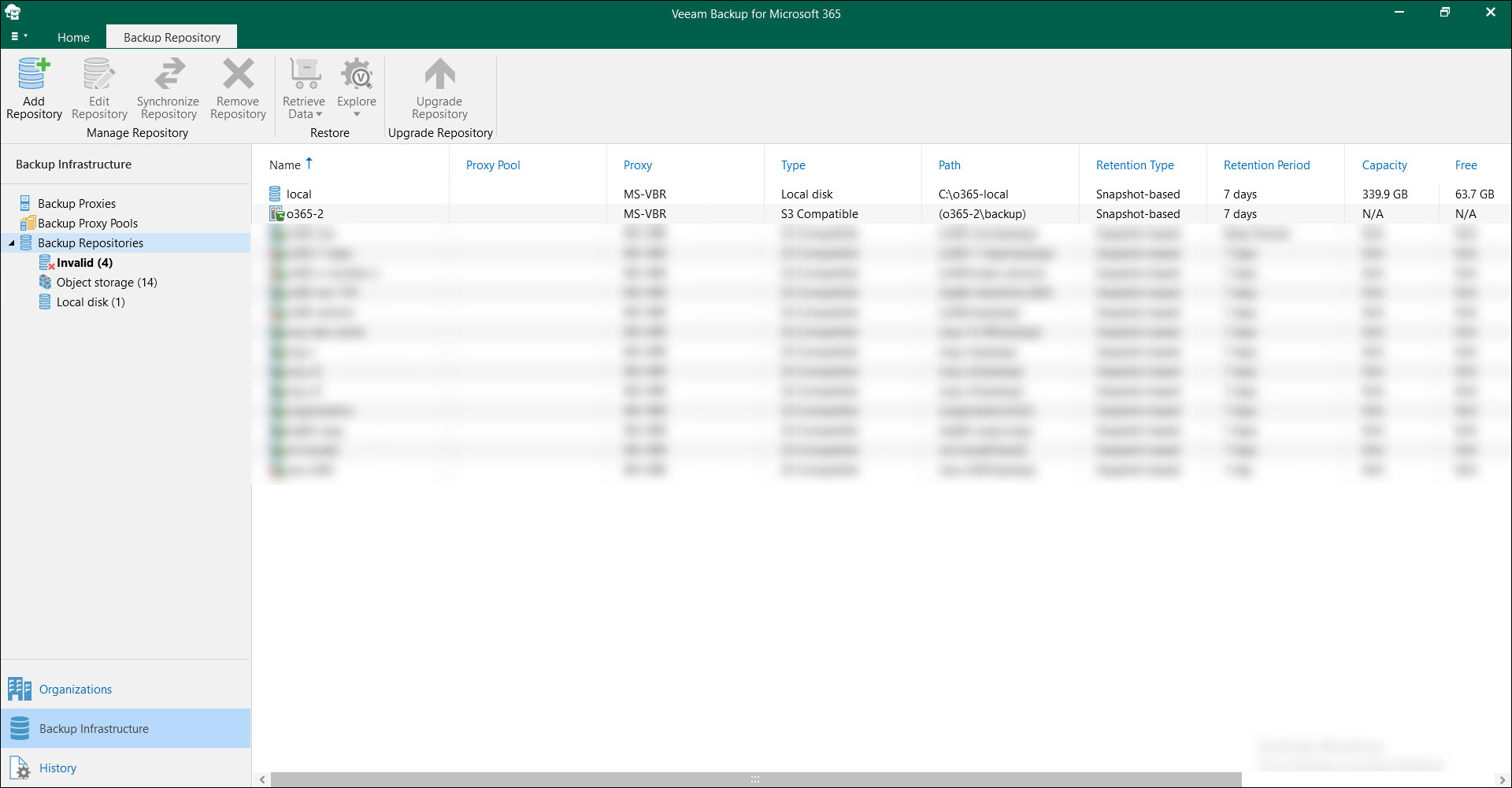
- Confirm the Object First repository to be successfully created.
Sharing your feedback with the team helps us improve the Help Center.