- /
- Quick Start Guide
- /
- Object First Ootbi appliance connection and physical setup
Object First Ootbi appliance connection and physical setup
Ootbi unboxing
For a step-by-step visual guide on unboxing Ootbi, watch youtube video.
Ootbi appliance network description
The Ootbi appliance is equipped with two pairs of connectivity ports to accommodate different networking requirements, as well as an IPMI (Intelligent Platform Management Interface) port. Below is an overview of the available ports and their purposes:
- The IPMI port is exclusively reserved for hardware-level management access to the appliance. Ensure this port is connected to your network switch for administrative purposes.
- 10 GbE Base-T Ports (x2) are designed for high-speed data transfers and web access to the Ootbi Web Console.
- 10 GbE SFP+ Ports (x2) provides additional flexibility for high-speed data transfers and web access to the Ootbi Web Console.
This configuration does not assume mixed use of interface types. Select the appropriate ports based on your specific networking setup and connectivity requirements. Ensure that both network interfaces are configured within the same subnet.
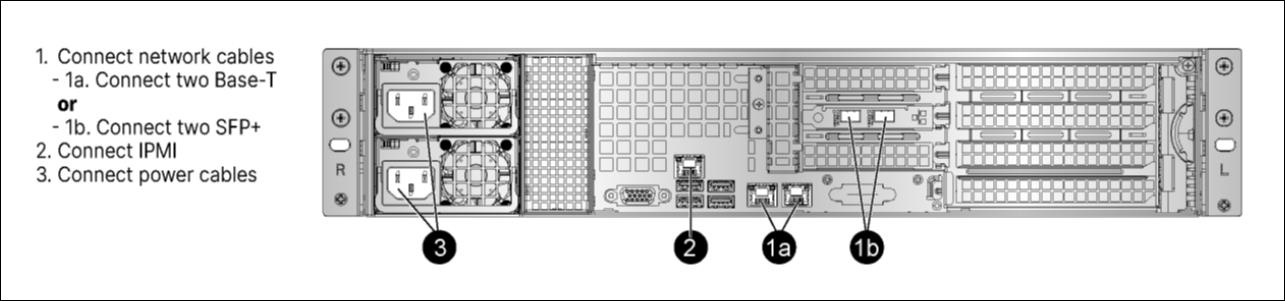
NOTE: The appliance view and port location can vary depending on the server model and configuration.
Ootbi appliance installation
Install the appliance in a dedicated, restricted-access location such as an equipment room or service closet. Place it in a dust-free, clean, and well-ventilated area. Avoid areas with excessive electrical noise, heat, or electromagnetic fields.
Provide enough clearance in front of the rack so that the server is easily accessible and the front door can be opened. The rack should have approximately 30 inches of clearance at the back for adequate airflow and easy servicing access. For more information, refer to the server's manual.
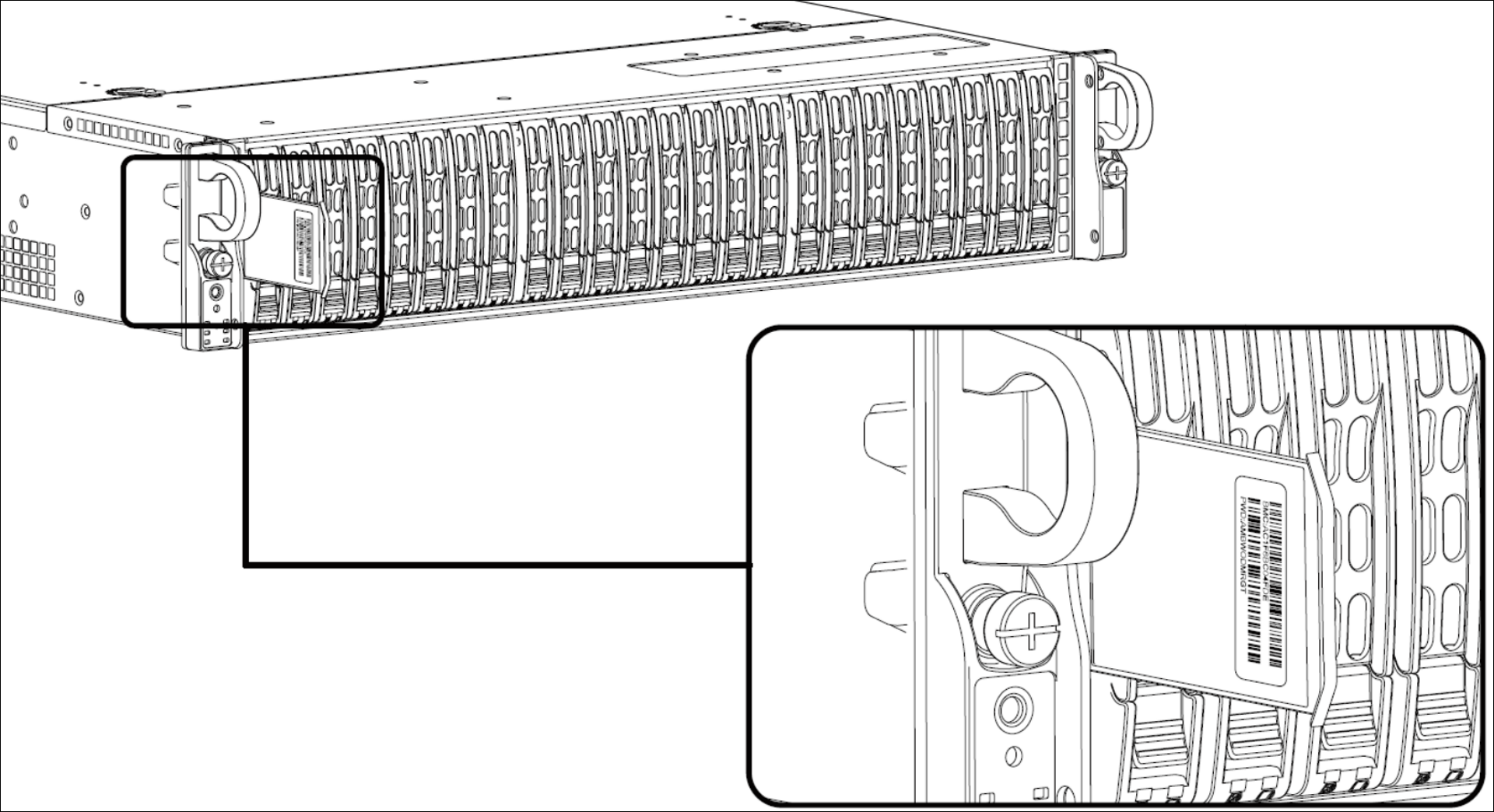
NOTE: Before racking the appliance, locate the sticker with IPMI credentials (it may be on the box, on the chassis, or on a service tag) and make a note of them.
Perform the following steps to install the chassis into a rack
- Extend the outer rails.
- Align the inner rails of the chassis with the outer rails on the rack.
- Slide the inner rails into the outer rails. It should click into the locked position. Keep the pressure even on both sides.
- Optional screws may be used to hold the front of the chassis to the rack.
- Connect IPMI and LAN ports to the network switch.
- Connect the appliance to the power using redundant power supplies.