Fleet Manager WebUI Overview
This document provides an overview of the Fleet Manager WebUI and its main functional areas. You can use the Fleet Manager WebUI to monitor organizations, clusters, nodes, alerts, events, and account-related information from one central interface.
The purpose of this document is to help you understand what information is available in each view, how the views are connected, and where you can find more details about system status, resource usage, alerts, events, and roles.
The Fleet Manager WebUI is organised around the following main views:
- Organizations
- Clusters
- Nodes
- Alerts
- Events
- Account
Each view gives you a different perspective on your managed environment and helps you assess its health, activity, and resource usage.
Fleet Manager WebUI
The Fleet Manager WebUI provides a central interface for observing the status of your managed environment. It displays important operational information, such as the status of organizations, clusters, and nodes, together with storage consumption, alerts, logs, and account details.
You can use the WebUI to start with a high-level overview and then navigate to more detailed information when needed. For example, you can begin in the Organizations view to check the overall status of your environment, and then open the Clusters, Nodes, Alerts, or Events views to investigate specific areas.
Organizations view
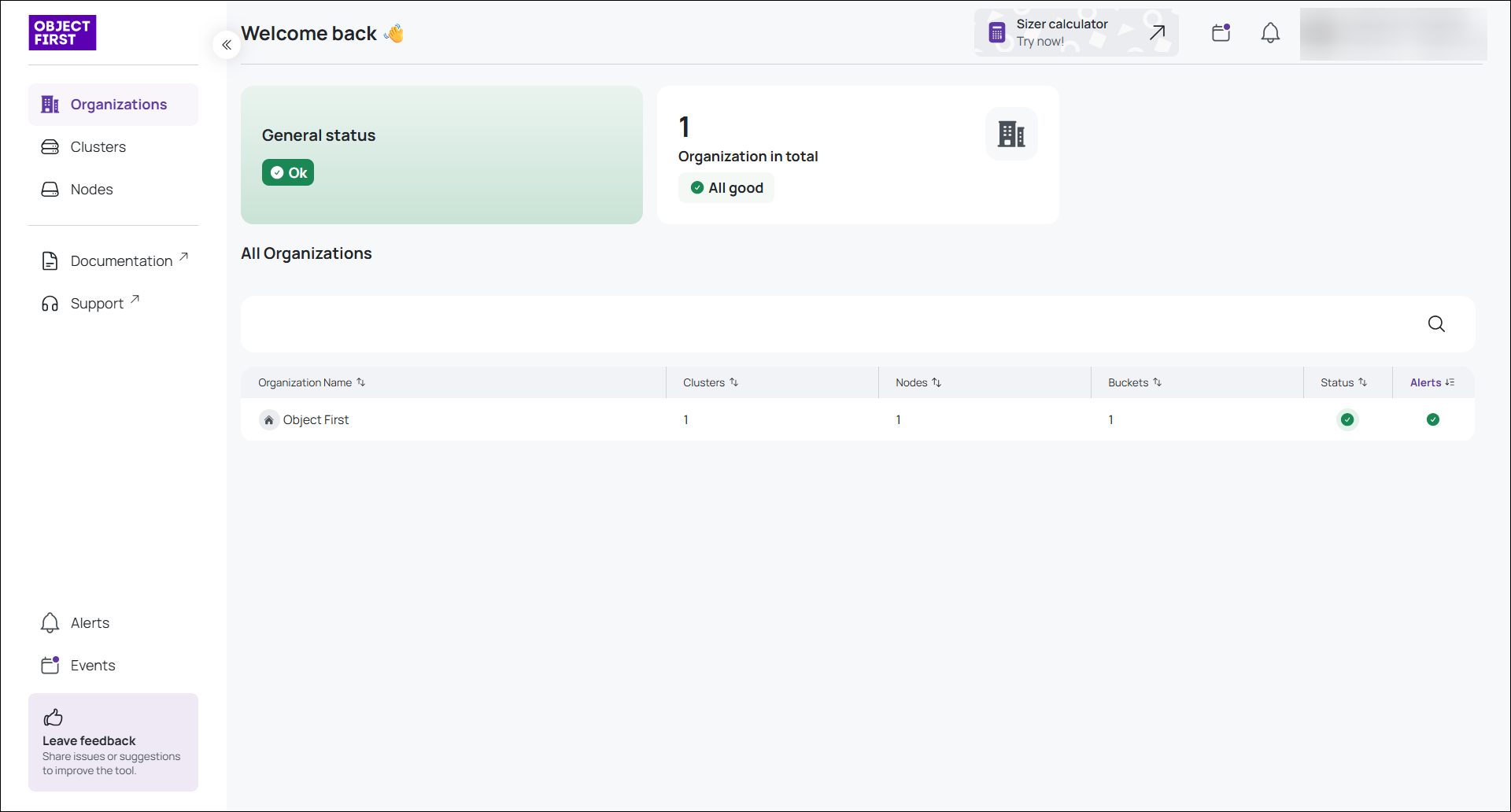
The Organizations view is the central view of the Fleet Manager WebUI. It gives you an overview of the organizations available in the system and displays key information for each organization.
From this view, you can quickly understand the general state of your environment and compare organizations based on their associated resources.
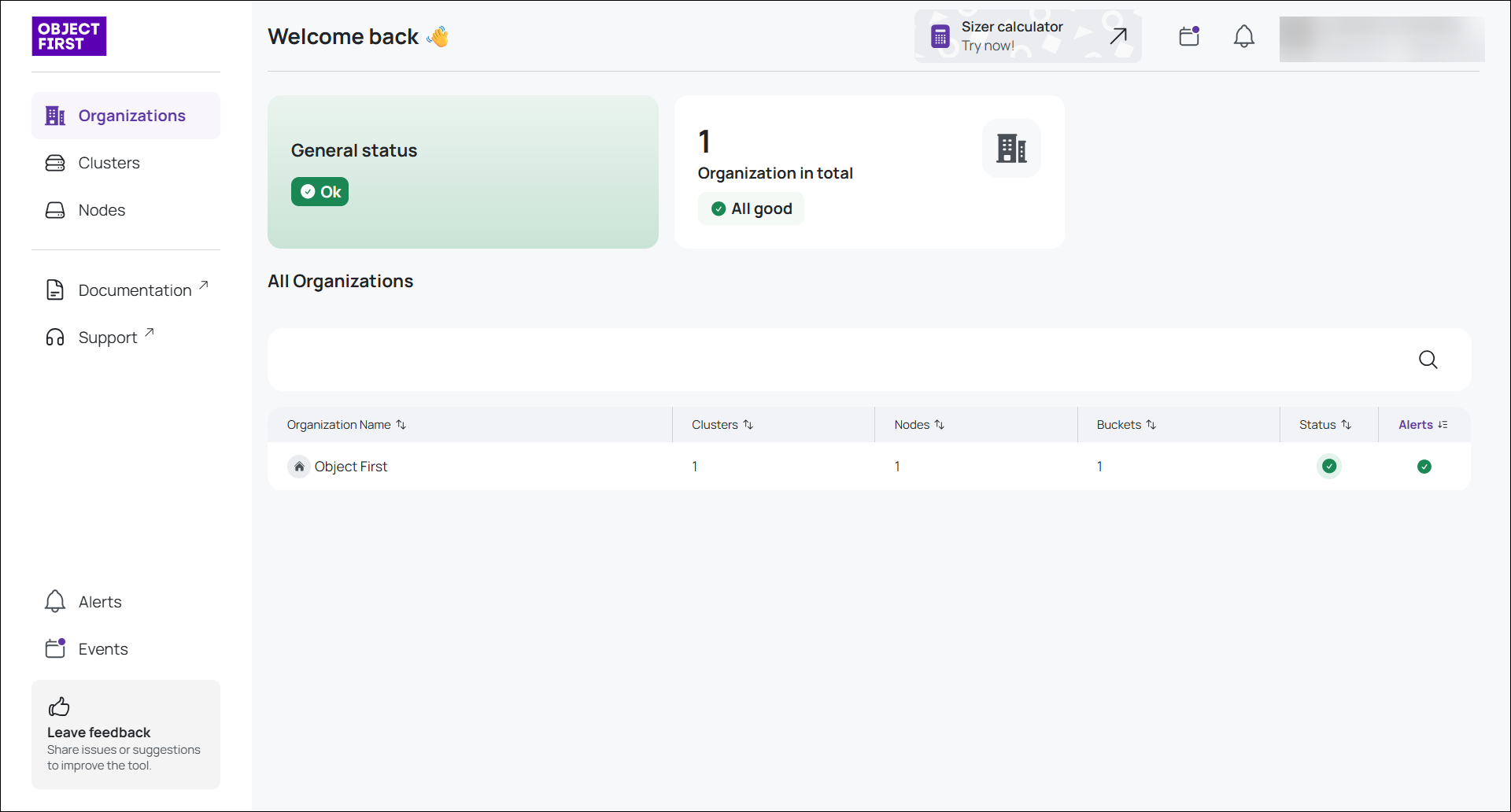
The Organizations view includes information such as:
- The general status of the environment
- A list of organizations
- The number of clusters assigned to each organization
- The number of nodes used by each organization
- The number of buckets available for each organization
You can use this view when you need a high-level overview of the complete managed environment. It helps you understand how resources are distributed across organizations and whether any organization requires further attention.
Clusters view
The Clusters view displays information about the clusters within your organizations. It helps you monitor the general condition of your clusters and review their storage usage.
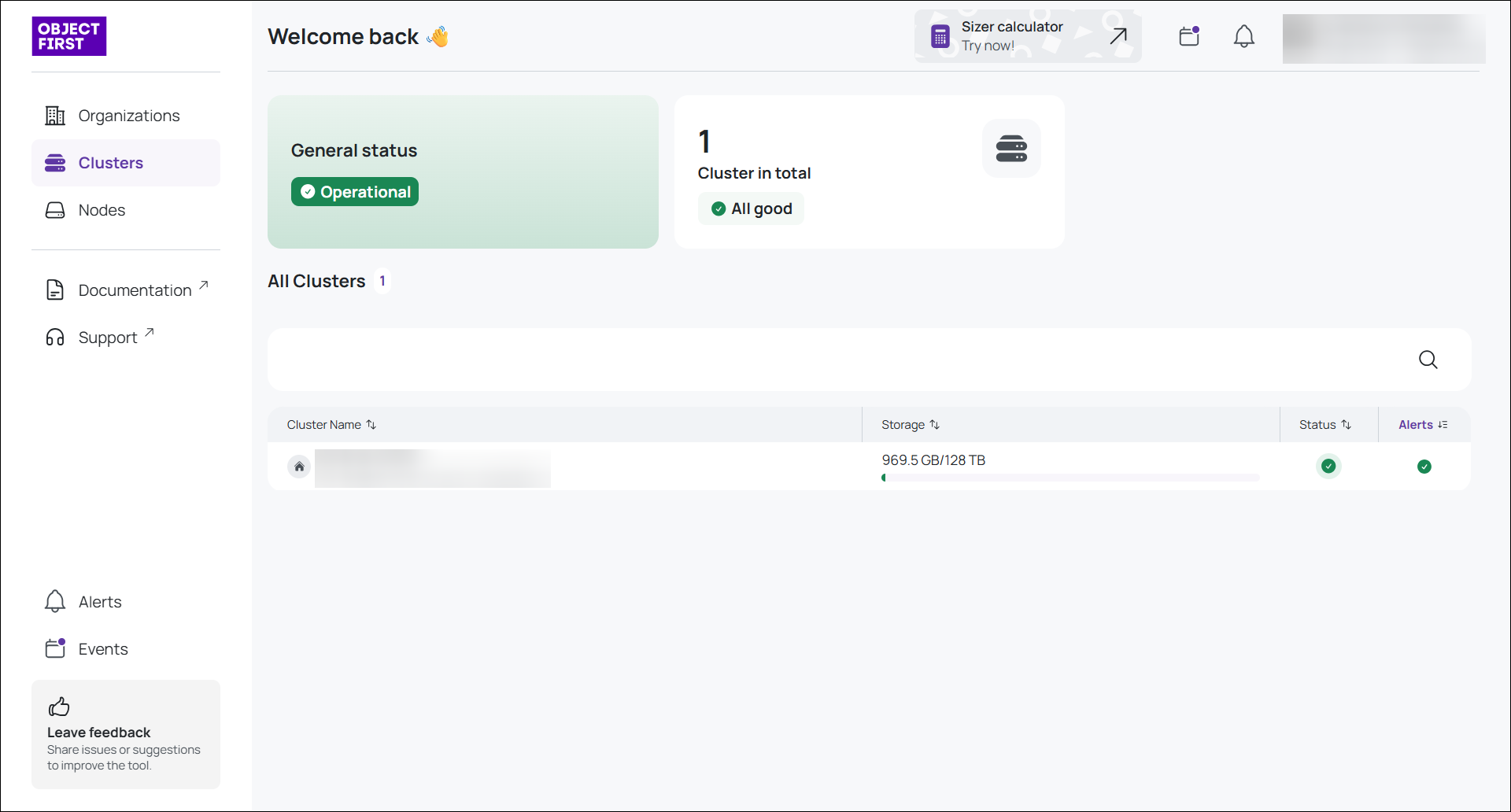
The Clusters view includes information such as:
- The general status of your clusters
- A list of available clusters
- Storage consumption for each cluster
You can use this view when you need to understand how cluster resources are being used. It can help you identify clusters with high storage consumption or clusters that may require operational attention. You can sort clusters by Storage.
This view lets you move from an organization-level overview to a more focused cluster-level analysis.
Nodes view
The Nodes view provides information about the nodes that belong to your clusters. It gives you visibility into the status and storage consumption of individual nodes.
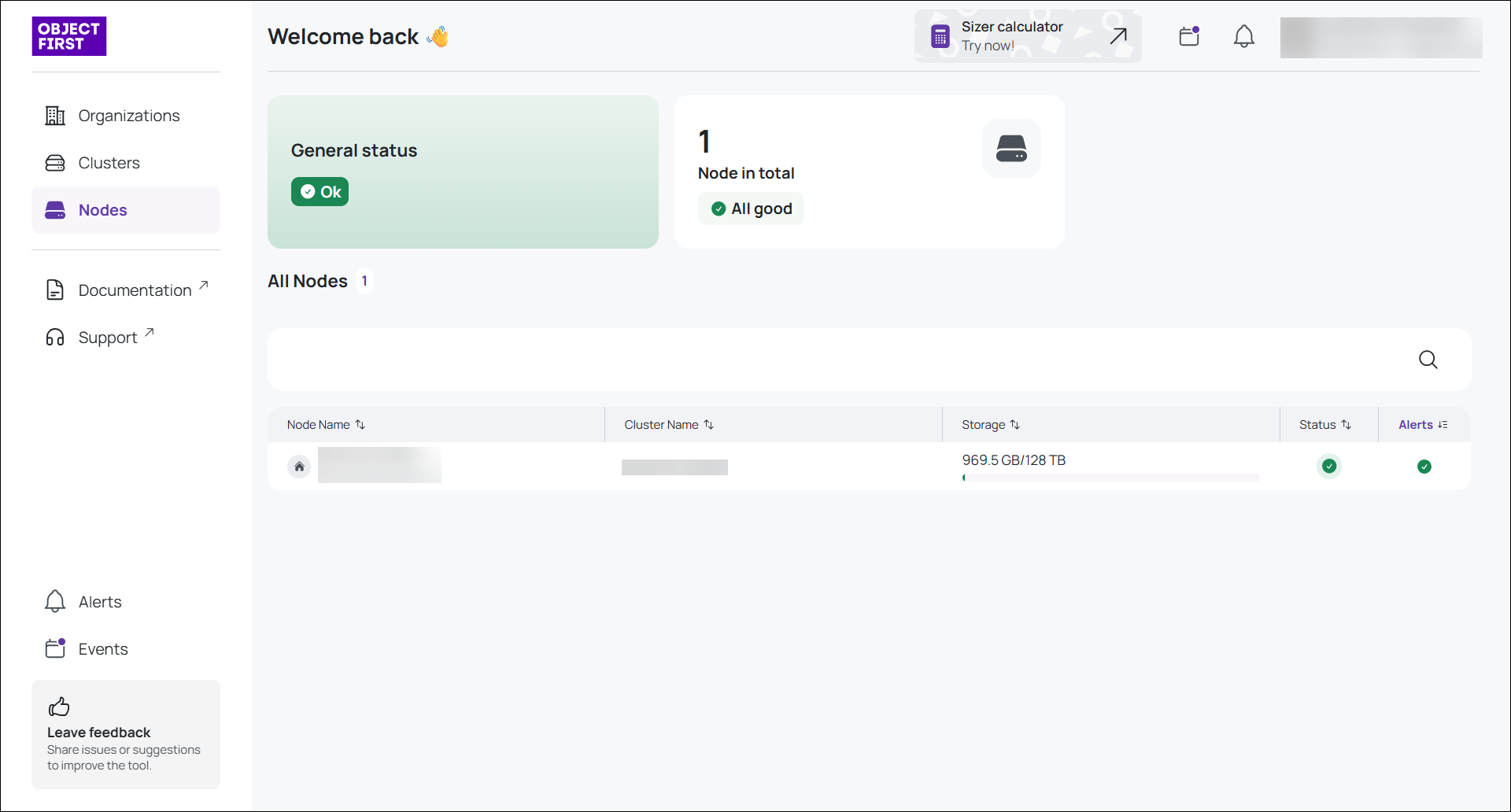
The Nodes view includes information such as:
- The general status of your nodes
- A list of available nodes
- Storage consumption for each node
You can use this view for more detailed infrastructure monitoring. While the Clusters view shows information at the cluster level, theNodes view helps you understand the status and usage of the individual components that support each cluster.
This view is useful when you need to investigate resource usage, check node availability, or identify nodes that may require maintenance.
Alerts view
The Alerts view displays critical events occurring within the clusters available for your organization.
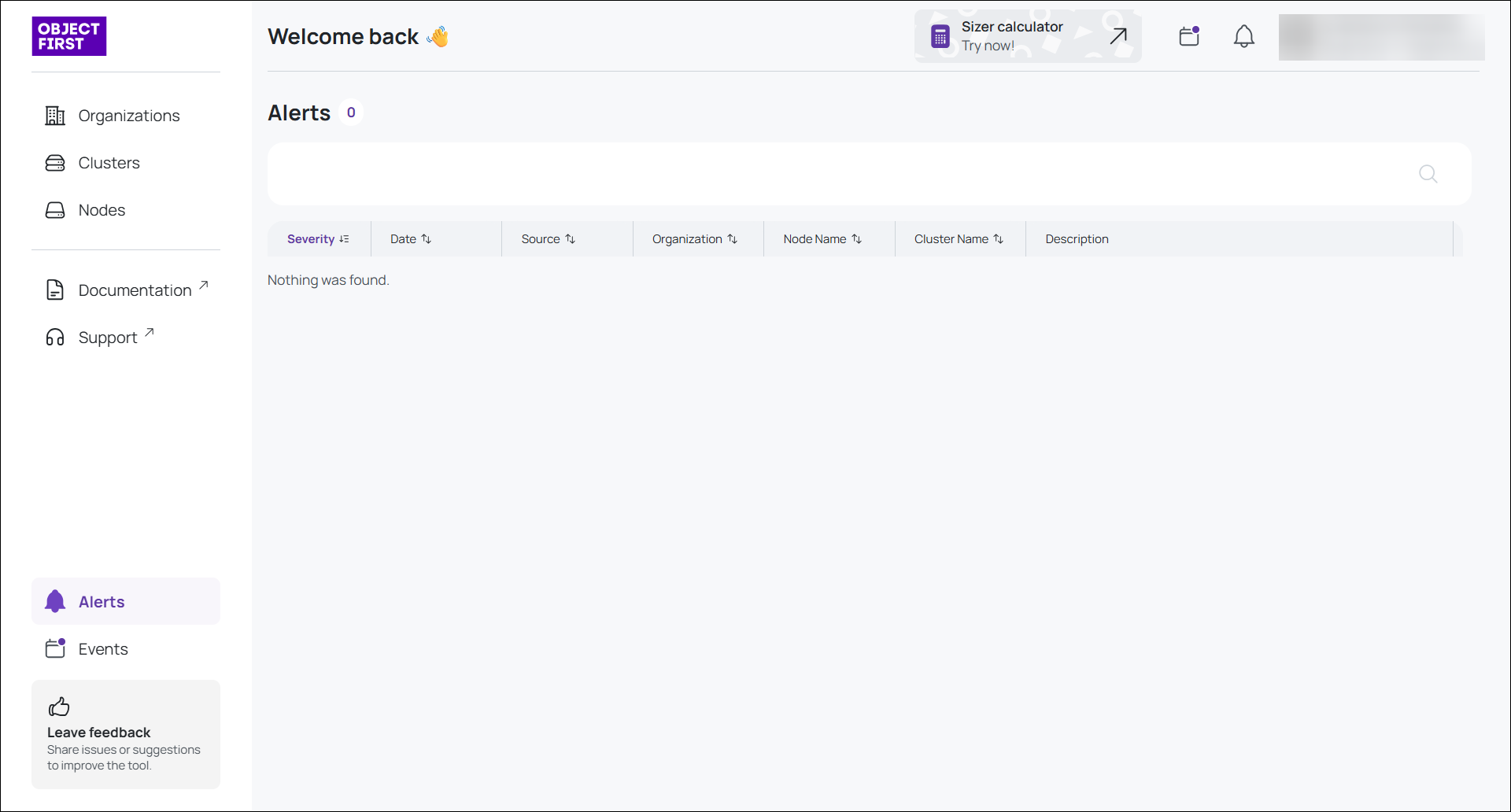
Alerts draw your attention to important issues that may require investigation or action. The Alerts view gives you a dedicated place to review these critical events and understand where attention is needed.
You can use the Alerts view to:
- Identify critical system events
- Review issues affecting clusters
- Investigate events that may require action
- Monitor the operational health of the environment
The Alerts view focuses on the most important events, making it easier for you to separate critical information from general system activity.
Events view
The Events view contains alerts and logs from the clusters available for your organization. It provides a broader overview of system activity than theAlerts view.
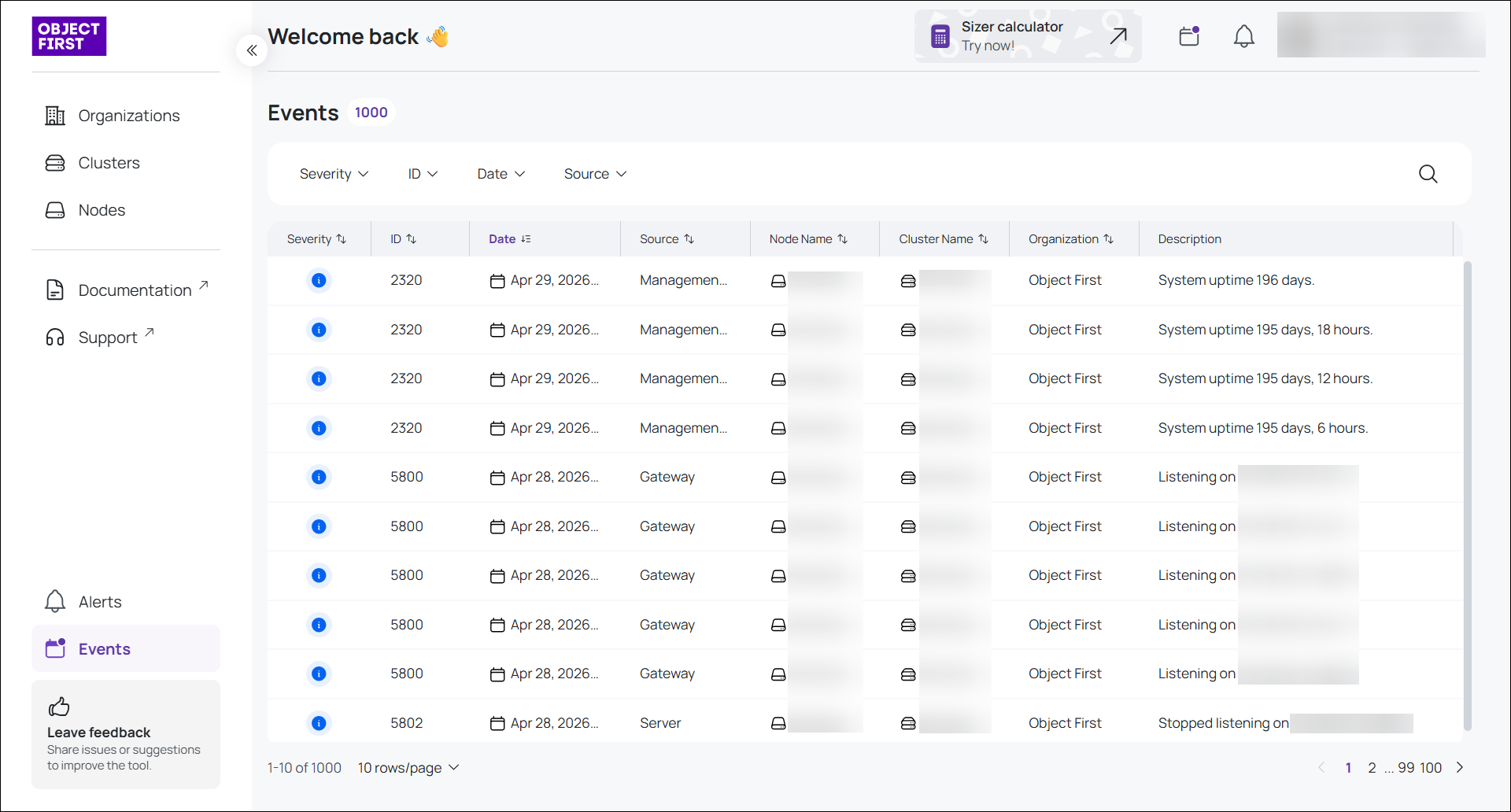
Events may include different types of system messages, including alerts and logs. To help you find relevant information faster, you can filter events by various categories.
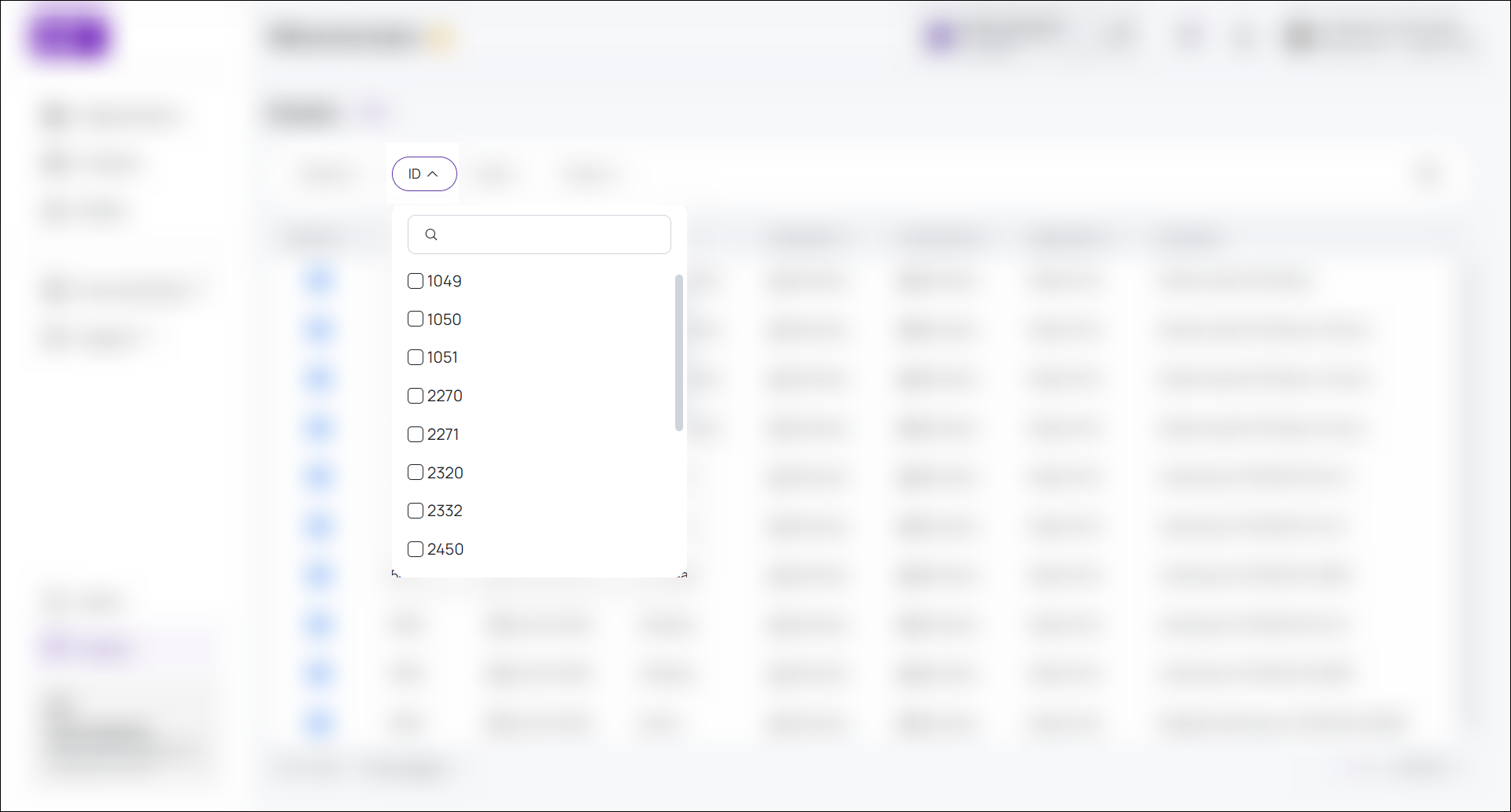
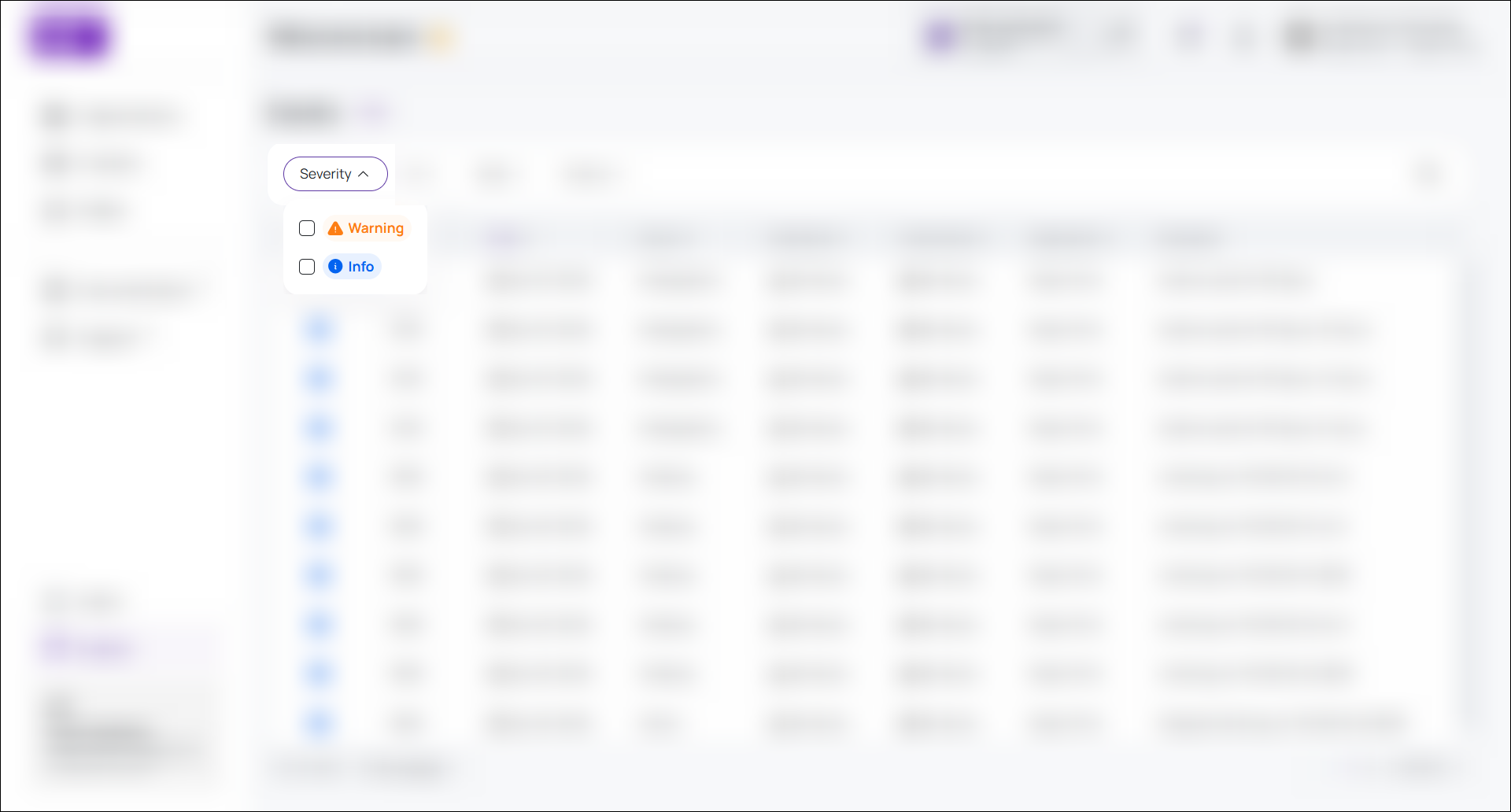
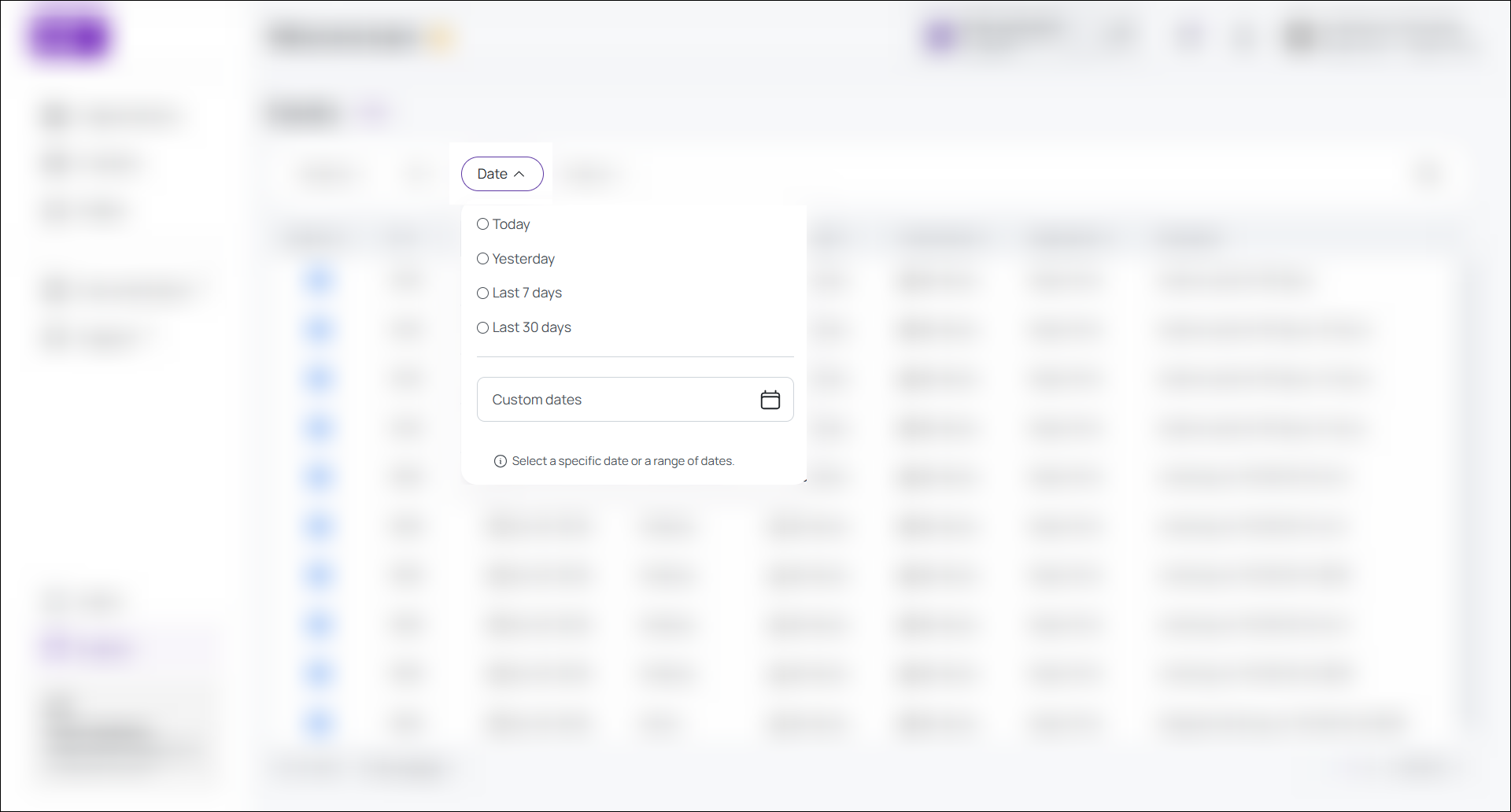
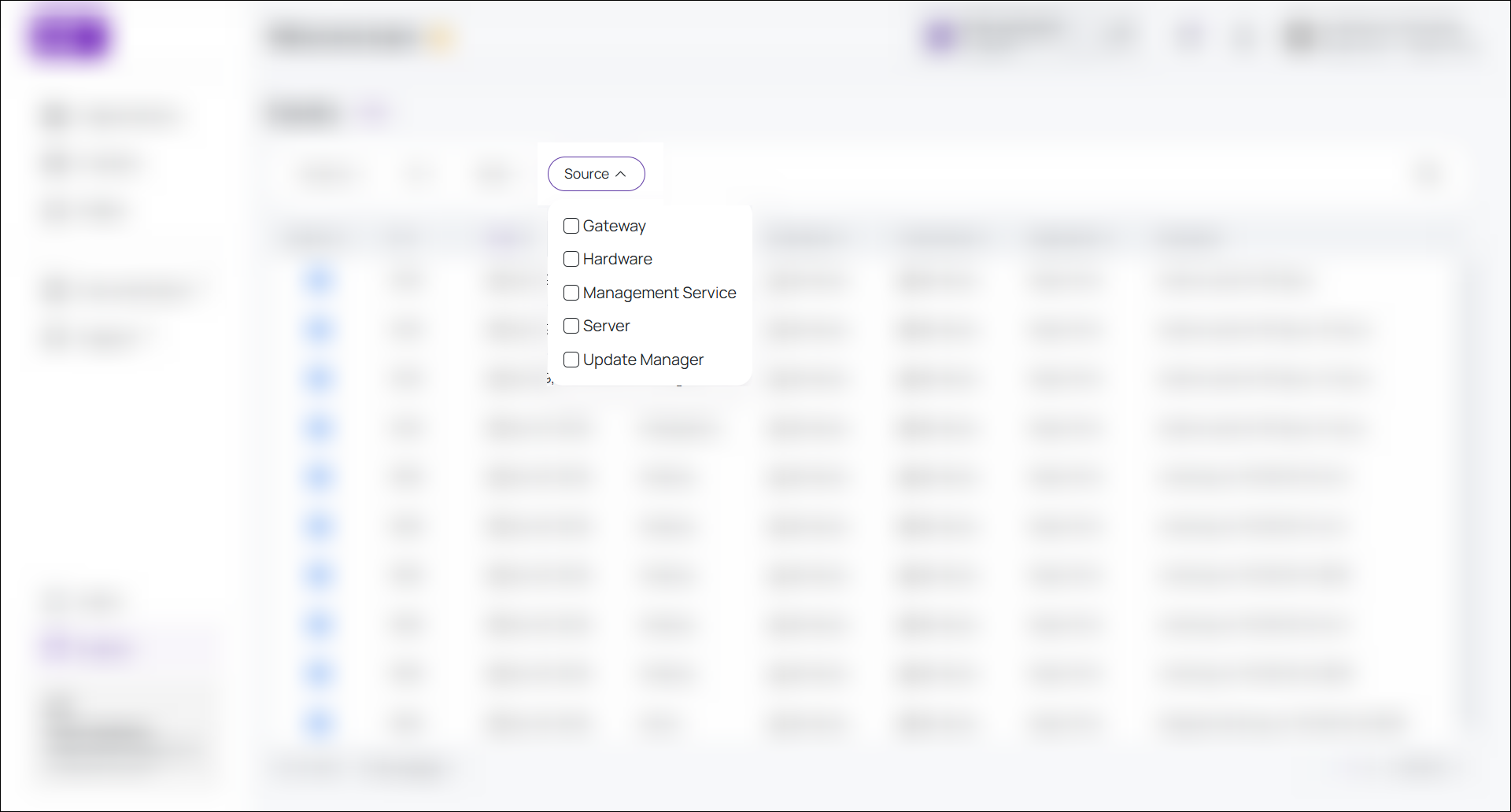
You can use the Events view to:
- Review system activity
- Search for specific alerts or logs
- Investigate the history of events in clusters
- Filter events by category
- Access more detailed information about system behaviour
This view is especially useful during troubleshooting because it gives you broader context around what has happened in the environment.
Events pop-up view
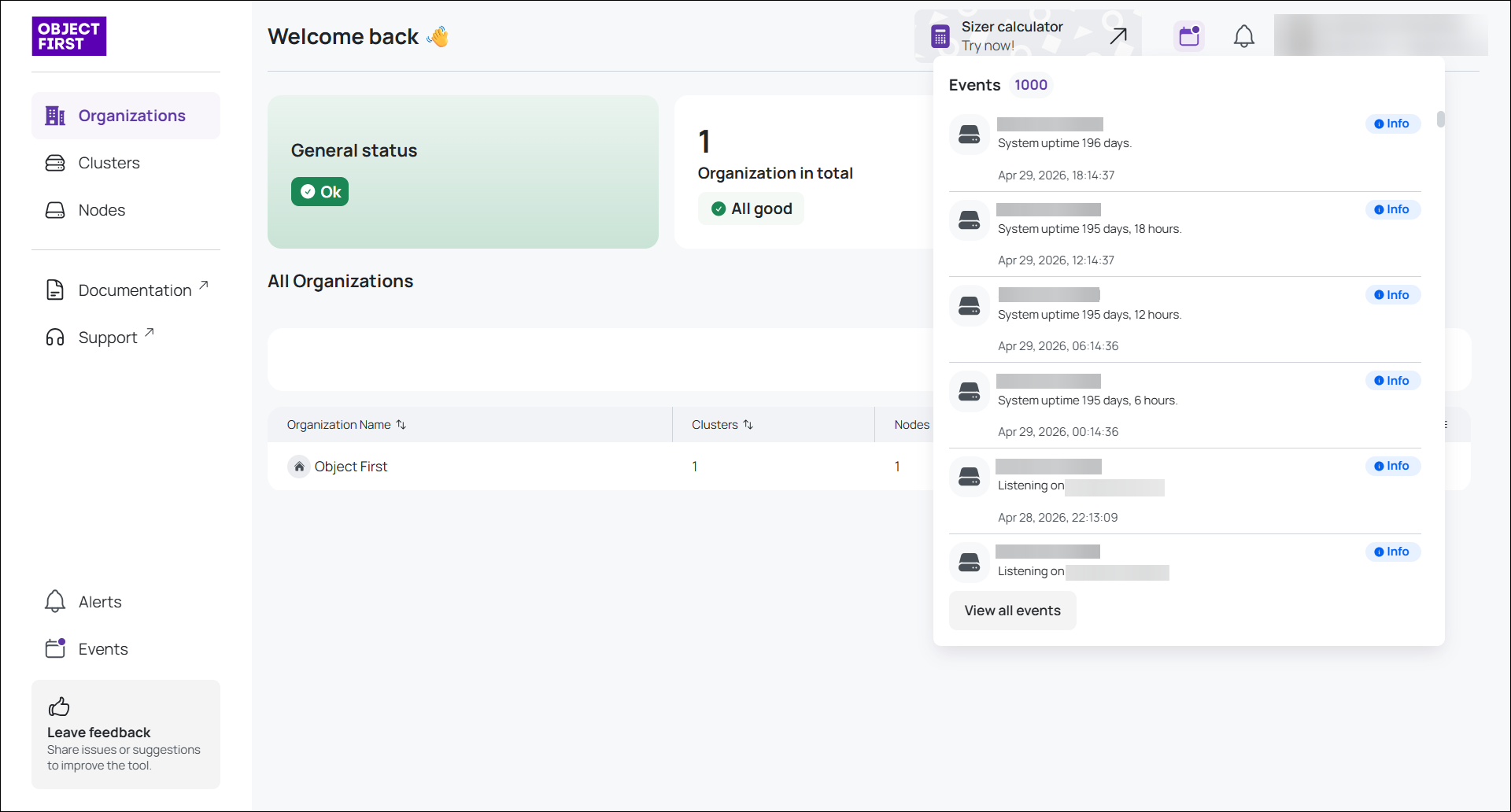
The Events pop-up view lists the most recent system events. It gives you quick access to recent activity without requiring you to open the full Events view immediately.
Use the Events pop-up when you want to quickly check the latest system activity.
Visit theEvents view on the left or press View all events for more details.
Alerts pop-up view
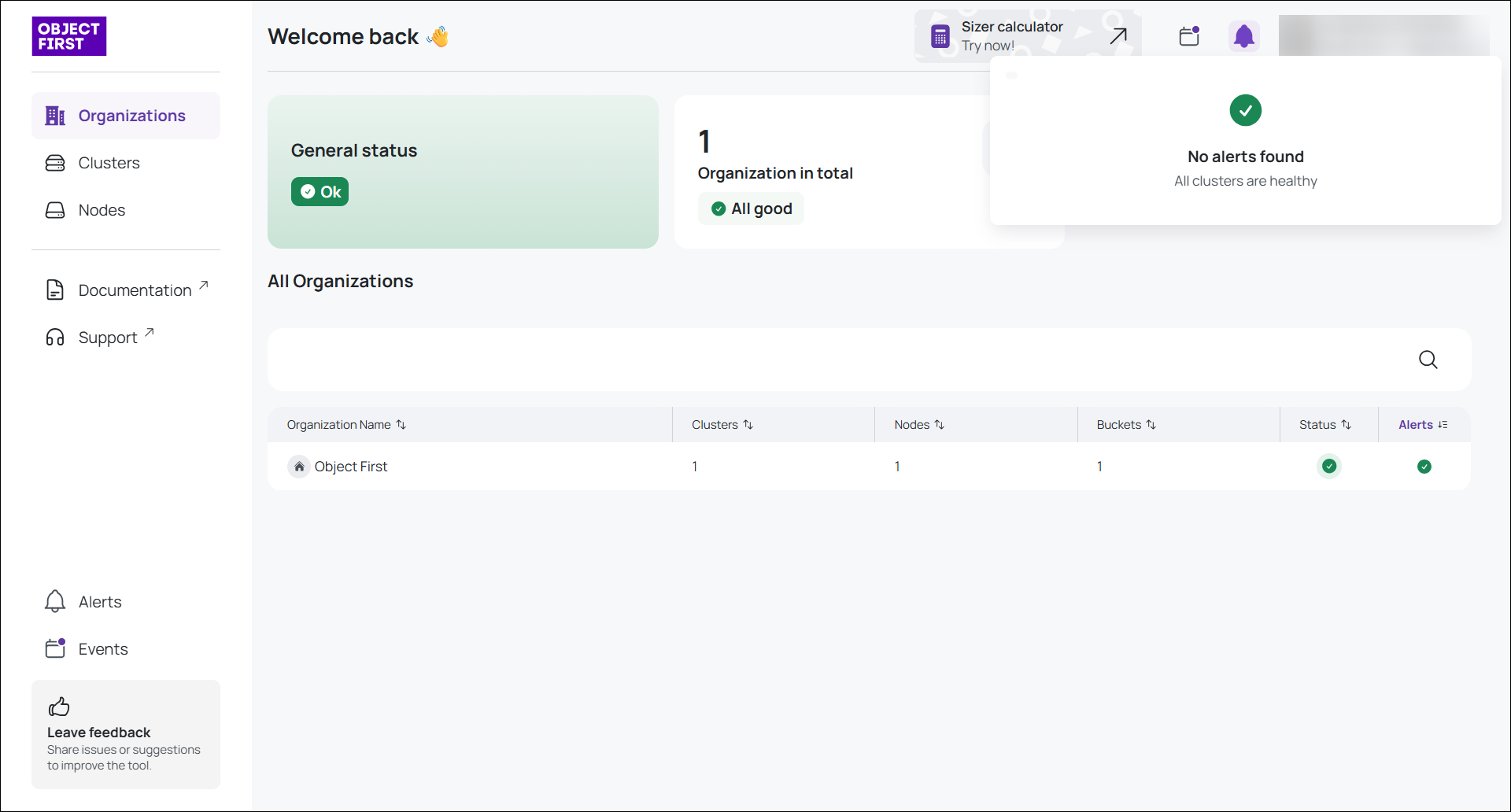
The Alerts pop-up view provides an up-to-date overview of the most critical events occurring in the system.
You can use this pop-up to quickly check whether any critical issues are currently affecting the environment. It helps you notice important events without navigating away from your current view.
To investigate alerts in more detail, open the Alerts view from the left navigation menu.
Account view
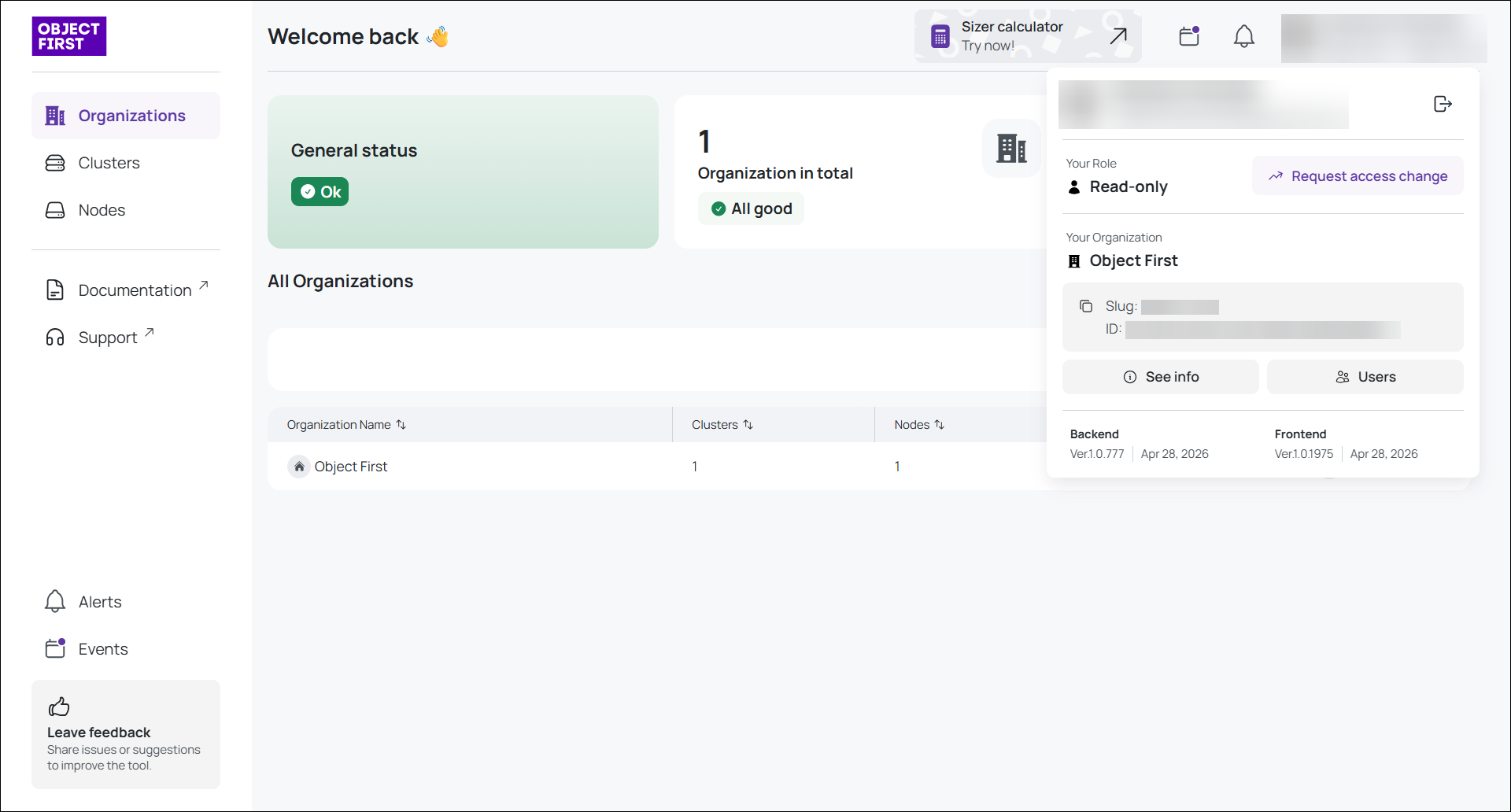
The Account view in the header displays information about your account, your role, and your organization.
This view helps you understand your access context within the Fleet Manager WebUI. It shows which organization you belong to and what role you have in the system.
From the Account view, you can access additional organization and member information.
See info view
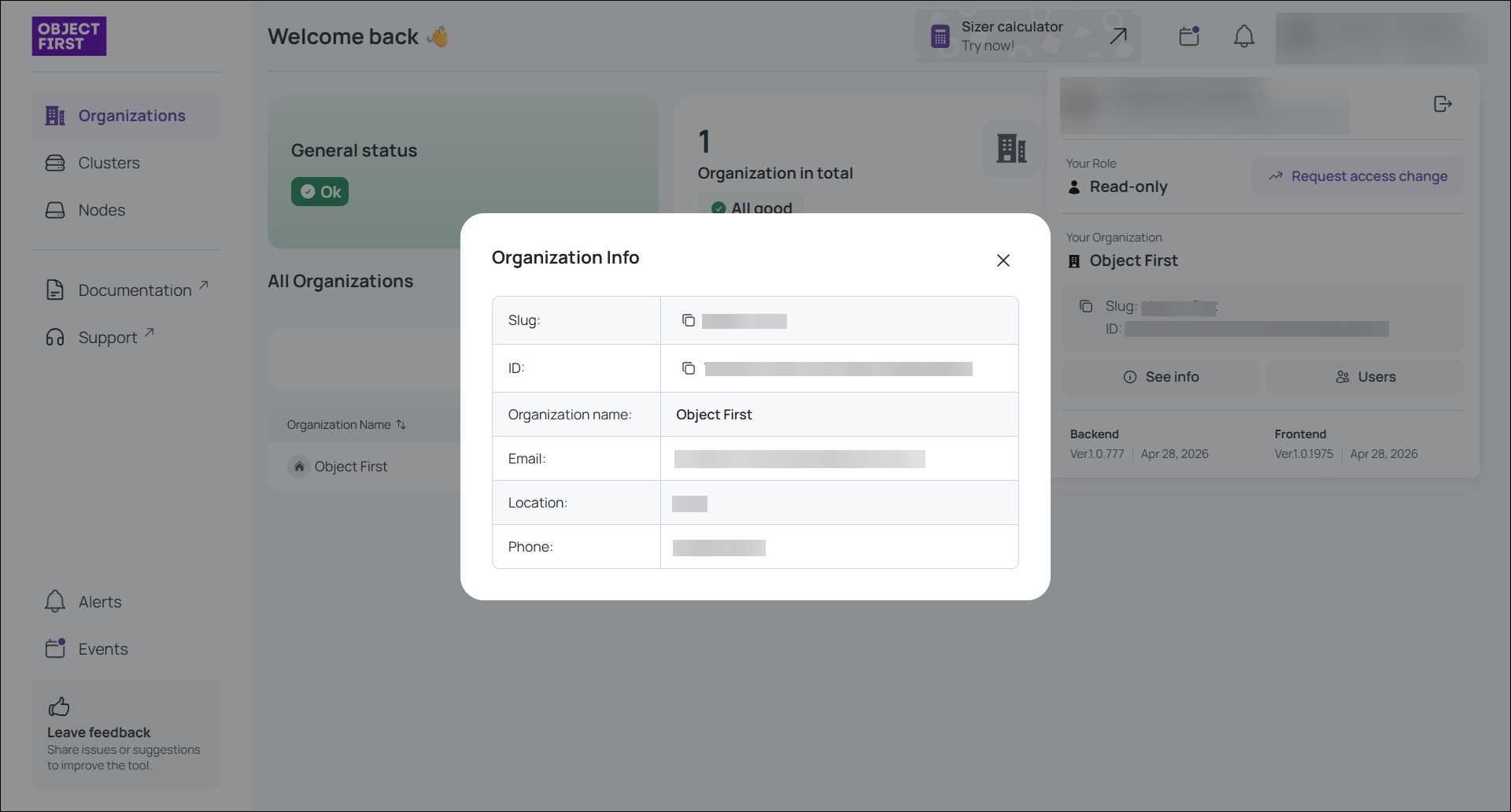
Select See info to view information about your organization.
This option provides details about the organization associated with your account and helps you confirm which organization you are currently working in.
Users view
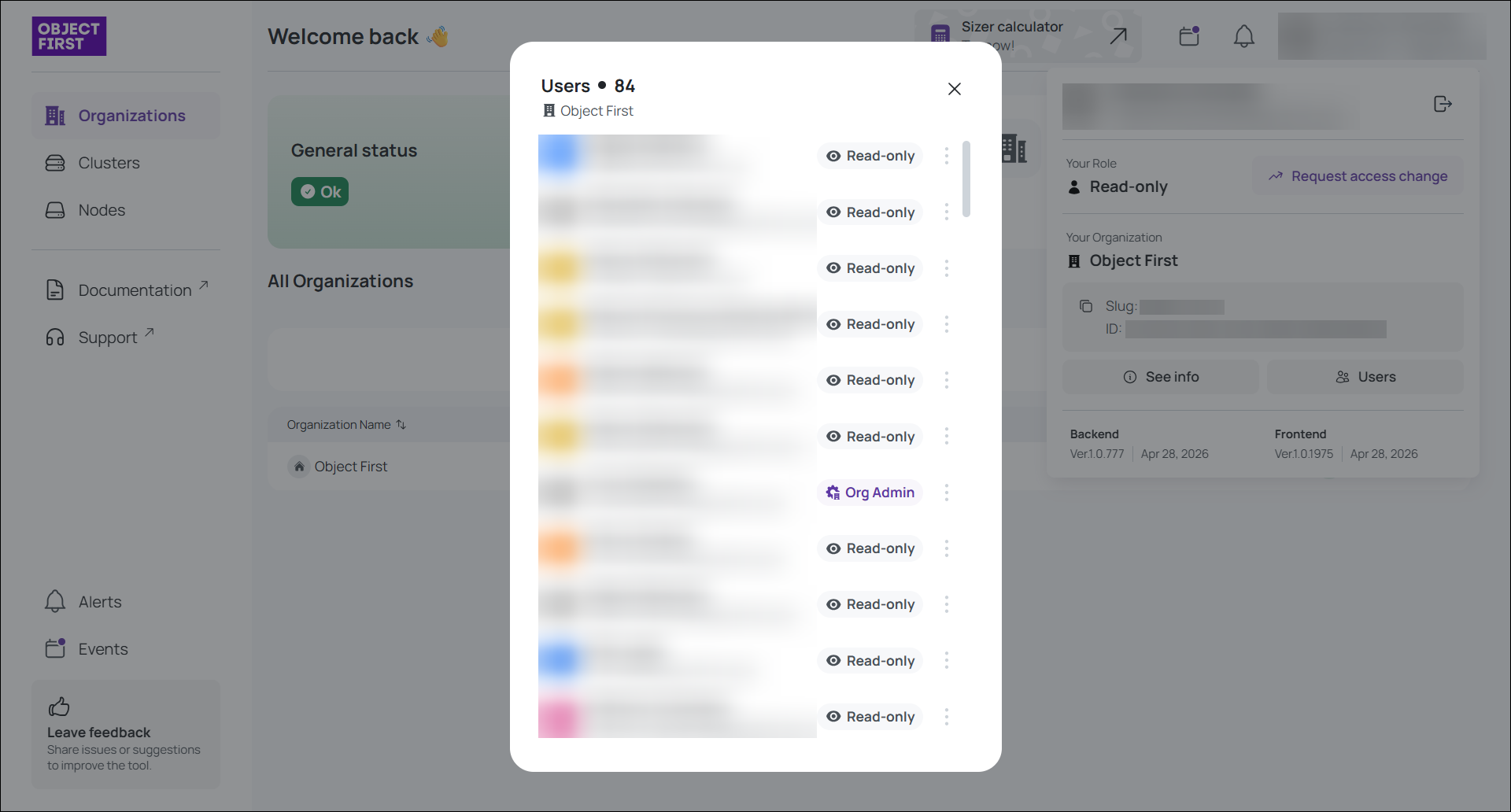
PressUsers to display all people and their roles within your root organization. Here you can invite new users to your organization if you have the Org Admin role. Be aware that you can invite users with emails that have email domain(s) that your organization has approved at the organization onboarding stage.
This option is useful when you need to review access, check assigned roles, or understand who belongs to the root organization.
Feedback button
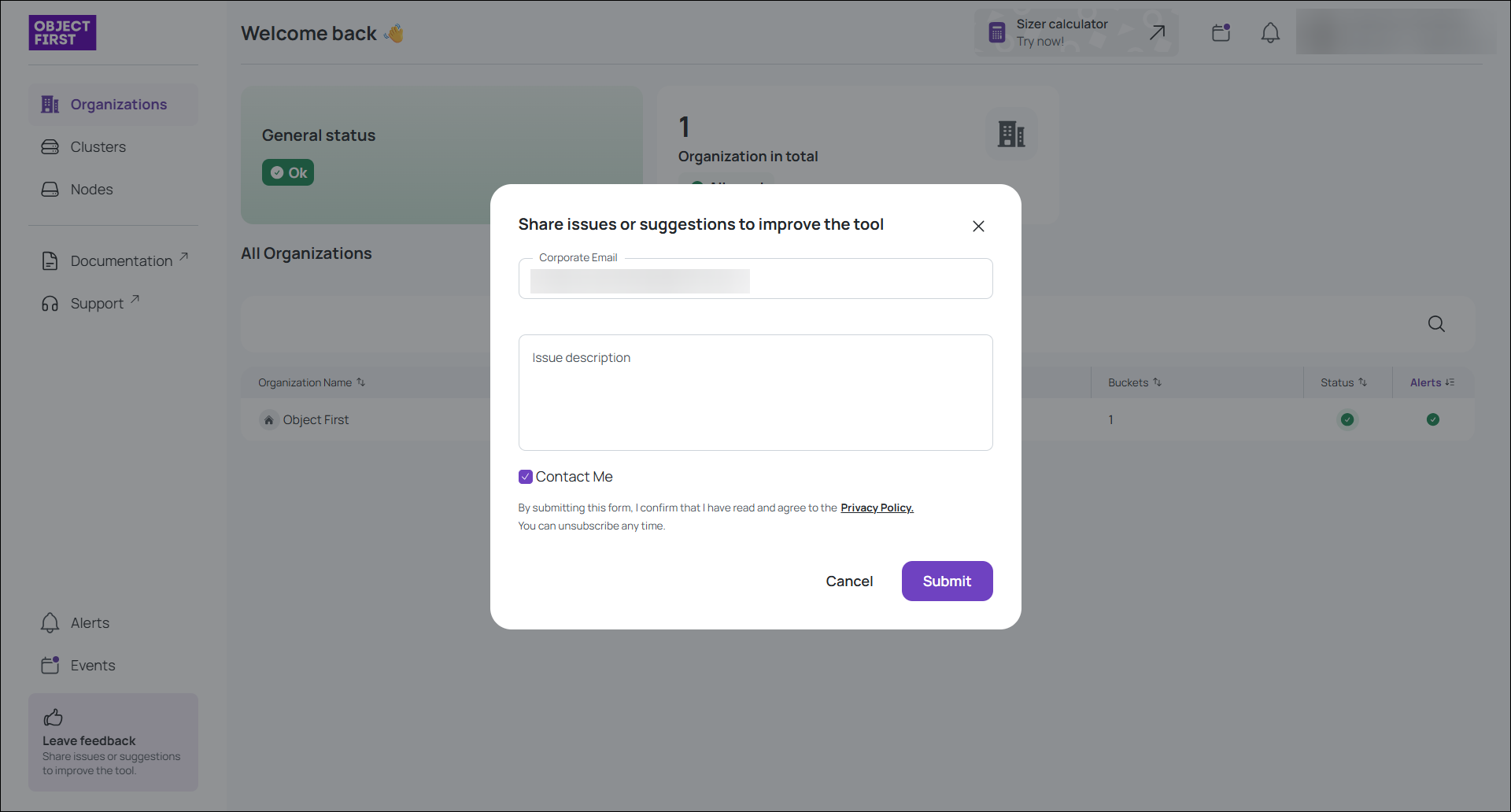
You can use the Leave feedback button to share your thoughts about the Fleet Manager WebUI.
Your feedback is important and helps us improve the experience, usability, and clarity of the WebUI. You can use this option to tell us what works well, what could be clearer, or what you think should be improved.
When you select the Feedback button, you can submit comments directly from the WebUI. We appreciate all feedback, whether it concerns a specific view, a feature, the available information, or your general experience with the interface.
Your input helps us continue improving the Fleet Manager WebUI.