Fleet Manager Quickstart
Creating Account
The onboarding process allows you to create your account and set up access to your organization. During onboarding, you provide the information required to identify yourself, connect your account to the correct organization, and complete the initial registration.
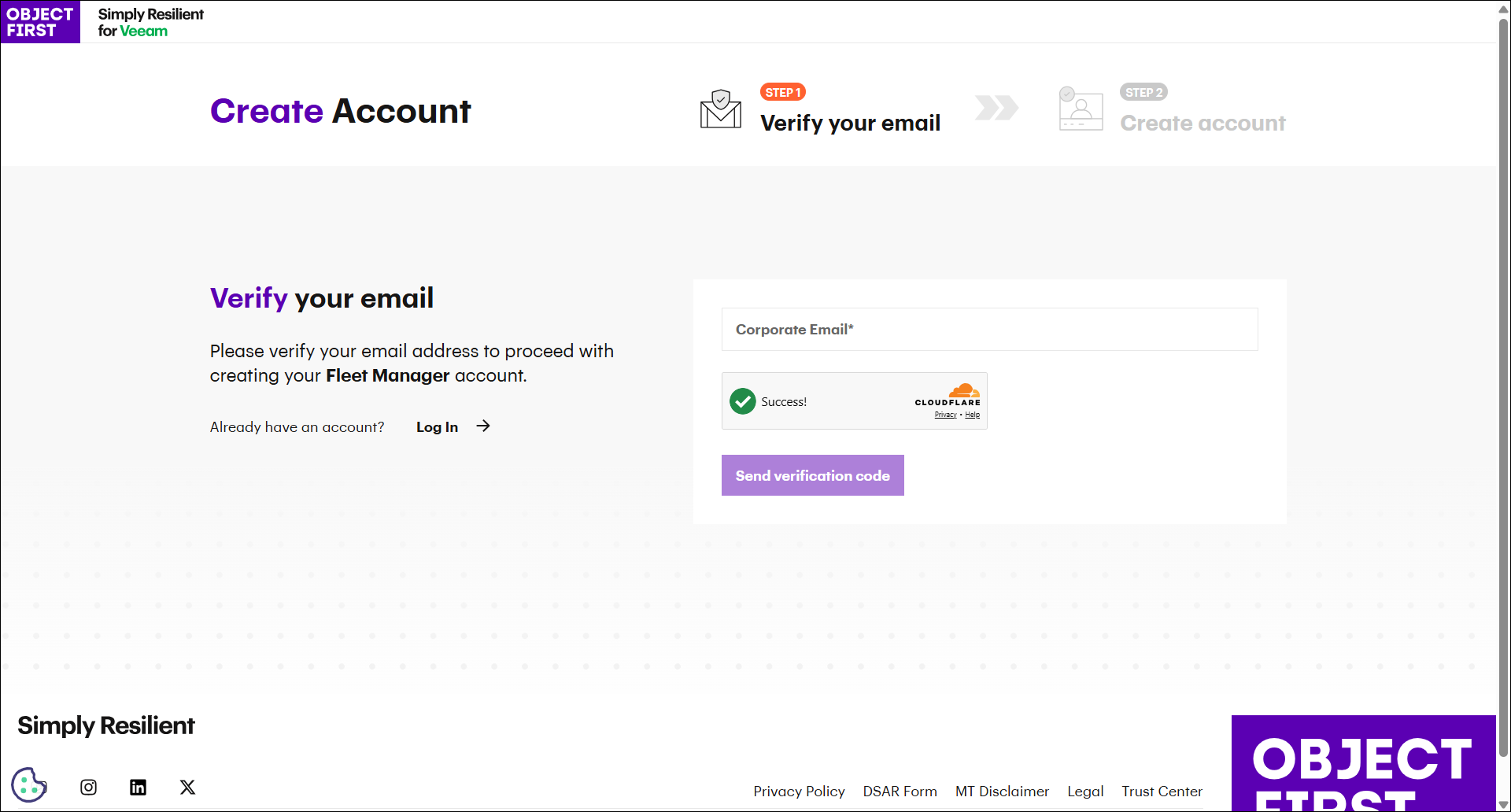
Step 1: Verify your email address
The first step of the onboarding form is to go to https://objectfirst.com/fleetmanager and verify your email address.
The form includes the following required fields:
-
Email
-
Cloudflare CAPTCHA
Step 2: Verify the OTP
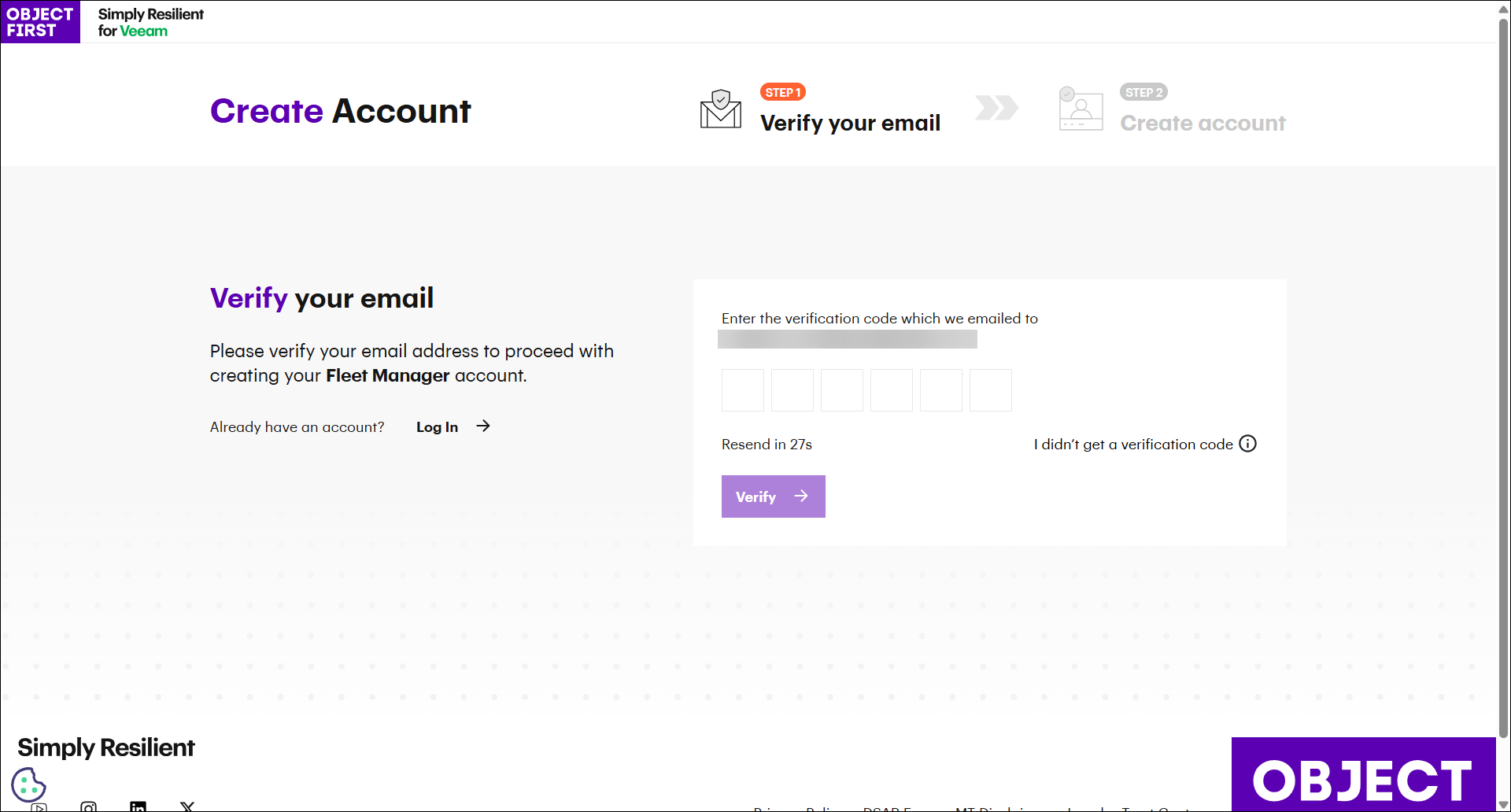
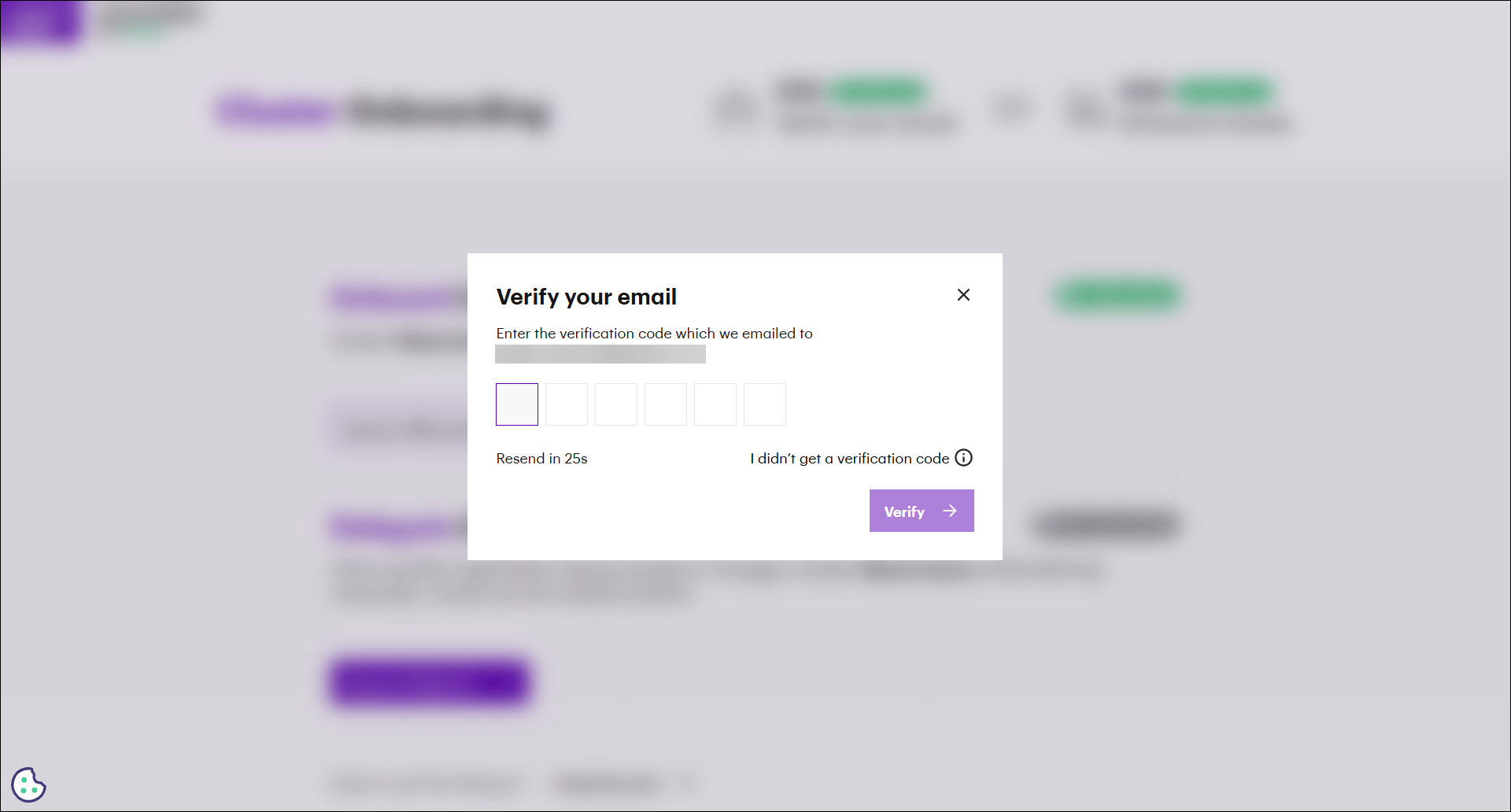
In this step, you must enter the verification code received by email.
The page contains a single OTP field, displayed as six separate input boxes. Each box accepts one digit.
Step 3: Fill in the form
The form asks whether the organization uses an identity and access management (IAM) system such as Microsoft Entra ID or Google.
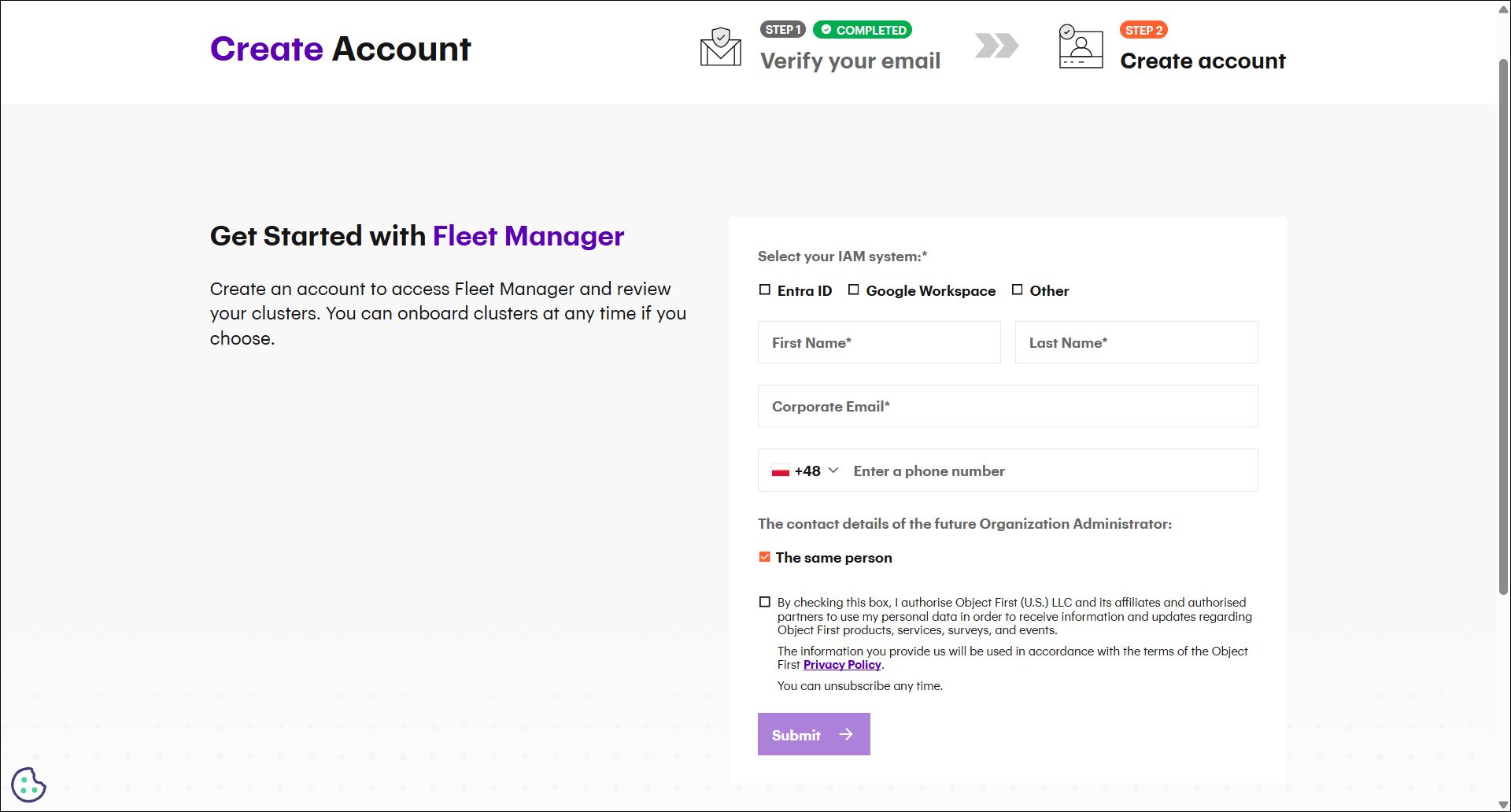
The Technical Specialist section includes the following required fields:
-
Full Name: Must contain at least 6 characters.
-
Corporate Email: Must use a valid email format.
-
Phone Number: Must be entered according to the selected country format.
The Organization Administrator section collects the same information:
-
Full Name
-
Corporate Email
-
Phone Number
By default, the The same person checkbox is selected. If the checkbox remains selected, the organization administrator details are automatically filled with the technical specialist information. If the checkbox is cleared, the fields are reset and must be completed separately. The same validation rules apply to both roles.
Fleet Manager in OOTBI
Starting with OOTBI 1.7, OOTBI includes a Fleet Manager tab in Settings.
This tab allows you to:
-
Check whether telemetry is enabled
-
Enable telemetry
-
Open the Fleet Manager Control Panel
If telemetry is enabled, selecting the control panel option opens the Fleet Manager web page.
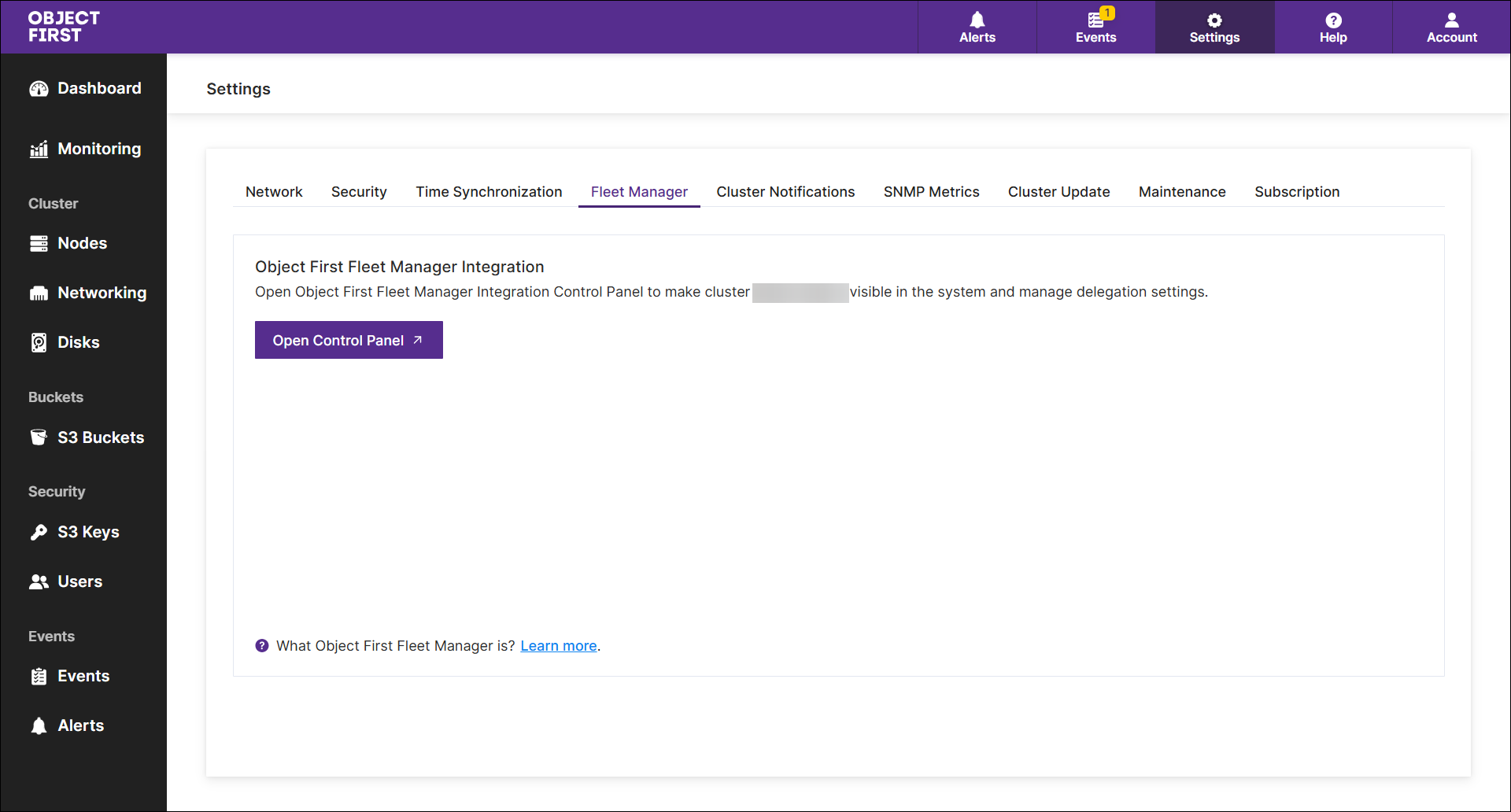
Fleet Manager cluster onboarding and offboarding
Cluster onboarding allows a running OOTBI cluster to participate in the Object First Fleet Manager web application. This process is available for supported clusters and requires user verification by OTP sent to a corporate email address. Cluster offboarding becomes available after onboarding is complete, but only when the cluster is not delegated.
What is cluster onboarding?
Cluster onboarding, also referred to as cluster enrollment, is the process of registering an existing OOTBI cluster in Fleet Manager.
This capability requires:
-
An OOTBI cluster running version 1.7 or later
-
Access to the Fleet Manager tab in OOTBI settings
-
A verified corporate email address associated with the organization that owns the cluster
After onboarding is approved, the cluster can participate in Fleet Manager and become visible for management operations.
Starting with OOTBI 1.7, OOTBI includes a Fleet Manager tab in Settings.
This tab allows you to:
-
Check whether telemetry is enabled
-
Enable telemetry
-
Open the Fleet Manager Control Panel
If telemetry is enabled, selecting the control panel option opens the Fleet Manager web page.
Cluster Onboarding
Cluster onboarding in Fleet Manager is a guided cluster registration process that verifies a corporate email address, confirms the user’s identity with a one-time password (OTP), and onboards the cluster.
The onboarding form is available at:
This process helps ensure that only verified business users can register and onboard their cluster.
Before you begin
Before starting cluster onboarding, make sure that:
-
You have access to a valid corporate email address.
-
You can receive email messages sent to that address.
-
You review and accept the Privacy Policy before submitting the form.
Step 1: Verify your email address
The first step of the onboarding form verifies the user’s email address.
The form includes the following required fields:
-
Email
-
Cloudflare CAPTCHA
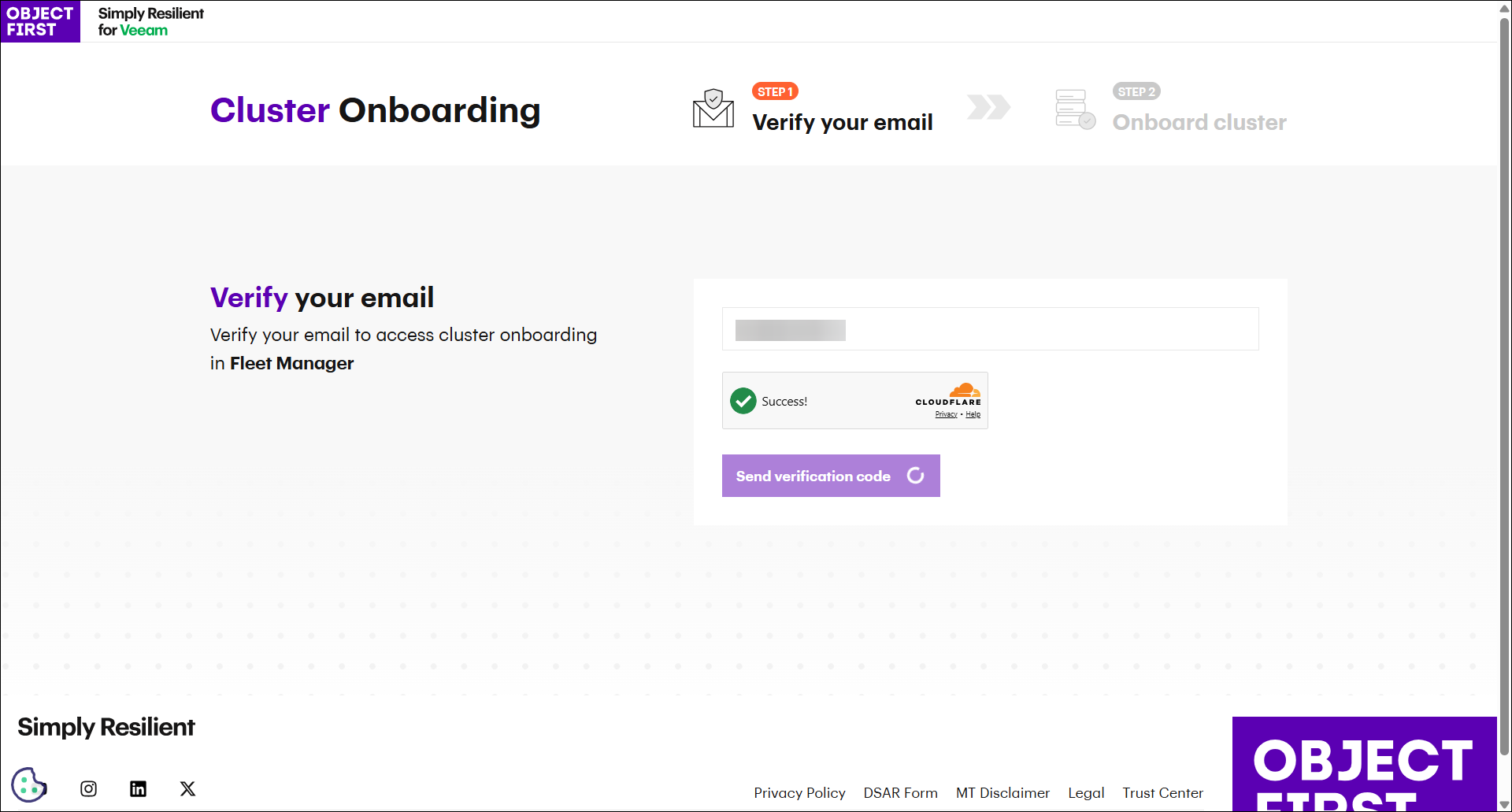
Step 2: Verify the OTP
In this step, you must enter the verification code received by email.
The page contains a single OTP field, displayed as six separate input boxes. Each box accepts one digit.
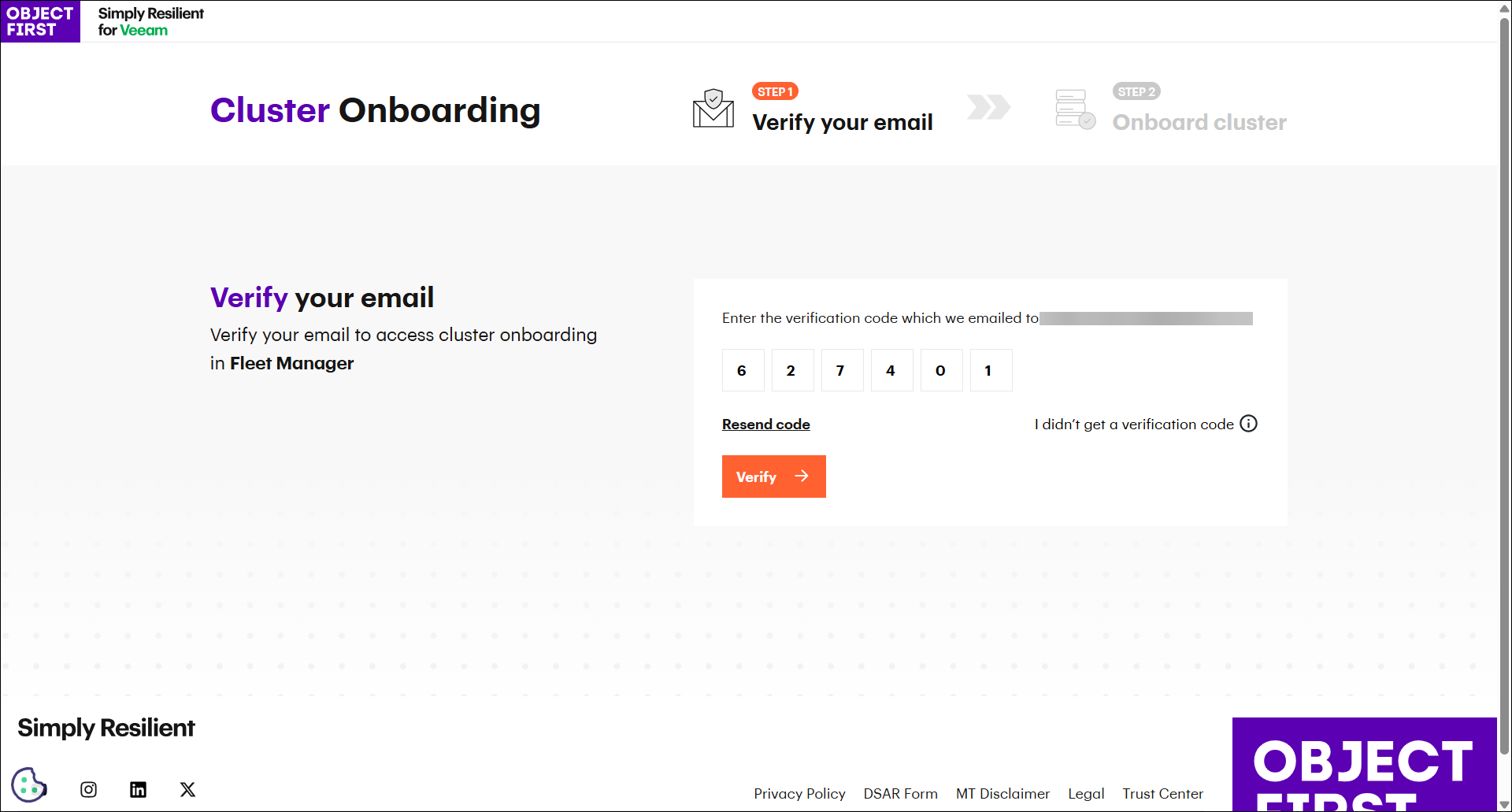
If needed, you can request a new verification code by selecting Resend Code. The button becomes available every 30 seconds.
Step 3: Request Onboarding Cluster
After OTP verification, you can onboard your cluster.
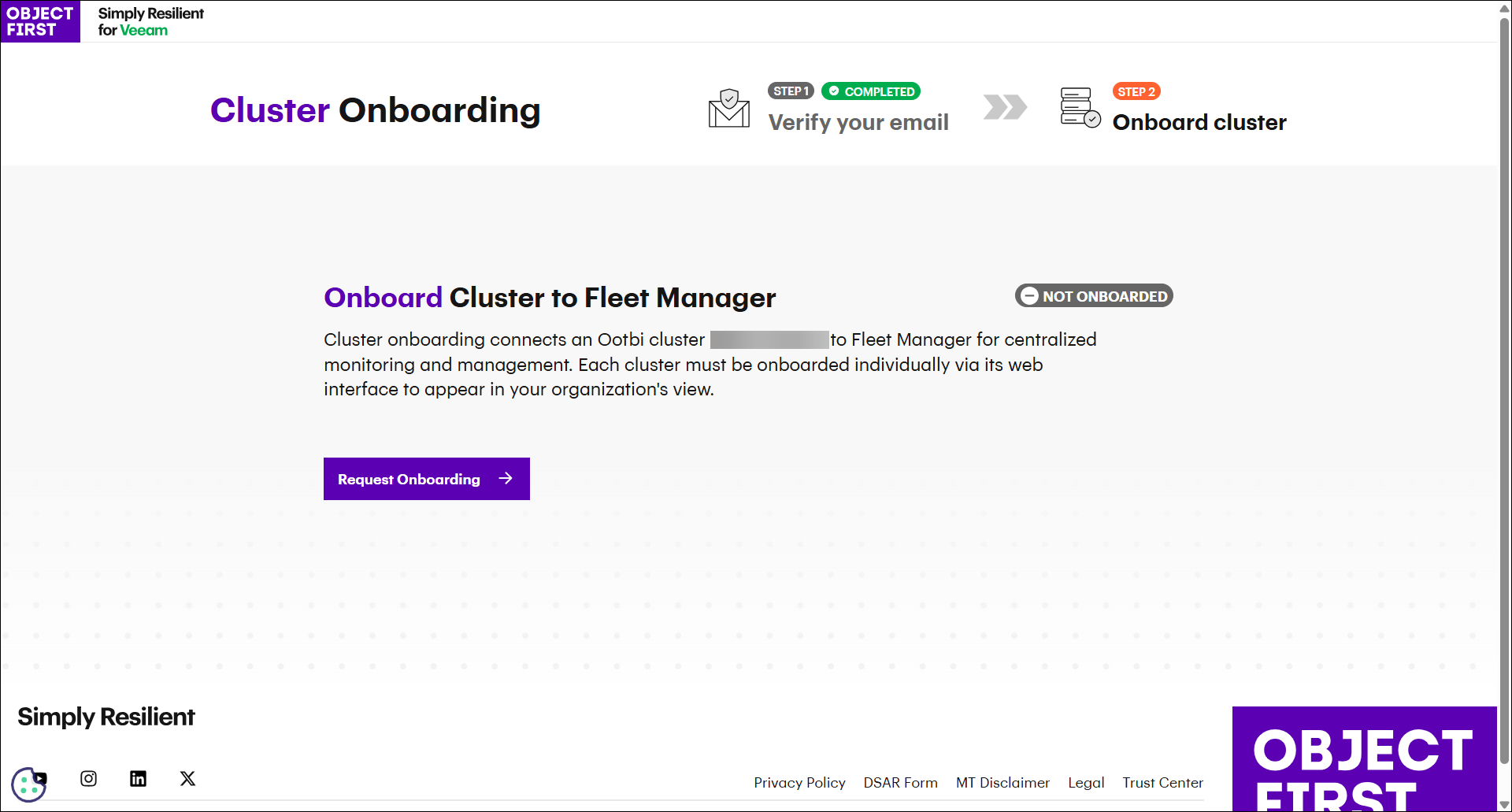
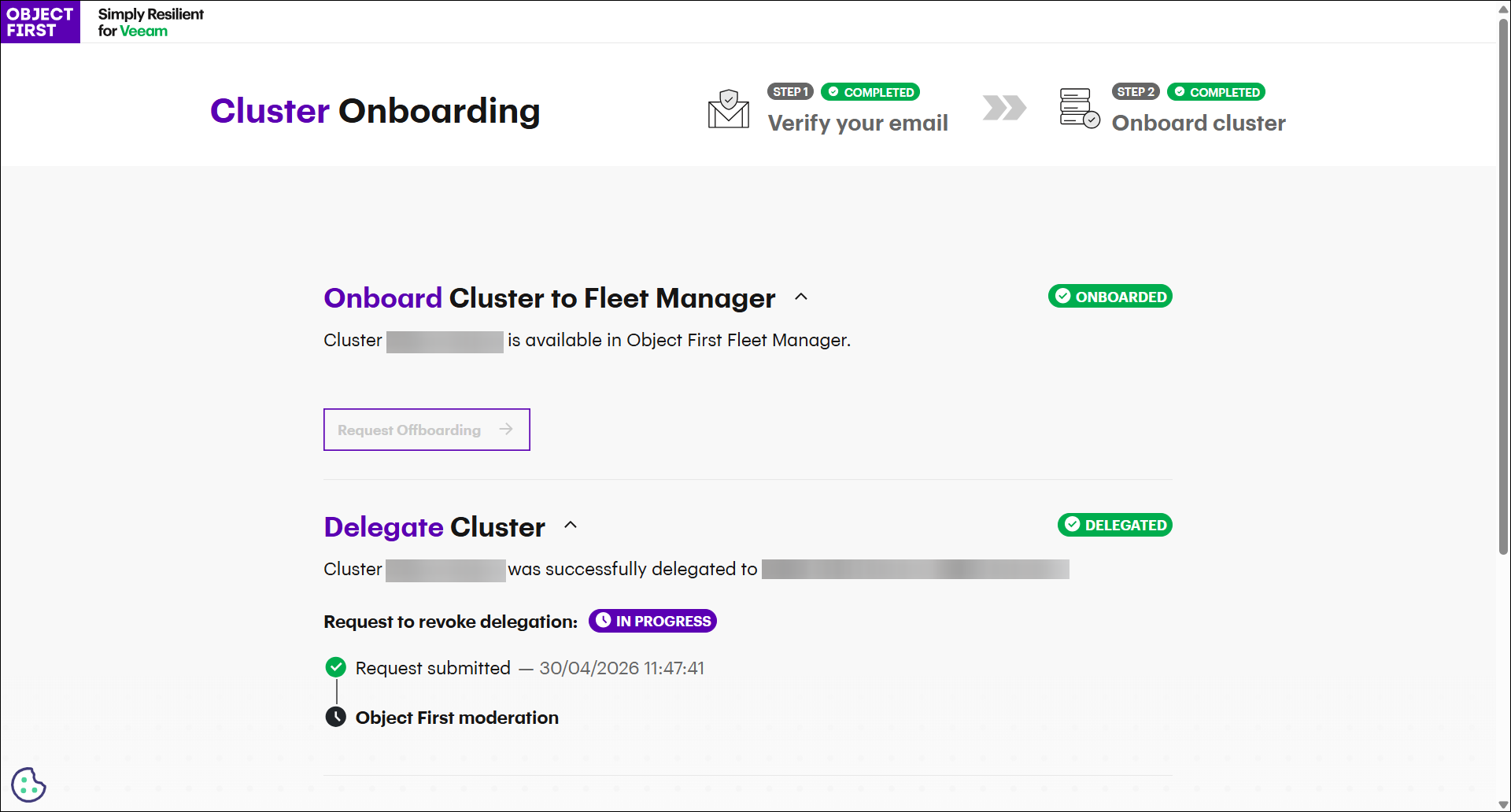
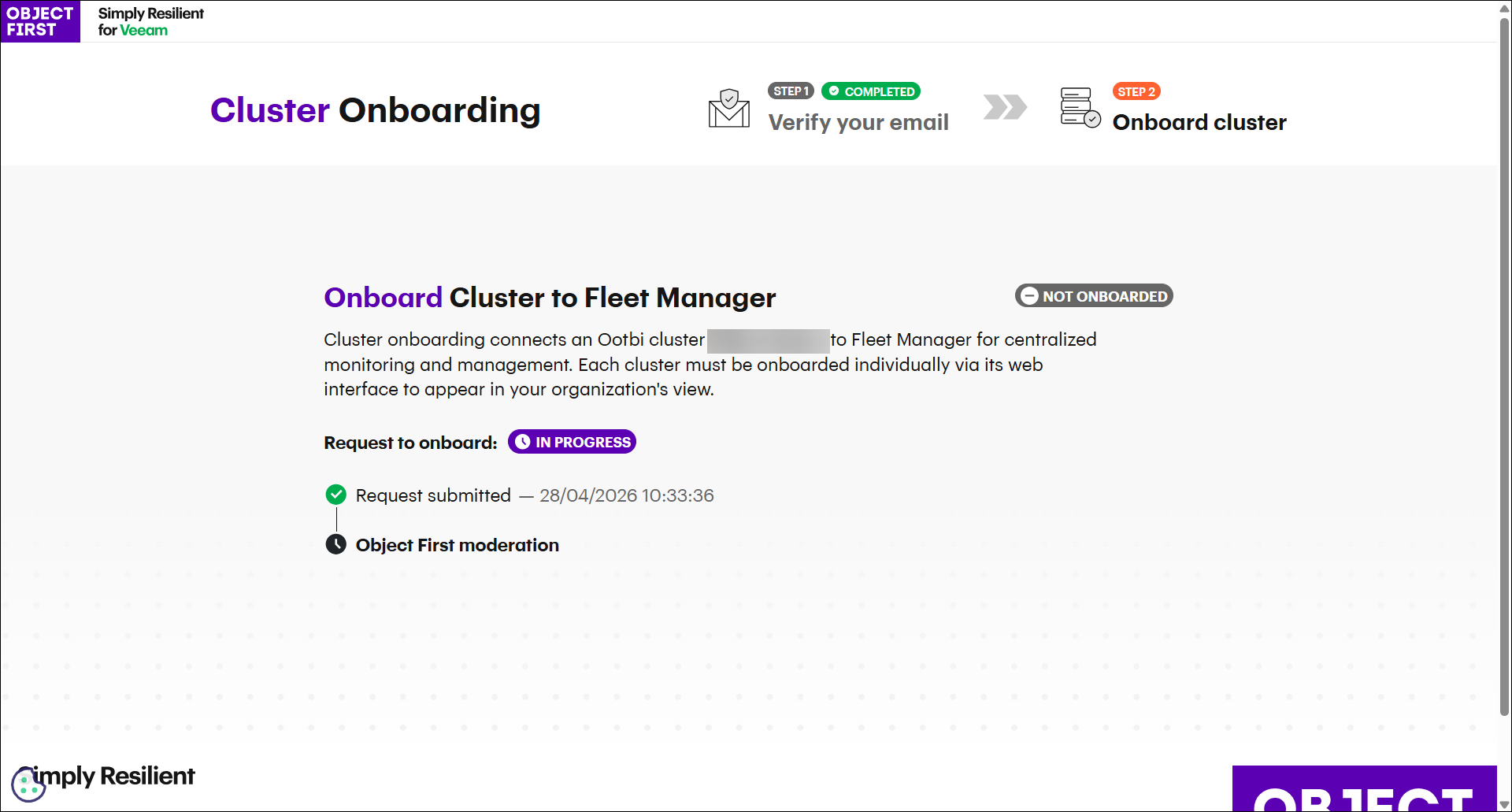
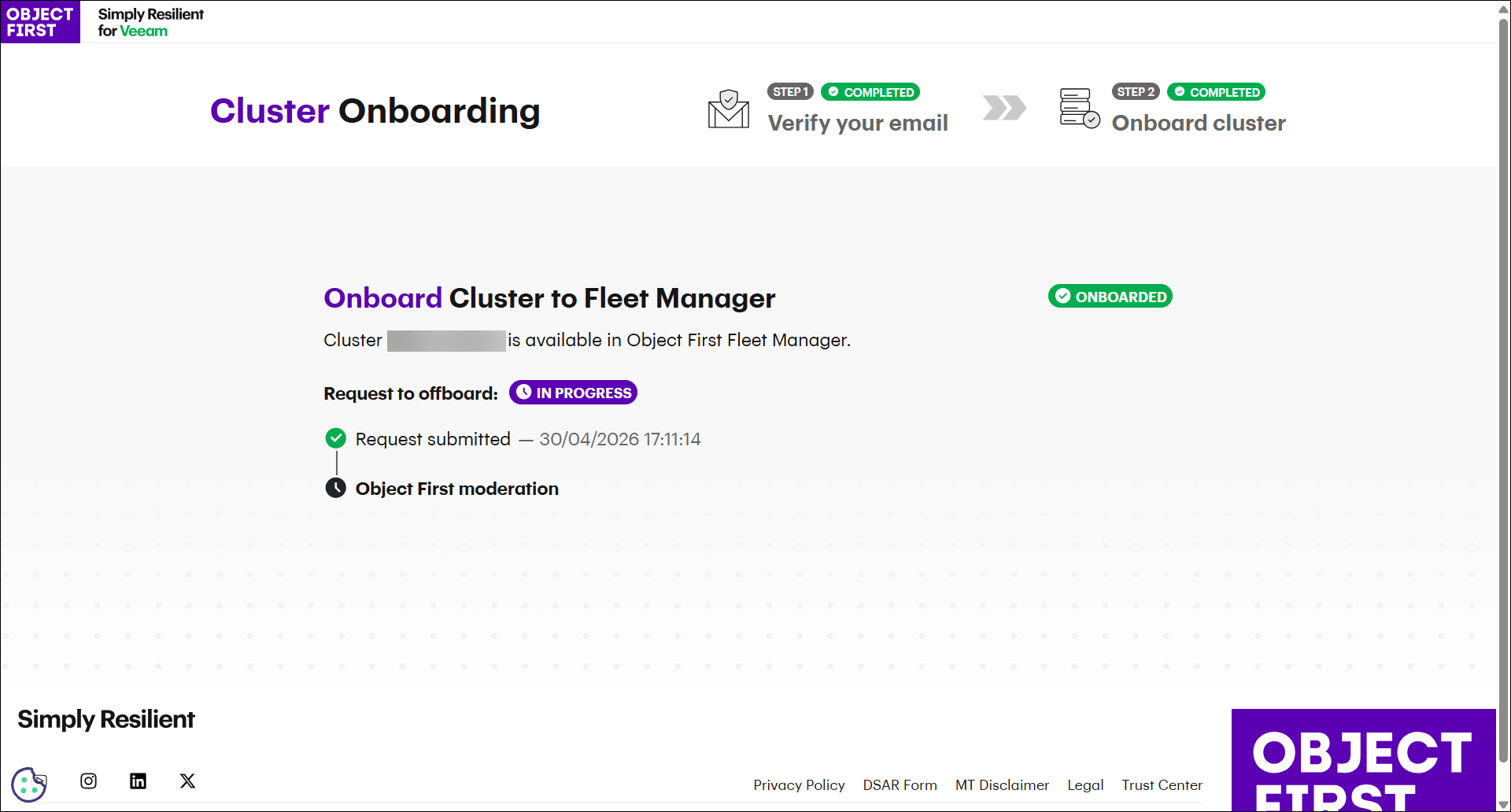
Monitor the Cluster Onboarding Request
After you select Submit Request, Fleet Manager returns you to the onboarding page, where you can track the request.
The page displays:
-
Request submission date and time
-
Current request status
During review, the request status is shown as Object First moderation.
Review can take up to 72 hours.
Cluster Status
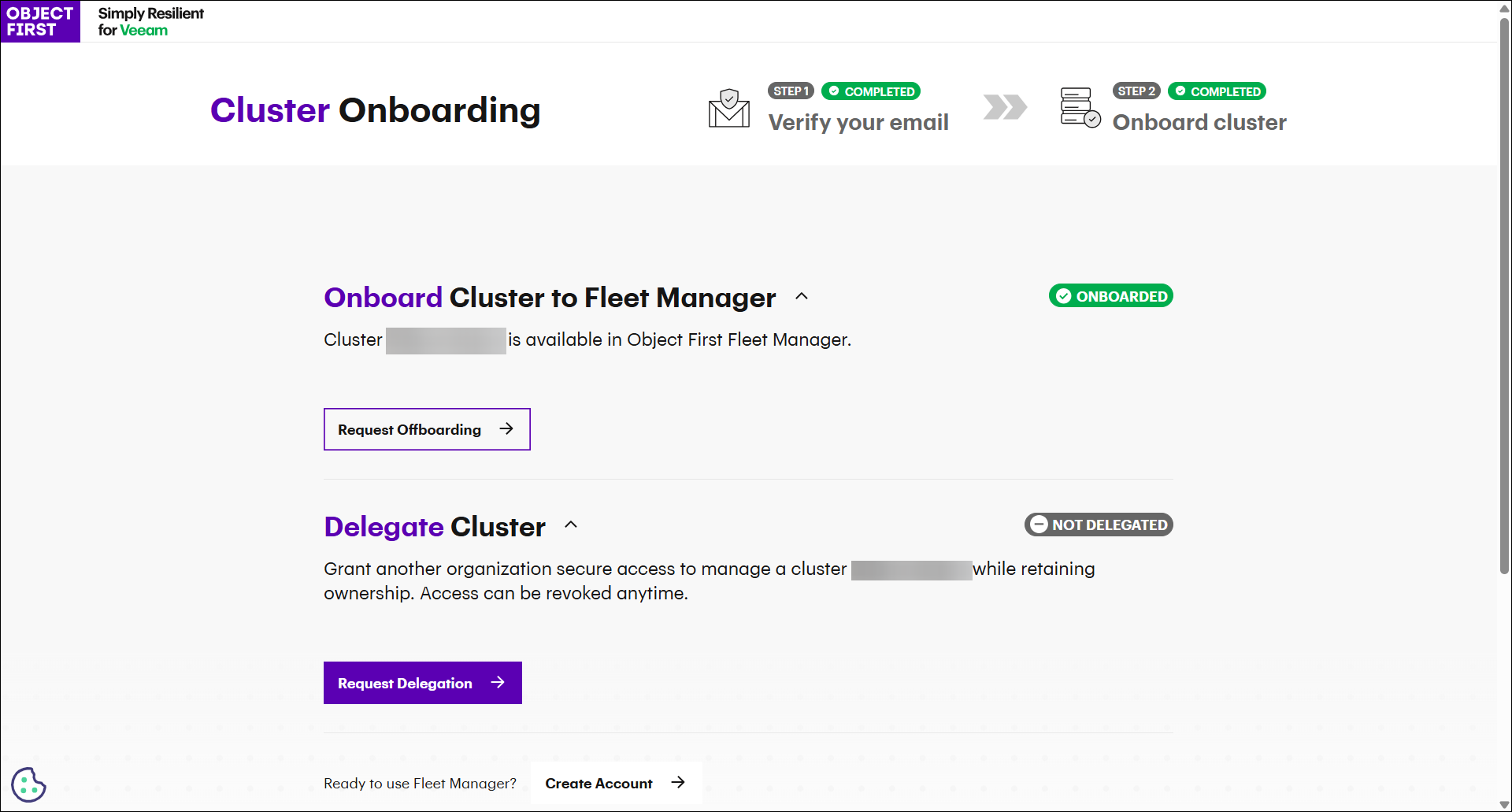
After successful cluster onboarding, the control panel displays the current Cluster Onboarding Status.
If the request is approved:
-
The cluster onboarding status changes to Onboarded
-
The cluster becomes available in Fleet Manager
-
The Cluster Delegation section becomes available
-
The Request Offboarding option is available, but only if the cluster is not delegated
Request cluster offboarding
Cluster offboarding can be requested only after onboarding is complete and only when the cluster is not delegated.
This allows the organization to remove the cluster from Fleet Manager participation when needed.
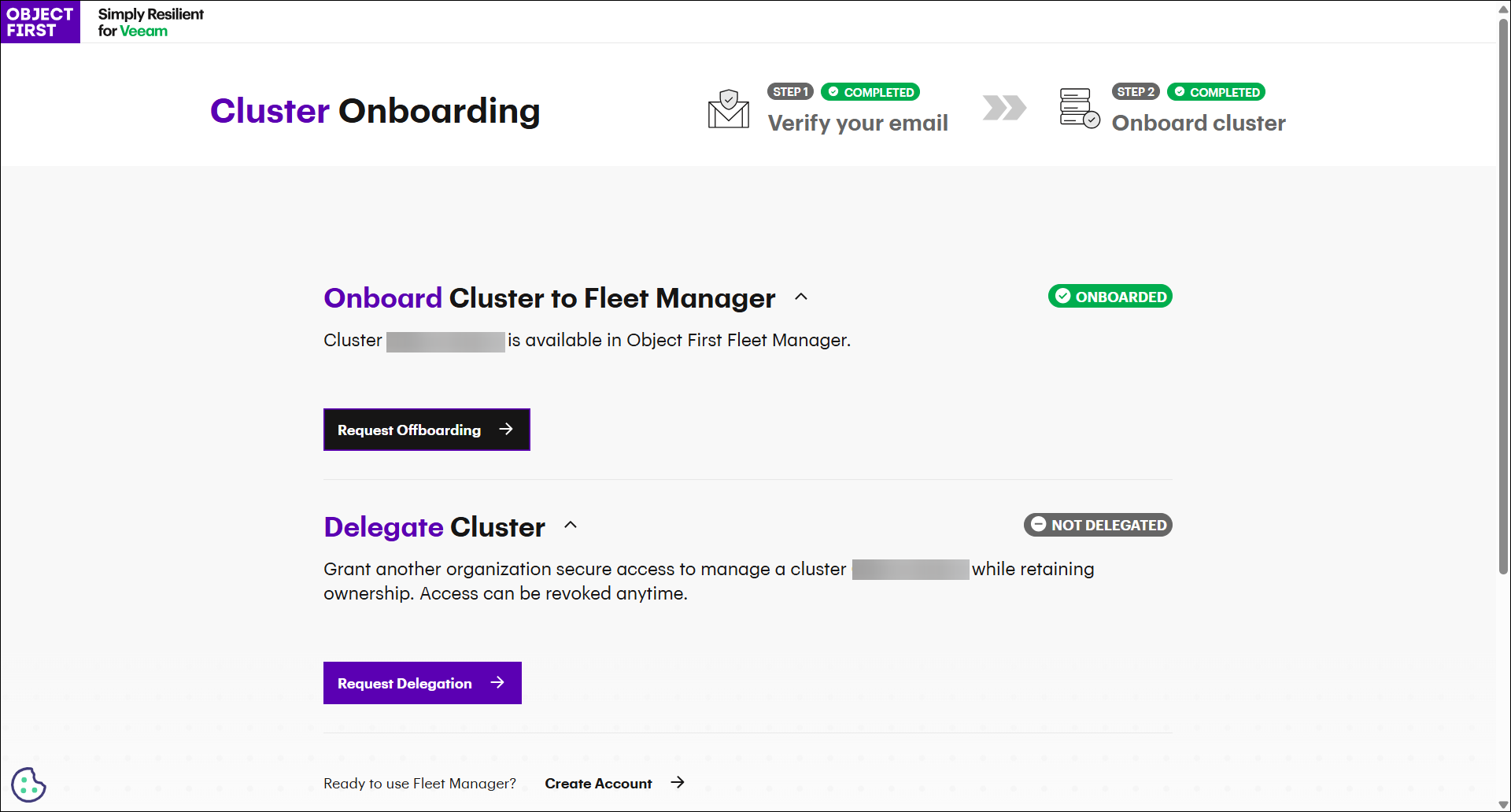
To start the offboarding process, select Request Offboarding.
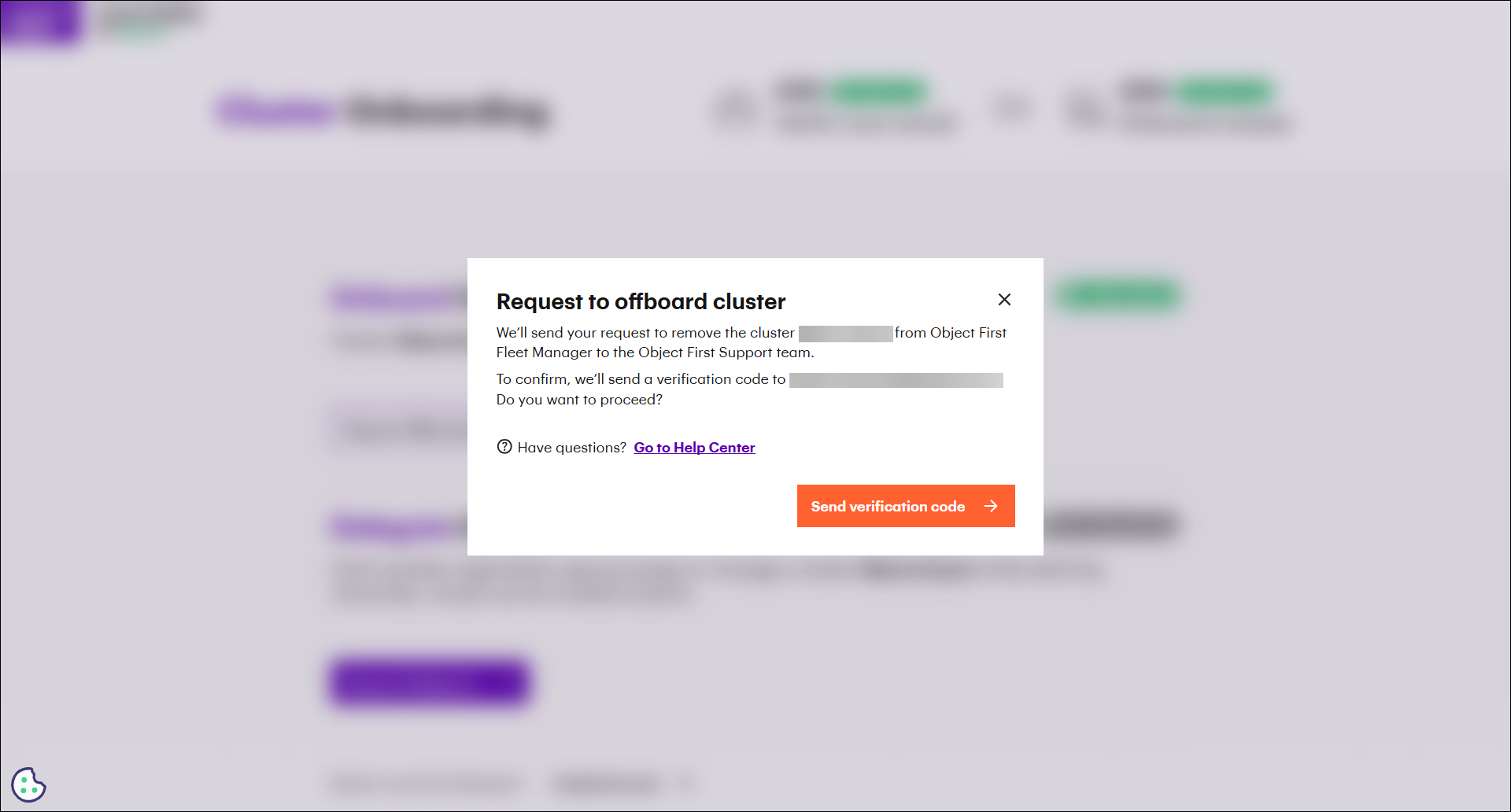
Press Send Verification Code.
Enter the verification code and press Verify.
After the request is submitted, Fleet Manager returns to the Cluster Onboarding page. Request status is shown as Object First moderation.
Once confirmed, your cluster will be offboarded.
Fleet Manager cluster delegation
Cluster delegation allows an onboarded cluster to be delegated to another organization. This process is available only after cluster onboarding is approved and only when the cluster has not already been delegated.
Delegation release removes an existing delegation and returns the cluster to its original non-delegated state.
Before you begin
Cluster delegation is available only when all of the following conditions are met:
-
Cluster Onboarding Status is Onboarded
-
Cluster Delegation Status is Not Delegated
If these conditions are not met, the delegation request option is not available.
Open the cluster delegation page
The Cluster Delegation page shows the current:
-
Cluster Onboarding Status
-
Cluster Delegation Status
If the cluster is eligible, the page also displays the Request Delegation button.
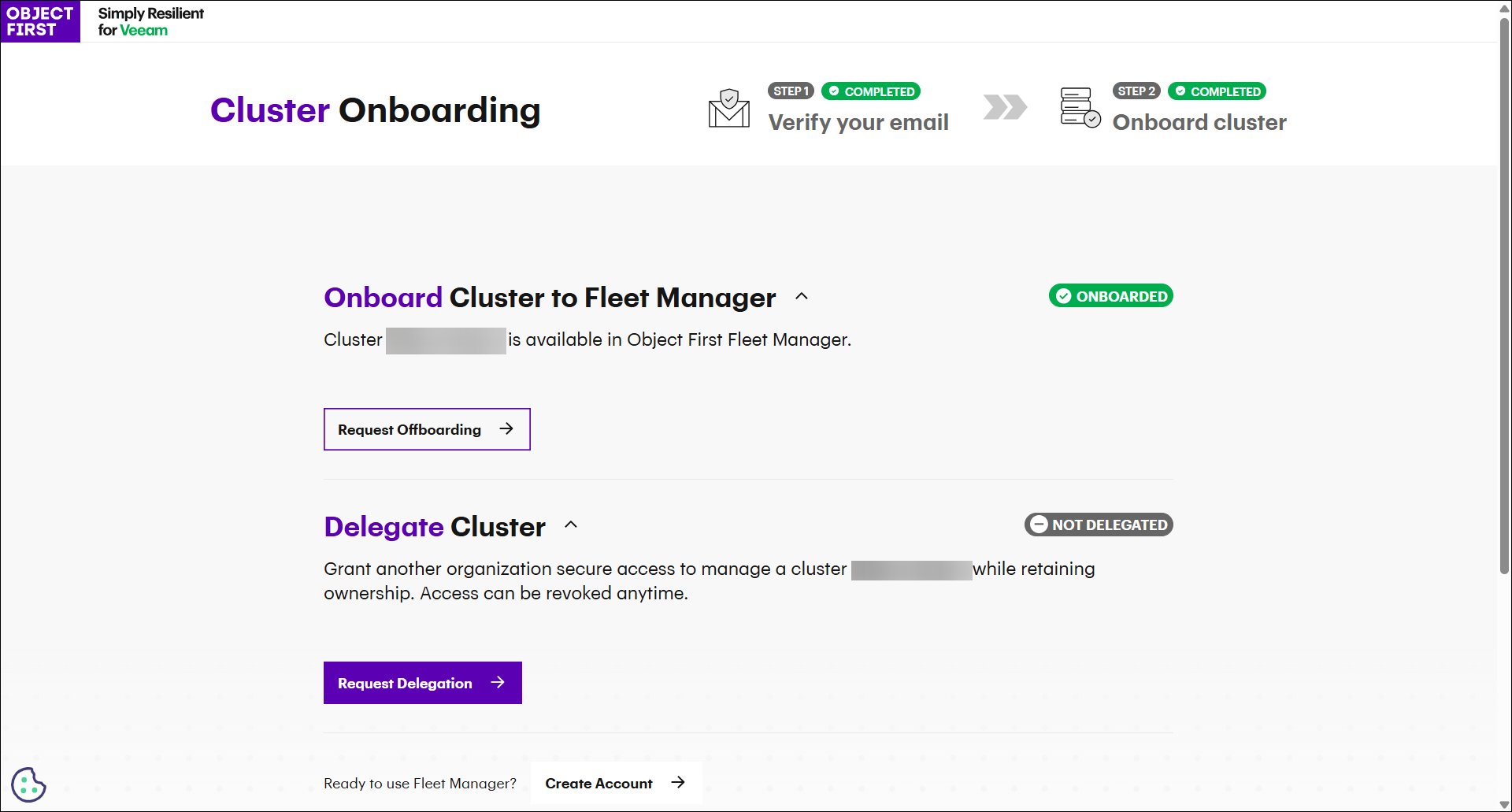
Request delegation
To start the delegation process, select Request Delegation.
Fleet Manager opens a modal form.
The form includes the following required fields:
-
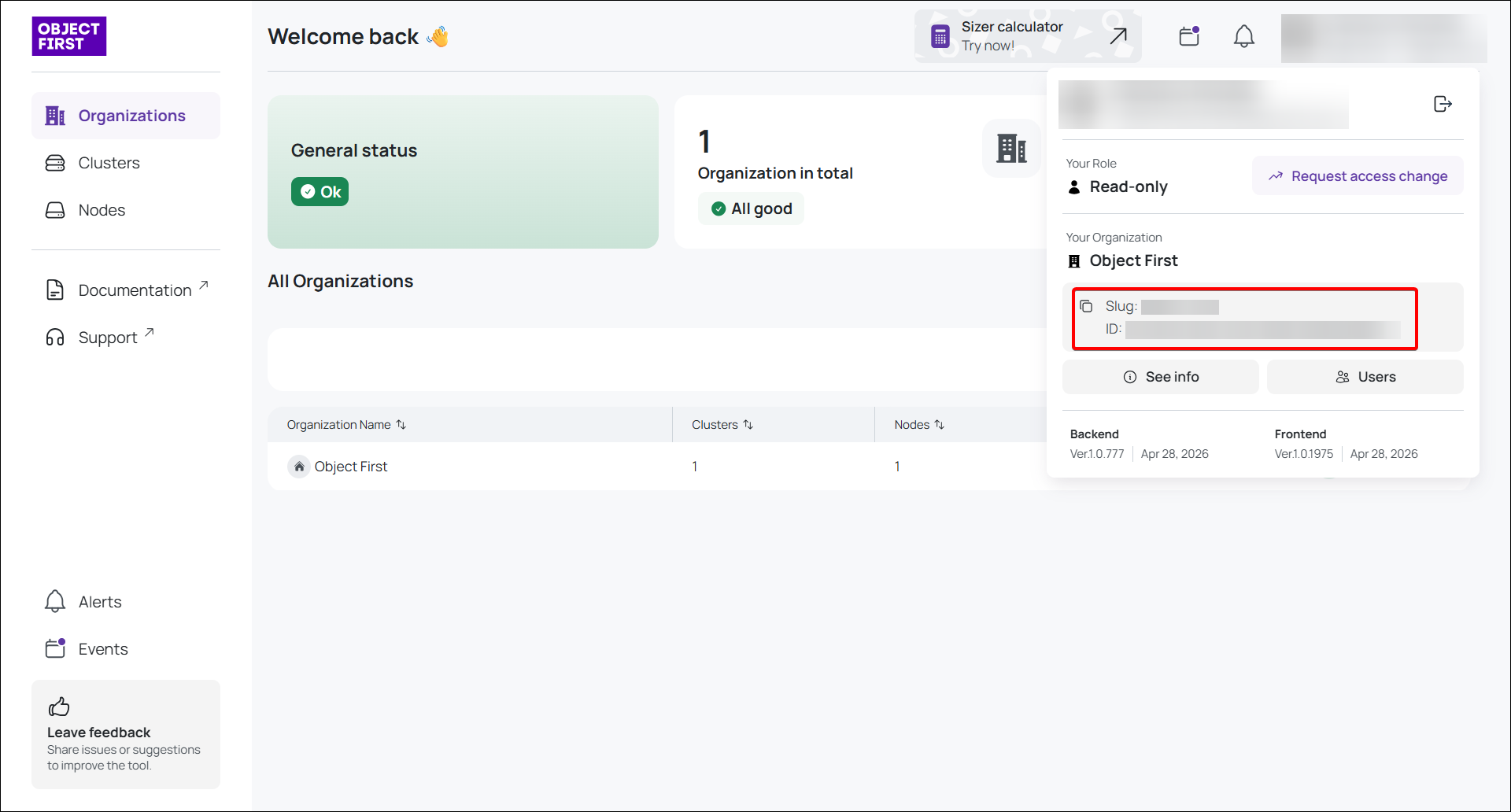
Organization Slug
-
Organization ID
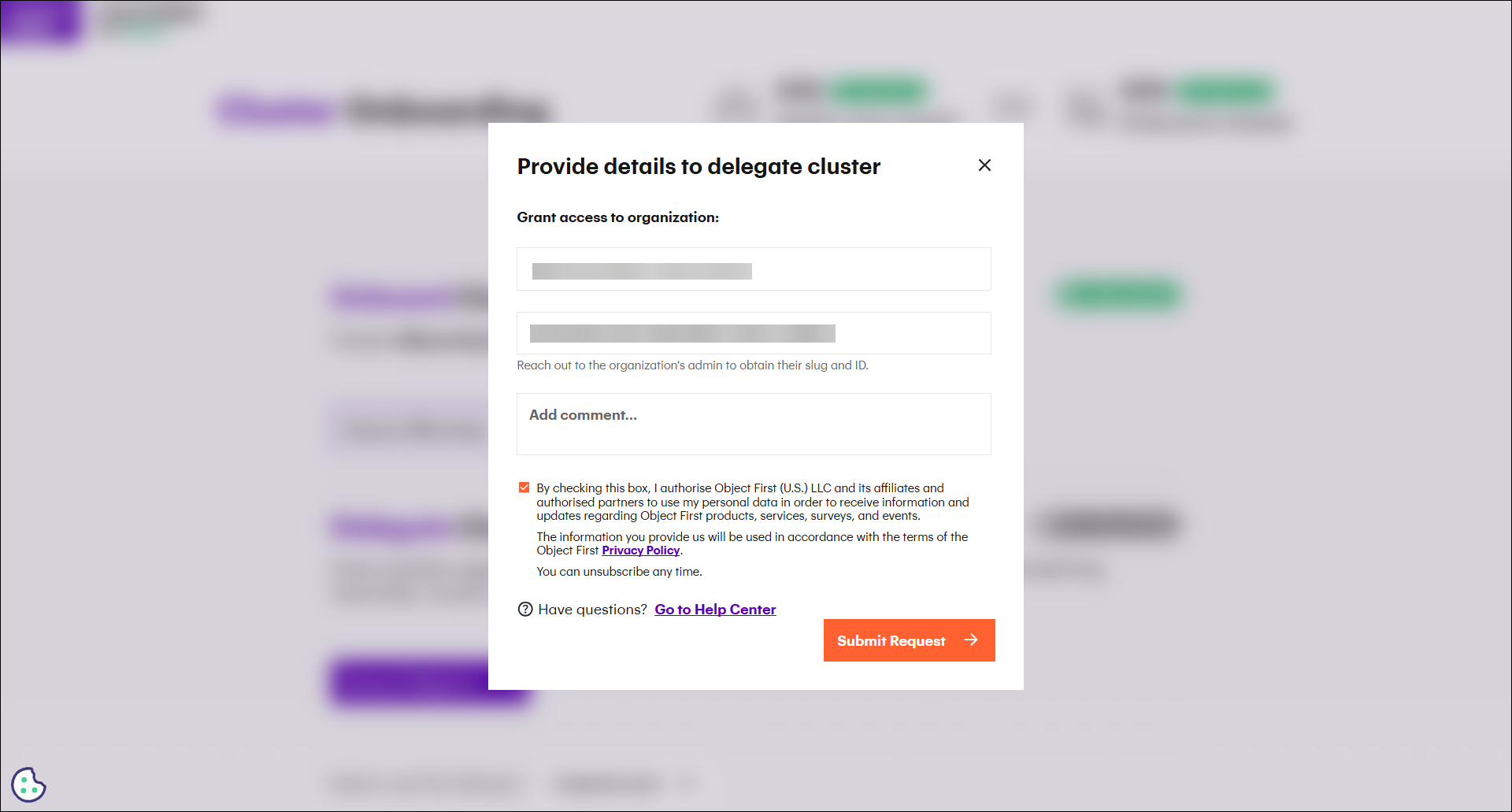
NOTE: The Organization Slug and ID can be found in your account details.
Monitor the delegation request
After the request is submitted, Fleet Manager returns to the Cluster Delegation page.
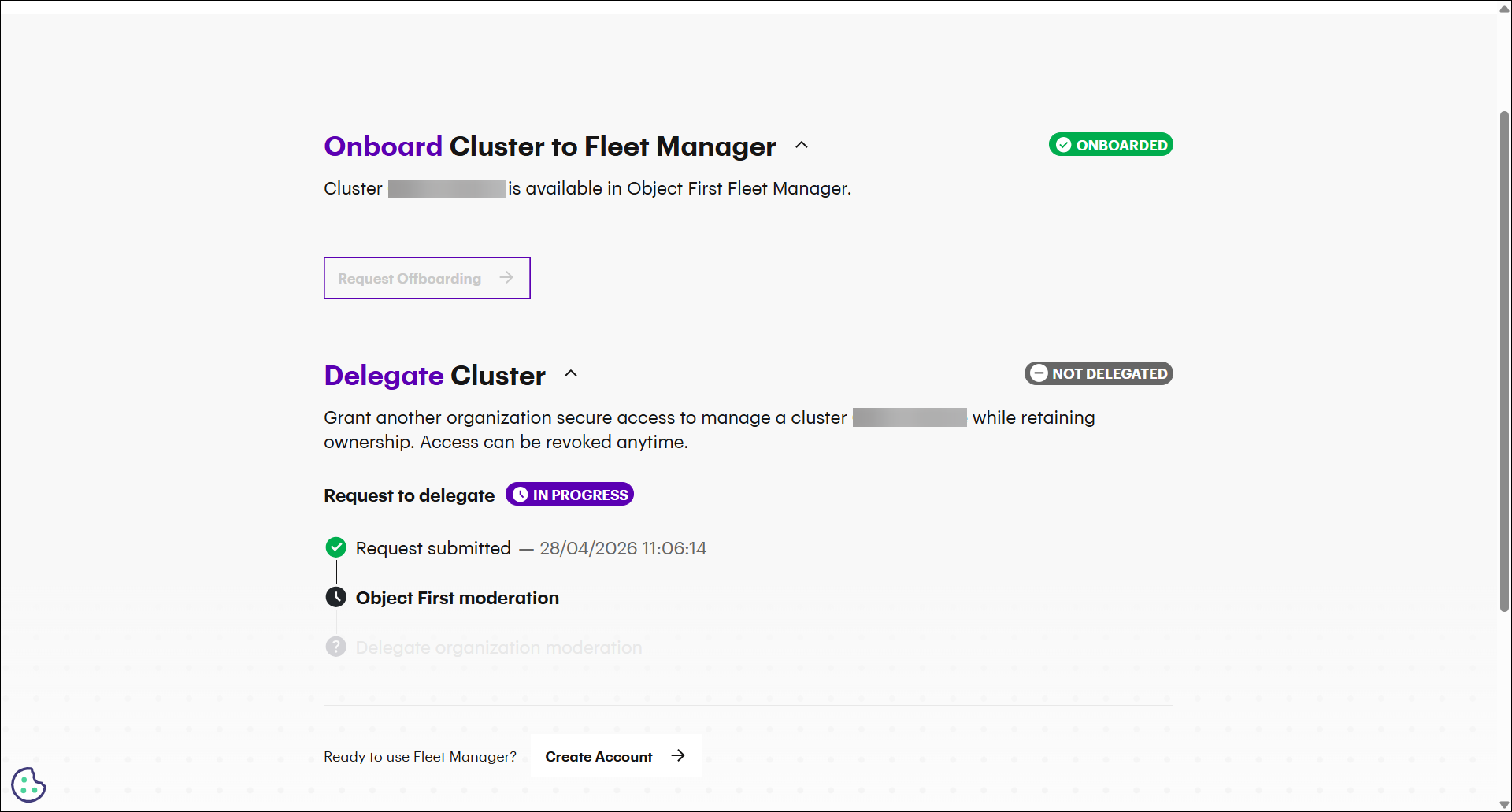
The page displays:
-
Submission date and time
-
Current request status
Initially, the request status is shown as Object First moderation.
If the request passes the initial review, the status changes to Delegatee organization moderation.
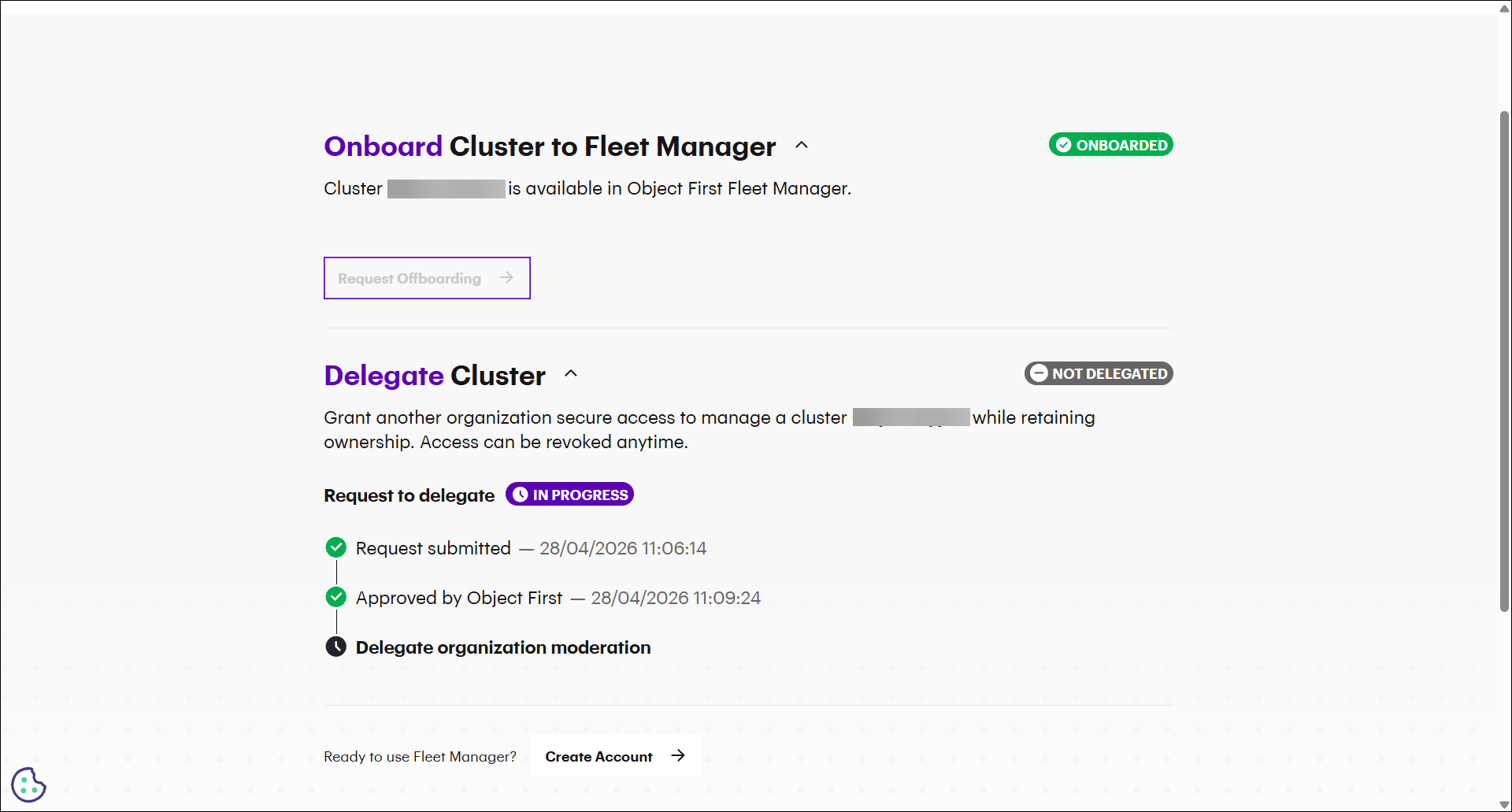
At this stage, the delegatee organization reviews the request.
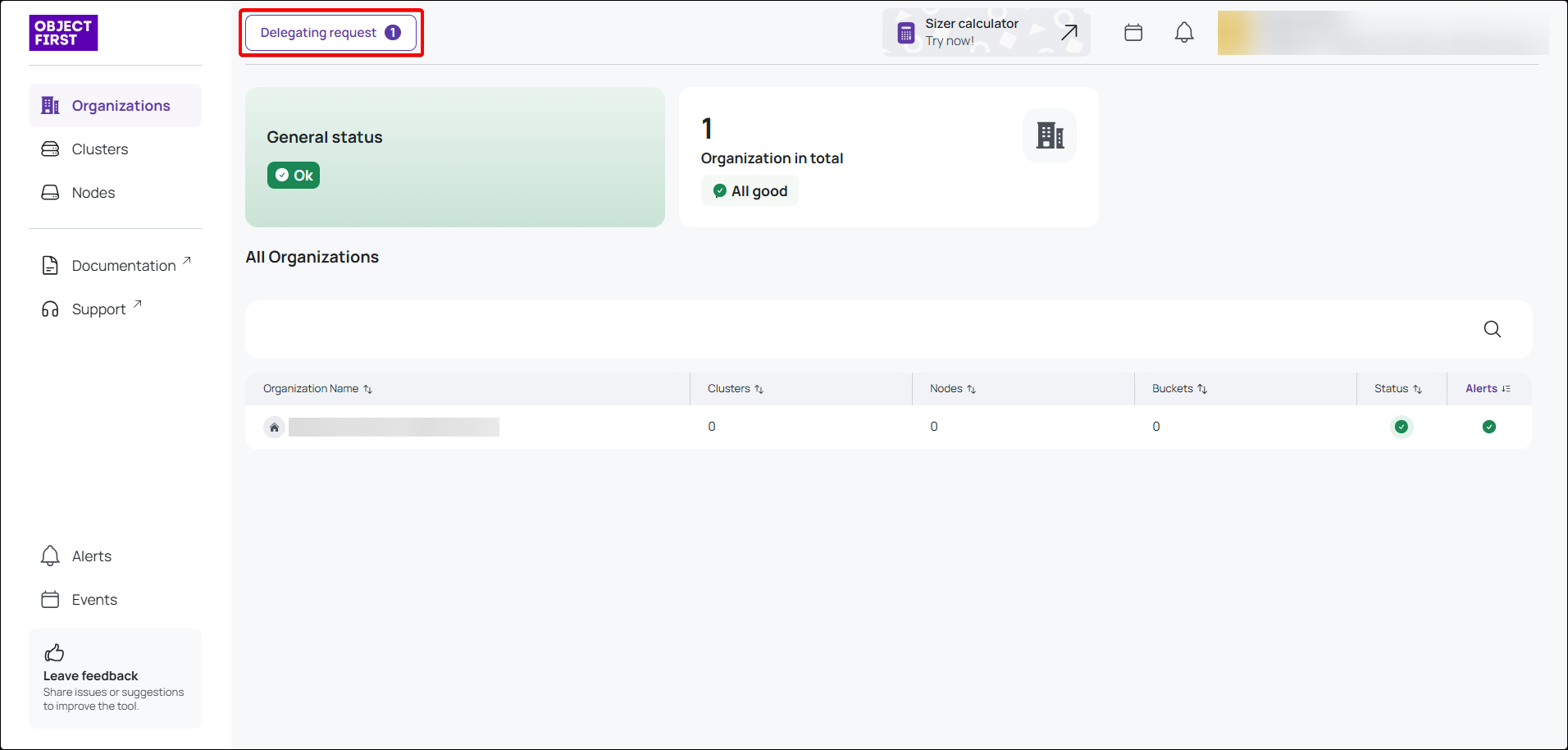
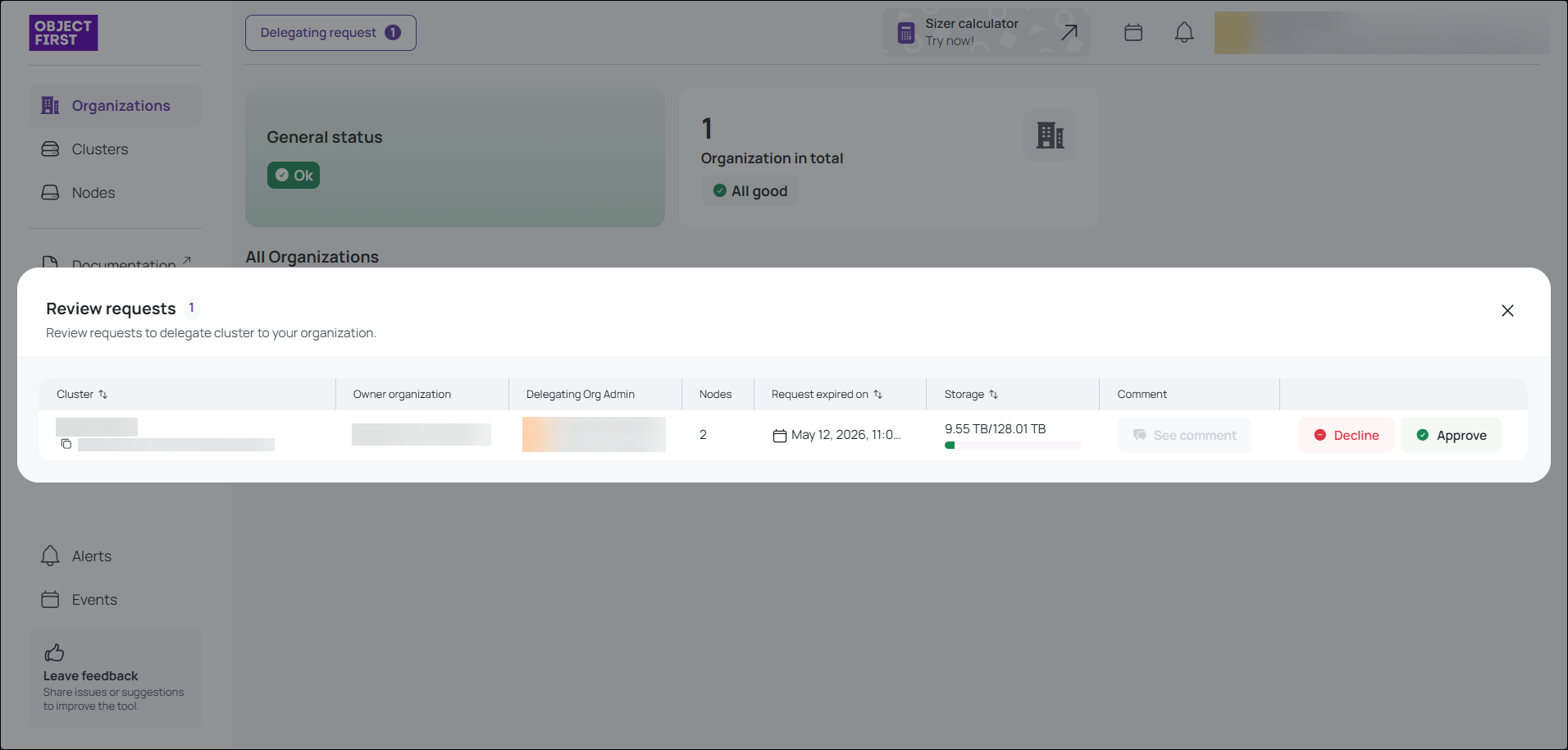
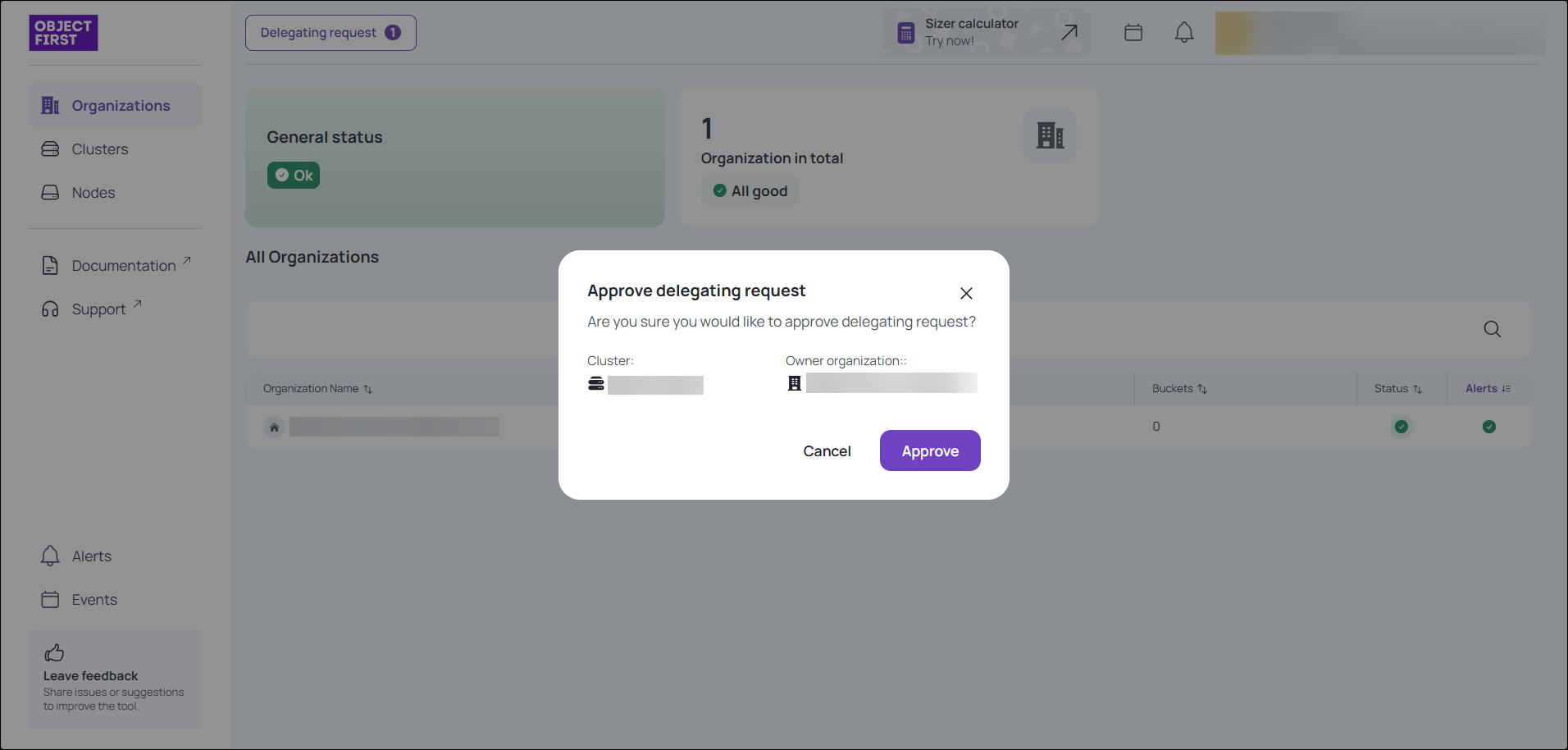
It is the last step of the delegation process, and once it is confirmed, the Cluster will be visible and manageable by Delegatee ORG in the Fleet Manager app.
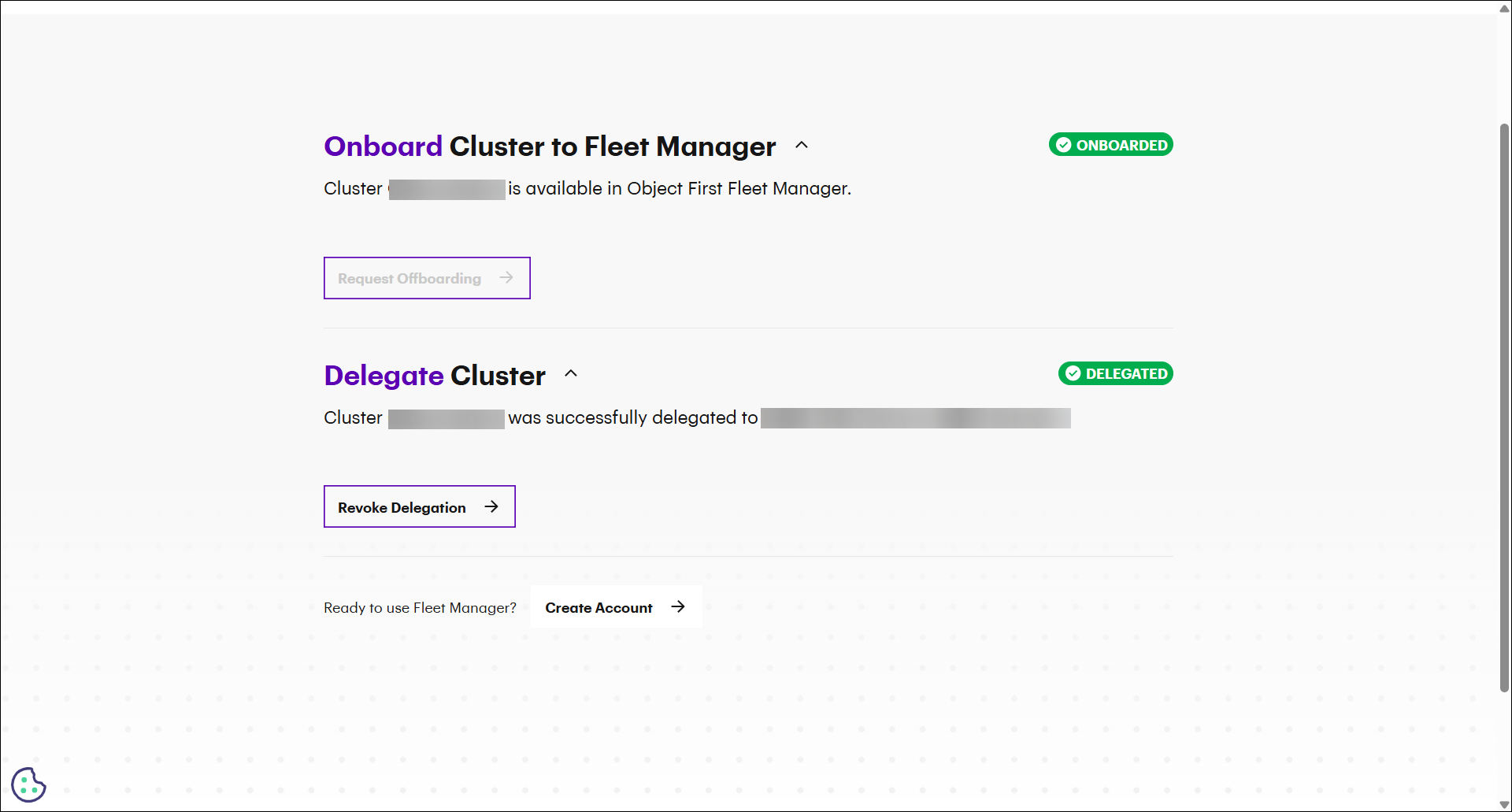
Revoke delegation
To revoke delegation, click the Revoke delegation button:
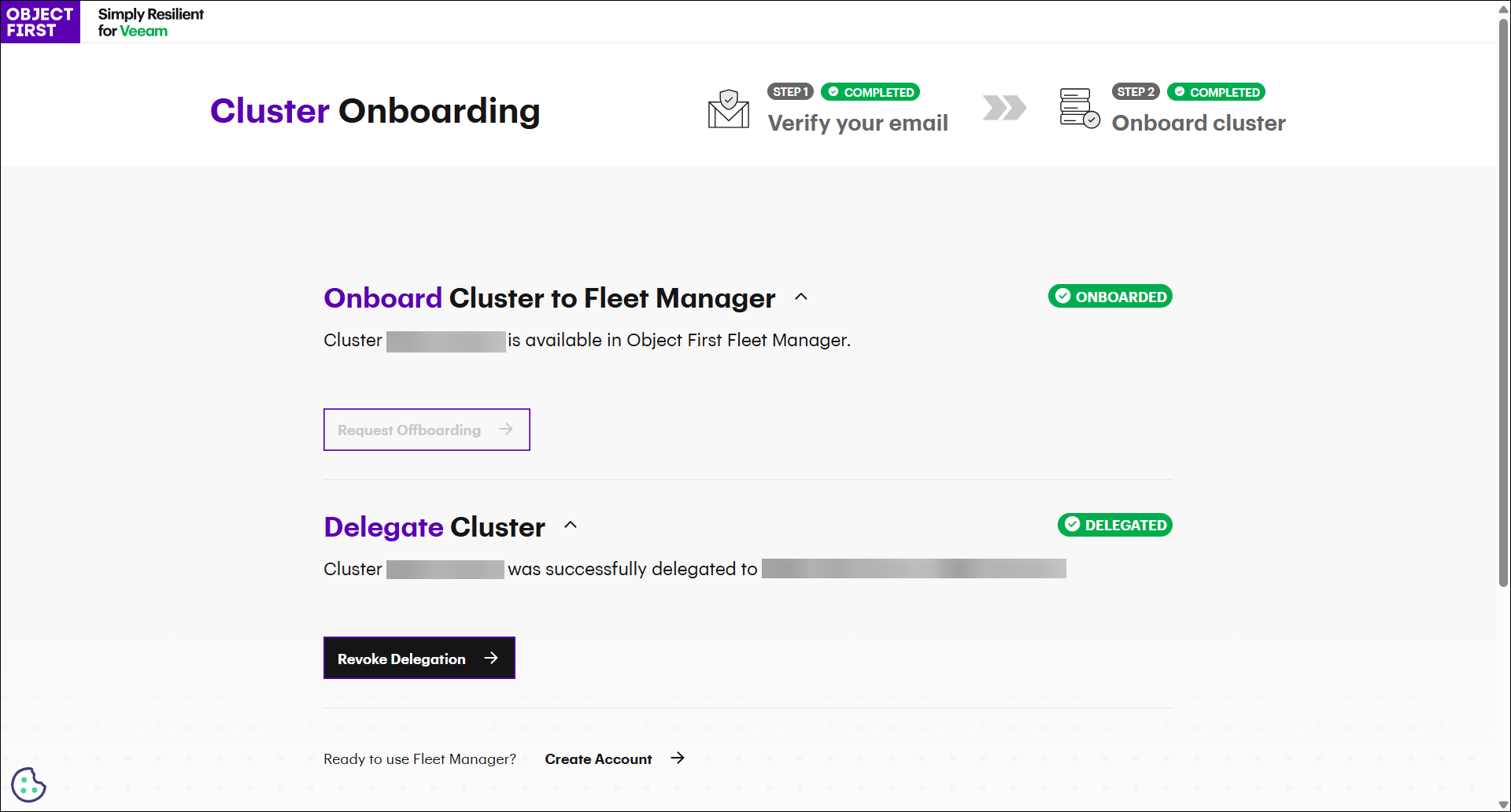
Clicking the Revoke Delegation Access opens a modal containing a message that informs you that the request will be sent to the Object First Support team for review and specifies the estimated review time of 1–3 business days. It also mentions the company name and the specific account from which the request is being submitted.
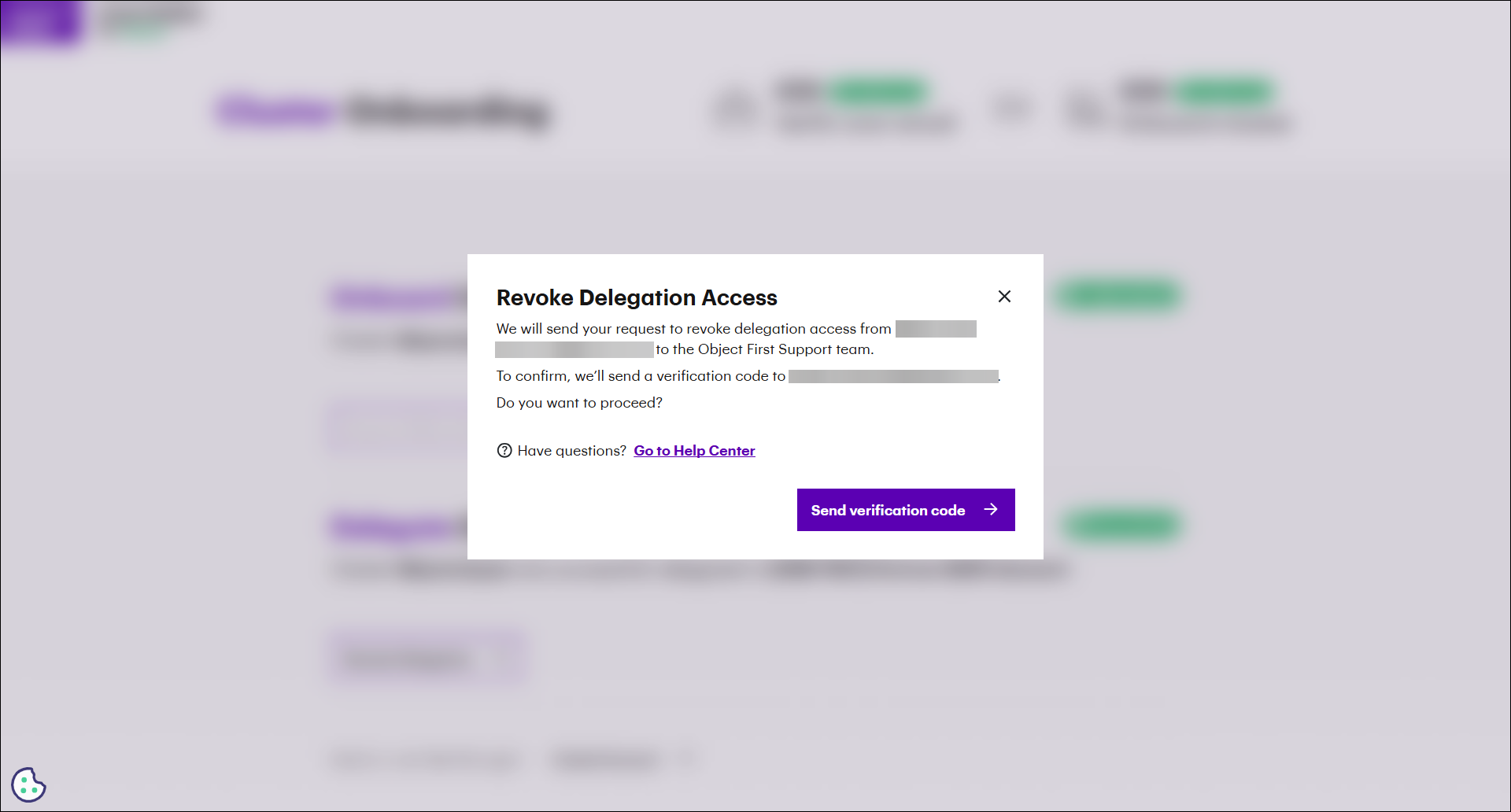
The next step is to click the Send verification code button. You will be then asked to enter the verification code that you received to your email:
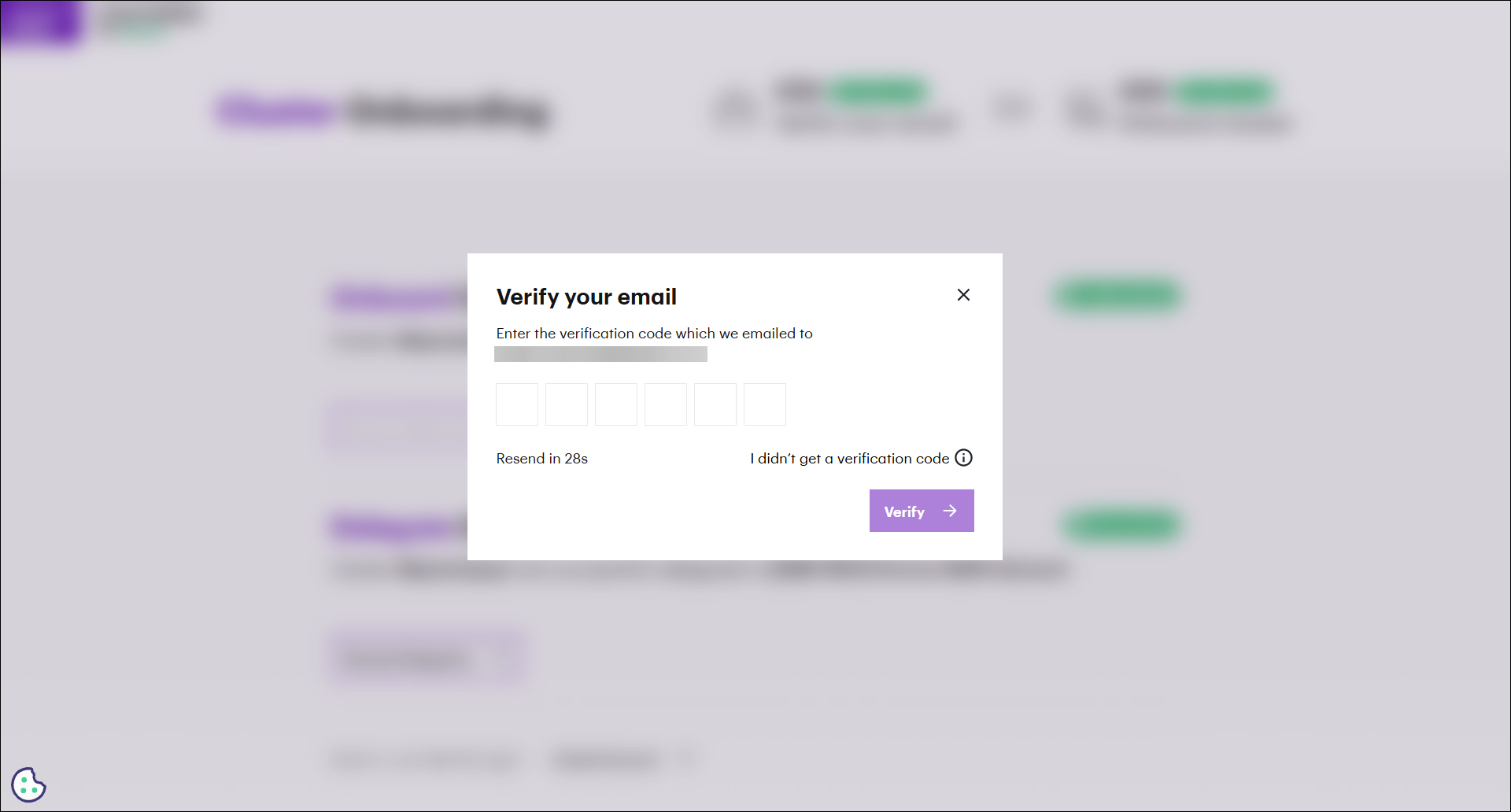
After the request is submitted, Fleet Manager returns to the Cluster Delegation page where you can monitor the status of your request: